Browse a project
First open the project on the device containing the files. Open Zen’s right panel and choose Files. If the panel already has tabs, use its new-tab menu to open Files. Select a file in the tree to open it. Use Browse Files to show or hide the tree, and drag the panel divider when you need more room for the document. The file path appears above the content.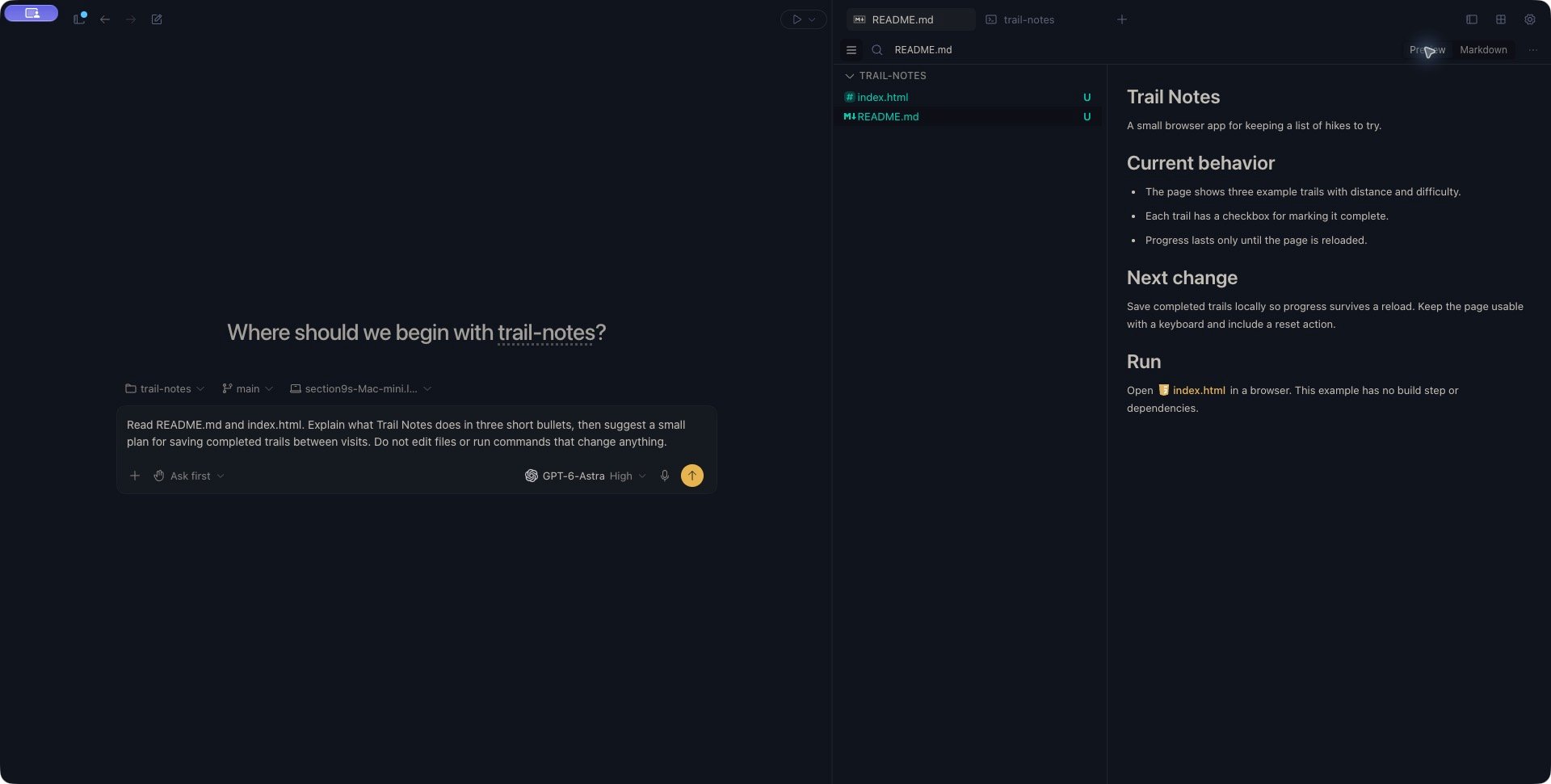
A README in Preview mode, with the project tree beside it. Use Markdown to edit its source.
Edit and save text
- Open the text file you want to change.
- For Markdown, select Markdown above the document to switch from the rendered Preview to source.
- Edit the content.
- Press Cmd+S on macOS or Ctrl+S on Windows and Linux to save.
Respond to a file changed elsewhere
If an already-open Markdown Preview still shows earlier text after an agent or another editor changes the file, close and reopen its file tab when you have no unsaved edits. Preserve any unsaved work before closing. Switching away from the tab and back may still show the retained preview; the file tree’s Reload refreshes the listing. The text editor listens for file changes from the project device. A clean buffer can refresh from disk. If you have unsaved edits, you may instead see has been updated remotely. Reload?- Reload requests the disk version and discards the unsaved version when the reload succeeds.
- Dismiss closes the notice so you can keep working with your current buffer.
Show hidden or ignored files
On desktop and web, open Settings → Appearance → File Explorer. On mobile, the corresponding controls are under Settings → Editor → File Explorer.
For example, a hidden-pattern list can include:
.env and .gitignore are not all hidden merely because their names start with a dot.
Negated patterns starting with ! are not supported. Remove an exclusion or use Show hidden files when you want to reveal those entries.
These settings control presentation. They do not delete files, prevent direct opening, or restrict what an agent may access. Use permissions to understand agent actions.