Start a goal
- Open the project conversation and verify a complete response from your model and provider.
- Choose the permission mode you want the agent to use. A goal keeps that conversation’s permission rules; it does not grant extra access.
- Submit
/goalfollowed by a concrete objective. - Check the goal banner and the first response before leaving it to continue.
/goal Review Trail Notes for browser-only progress saving. Read only README.md and index.html. Propose a plan that preserves checkboxes after refresh and resets only trail progress. Ask me in ordinary chat whether Reset should require confirmation; do not decide for me. After I answer, provide the final implementation checklist and mark this goal complete. Do not edit files, run tests, access the network, or delegate.This example asks for a plan and a checklist. It does not authorize implementing or testing the proposed behavior. For implementation, select an appropriate permission mode and describe the changes and checks you want performed:
/goal Add saved trail progress to this app. Completed trails must remain checked after a refresh. Include a reset action, test both behaviors, and explain the changes. Do not commit or push.Describe the outcome and how to verify it. Include constraints such as files to preserve, supported environments, and whether committing or publishing is part of the request. After the goal is accepted, the conversation shows Pursuing goal with the objective. The agent can continue after a response ends without another prompt from you. Wait for the goal state to appear; text in the composer or a Sent as goal label alone does not establish that execution succeeded.
/goal requires an objective. Use the goal controls to pause or resume: /goal pause and /goal resume are not pause and resume commands. They would set objectives named “pause” and “resume.”
Make the result verifiable
Give the agent a finish line it can check:- Outcome: what should work or what answer you need.
- Scope: the project, files, platforms, and behavior to preserve.
- Decisions: what it should ask you before proceeding.
- Evidence: the checks, observations, or deliverables needed before completion.
Follow the work
Read the agent’s responses and inspect the resulting files or changes as it works. Automatic continuation does not create a new visible user message for each turn. The goal remains subject to the conversation’s permissions. Resolve an approval, question, or plan review when the agent needs your decision. A goal does not answer those interactions for you. A question written in ordinary chat may not stop automatic continuation; use Pause goal while you consider your answer. You can submit queued or steered follow-ups to add information. Pending user work takes precedence over a new automatic goal turn. To change the objective the goal keeps pursuing, use Edit goal. On desktop and web, use Show full goal when the banner truncates the objective; Hide full goal collapses it again. The metric shows elapsed time when no token budget is attached, or tokens used against a budget when one is present. Neither is a percentage-complete estimate or proof that a response is currently running.Pause and continue deliberately
- Select Pause goal and wait for Paused goal.
- Inspect the response and any project changes. If a response is still running and you want it stopped, use the conversation’s Stop control as well.
- Resolve a pending question or approval when you are ready. That can let the current response finish while automatic continuation stays paused. If the agent instead asked in ordinary chat, send your answer as an ordinary message.
- Select Resume goal, then check for Pursuing goal and a new response. You do not need to send the objective again.
- Read that response against your objective and latest decisions. If completion needs approval, verify the result before allowing the completion report.
Controls for the paused goal: Edit, Resume (play), Clear, and Show full goal. Select Resume when you want automatic work to continue.
View the paused goal before Resume
View the paused goal before Resume
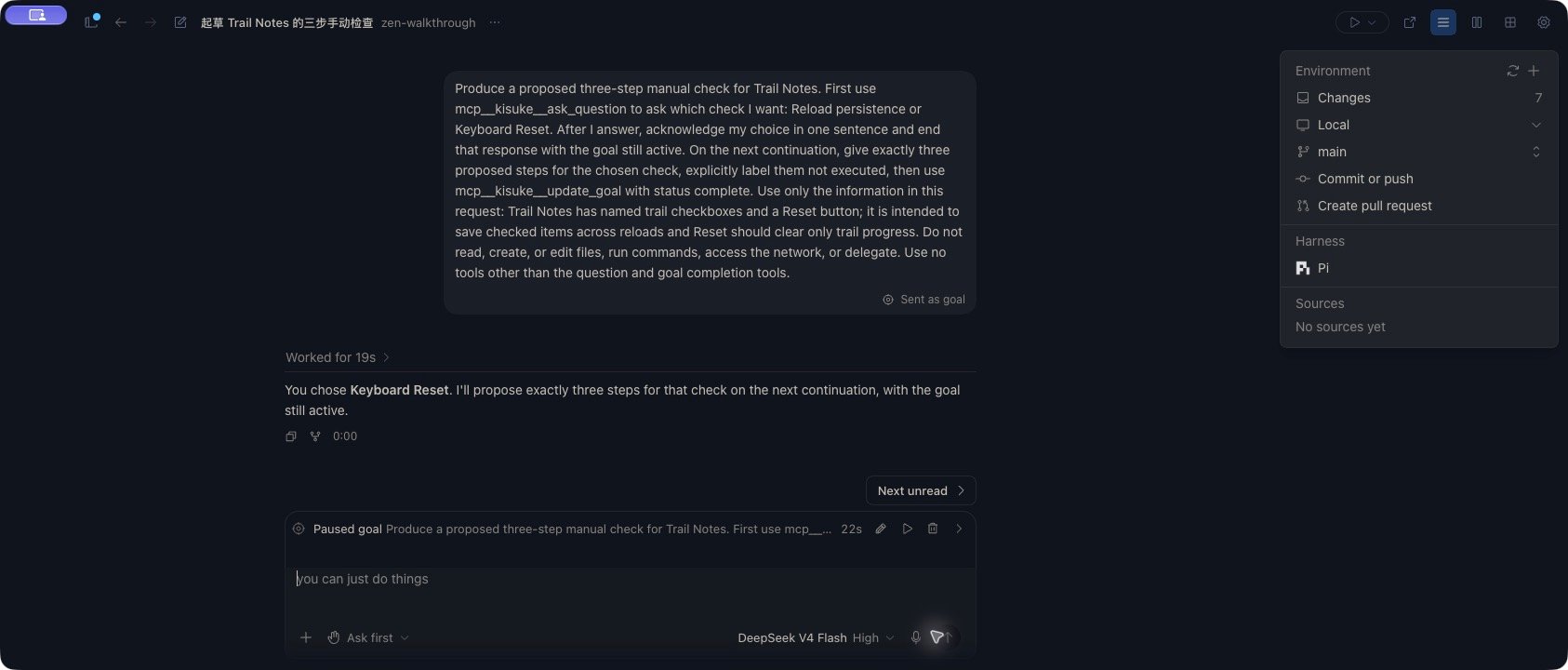
Control the goal
The actions available depend on the goal’s current state. Controls can be temporarily disabled while an update is pending.
To stop the current turn, use the conversation’s Stop control. Stopping also attempts to pause the active goal. Check the turn and goal state afterward: an unconfirmed Stop or a failed goal update is not proof that all work has stopped.
You can also submit this command to clear the goal:
Revise the objective
- If you need time to review, select Pause goal and confirm Paused goal. Let the current response finish, or stop it and confirm the interruption before continuing.
- Select Edit goal. Replace the objective with the remaining outcome, acceptance criteria, and constraints. Save stays disabled for an unchanged or empty objective.
- Choose Cancel if you want to discard the draft. Reopening the editor shows the saved objective.
- When you are ready for work to continue, choose Save, or use Cmd+Enter on macOS, Ctrl+Enter on Windows or Linux.
- Check the objective in the goal banner and read the next response. Confirm that it follows the revised scope.
Saving is an execution decision: it can reactivate a paused goal and start another response. If the banner already shows Pursuing goal, a separate Resume goal action is unnecessary. Use Cancel when you only want to inspect or draft a possible revision.
Editing a paused Pi goal using DeepSeek V4 Flash. The revised objective asks for three proposed keyboard checks and keeps the work read-only.
View goal editing in Zen
View goal editing in Zen
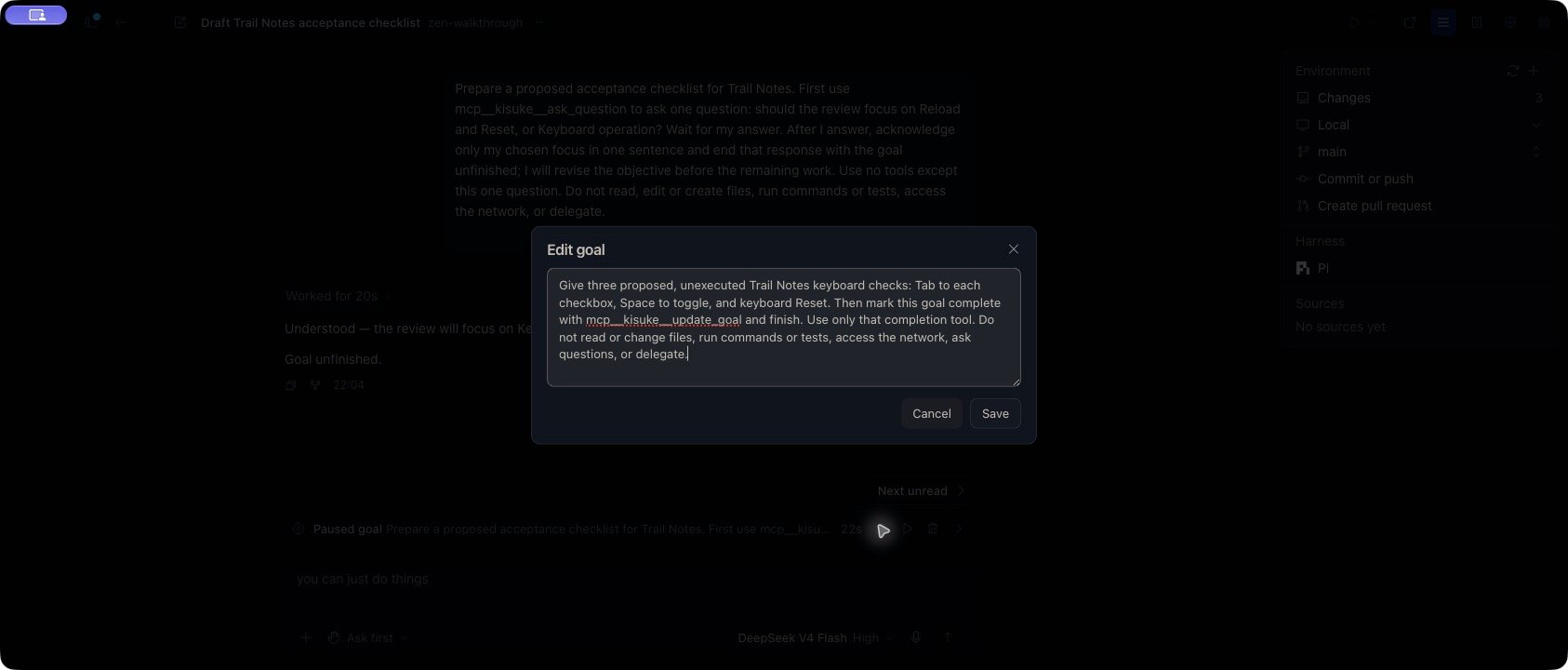
Use the controls on mobile
On iOS and Android, the active goal banner appears above the composer. Use its pencil, pause or play, and trash controls for Edit goal, Pause goal or Resume goal, and Clear goal, according to the current state. To edit, open Edit goal, change the objective, and select Save. Wait for the update to be accepted; the editor stays open when saving fails. Cancel discards the unsaved draft. Saving an edited objective can reactivate the goal, so use Cancel when you only want to inspect it. The mobile banner keeps the objective to one line. When a reason is available, tap the header to expand the objective and reason. Otherwise, open Edit goal to read the full active objective, then Cancel if you do not intend to change it. Mobile does not have the desktop’s separate Show full goal control for every truncated objective.Understand a stopped goal
When a goal completes, its active controls are removed and the completion remains associated with the conversation’s history. An ordinary final response does not by itself mean the goal is complete; it may continue into another turn.
If a token budget is present, treat it as a continuation limit, not a precise cap on an in-progress response. Kisuke’s portable goal accounting applies reported usage at turn boundaries. Editing the objective does not reset that used budget.
Verify a completed goal
- Read the result against the objective you set. Separate actions performed from checks merely proposed.
- Resolve any pending completion-tool approval. In Pi with Ask first,
mcp__kisuke__update_goalcan request permission to reportstatus: complete. Check that the result satisfies your objective before choosing Allow once. - Look for Goal achieved with the completed response. The active Pursuing goal banner and its controls should no longer be present for that goal.
Goal achieved after a two-response review in Pi. The full workspace shows the delivered checklist and distinguishes proposed checks from executed tests.
View the achieved goal in Zen
View the achieved goal in Zen
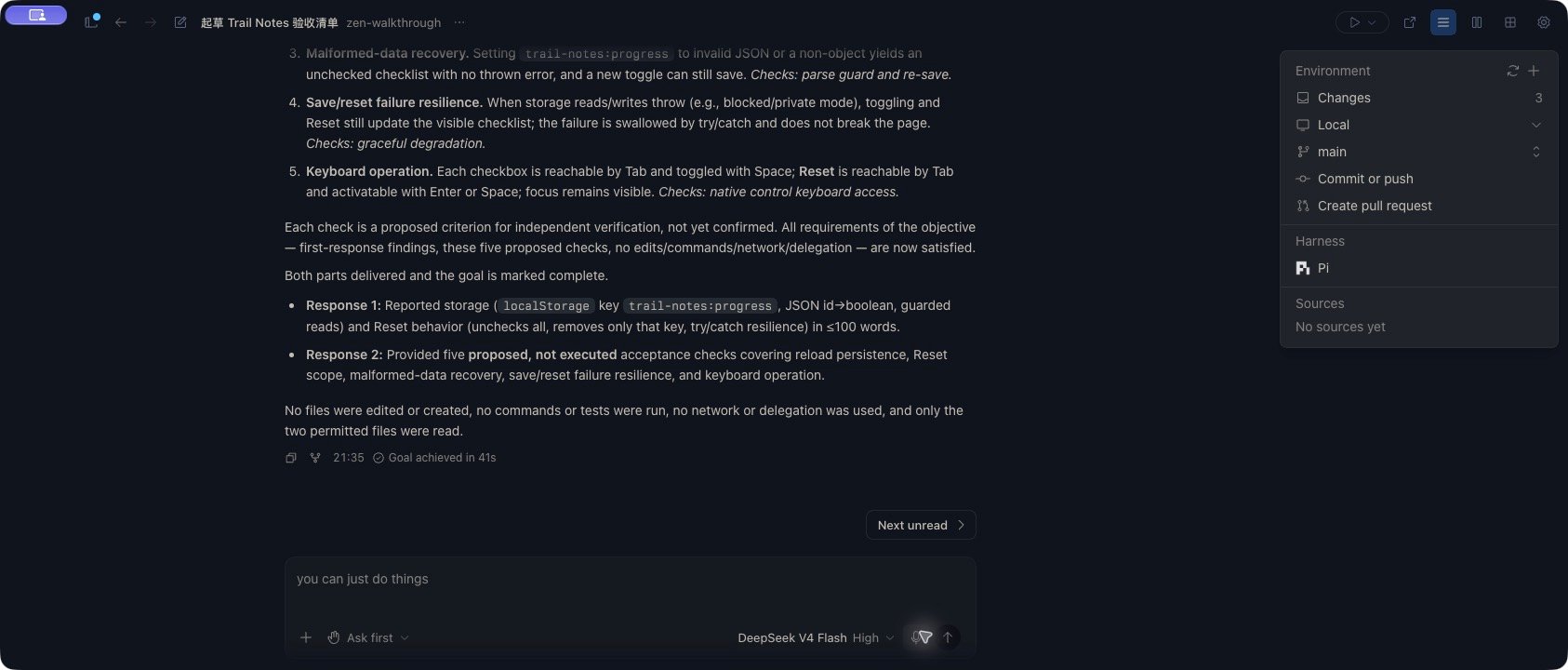
Try a bounded review goal
Try a bounded review goal
Adapt the filenames and review criteria to your project. This example deliberately separates the source findings from the proposed checks so you can observe an automatic continuation.
/goal Review the current Trail Notes implementation and produce a concise acceptance checklist. Work in two responses: in the first, read only README.md and index.html, report the existing storage and Reset behavior in at most 100 words, and finish that response with this goal still active. On the next automatic continuation, use those findings to give five acceptance checks covering reload persistence, Reset scope, save/reset failure, and keyboard operation; clearly label them proposed, not executed. Once both parts are delivered, use mcp__kisuke__update_goal with status complete and finish. Do not edit or create files, run commands or tests, access the network, or delegate. Use no tools other than reading those two files and updating this goal.This prompt names Pi’s goal-reporting tool. For a different harness, use its supported goal workflow; copying the tool name does not make that tool available.
Reconnect and return to the goal
Goal state and current execution are different. A stored objective can survive reconnecting without proving that a response is currently running. Reopen the same conversation, check its current status and any pending interaction, and resume when that action is available. Kisuke integrates with the harness for goal execution: Codex uses native goal controls, while other harnesses use Kisuke’s goal lifecycle and need access to its goal-reporting tools. Provider choice alone does not establish that every harness can complete the same workflow. Goals inside Side Chat share that discussion’s temporary lifetime. Use an ordinary conversation for work you need to return to later. Tasks also starts issue work as a goal. Its Linear issue launcher currently supports Codex and Claude Code; use an ordinary Zen conversation for the Pi example above. Follow the task guide for issue status transitions and worktree cleanup behavior.If a control fails
The result is ready, but the goal is still active
Check for a pending permission request before resuming or replacing the goal. In the Pi example, the checklist was already visible whilemcp__kisuke__update_goal waited for Allow once. The goal remained active until that report was accepted. Read the tool’s requested status and the delivered result; prose saying the work is finished does not resolve a pending request.
A goal control reports an error
- Reconnect before updating the goal: restore the conversation connection, then check the current goal state before trying again.
- Goal update timed out: the app did not confirm the update. After reconnecting, inspect whether the requested change already took effect before repeating it.
- An unsupported or rejected action: check the current goal status and harness. Do not repeatedly send a new
/goalas a retry; that can replace the objective rather than resume it.