Open an existing folder
- On the project landing screen, choose Open project. From an existing workspace, use Open folder in the sidebar.
- In Browse Folders, select the device containing your project.
- Navigate to the project folder. You can also enter its path in the path field and press Enter. The path is on the selected device.
- Select the folder, or navigate inside it, then choose Open.
- Check the project and device shown above the composer before starting work.
Create a folder while browsing
Navigate to the parent directory on the intended device, then choose New Folder. Enter a name and choose Create. Once it appears as the selected folder, choose Open to use it as a project. Creating a folder and opening it are separate steps. If creation fails, correct the reported name, path, or access problem before trying again.Inspect the workspace before your first prompt
In Zen mode, you can inspect the project before sending a message:- Open the right panel and choose Files.
- Open a README or another familiar file to confirm the folder contents.
- Open a Terminal from the panel’s new-tab menu if you want to inspect the working directory yourself.
- Choose your harness and model and permissions, then write your request.
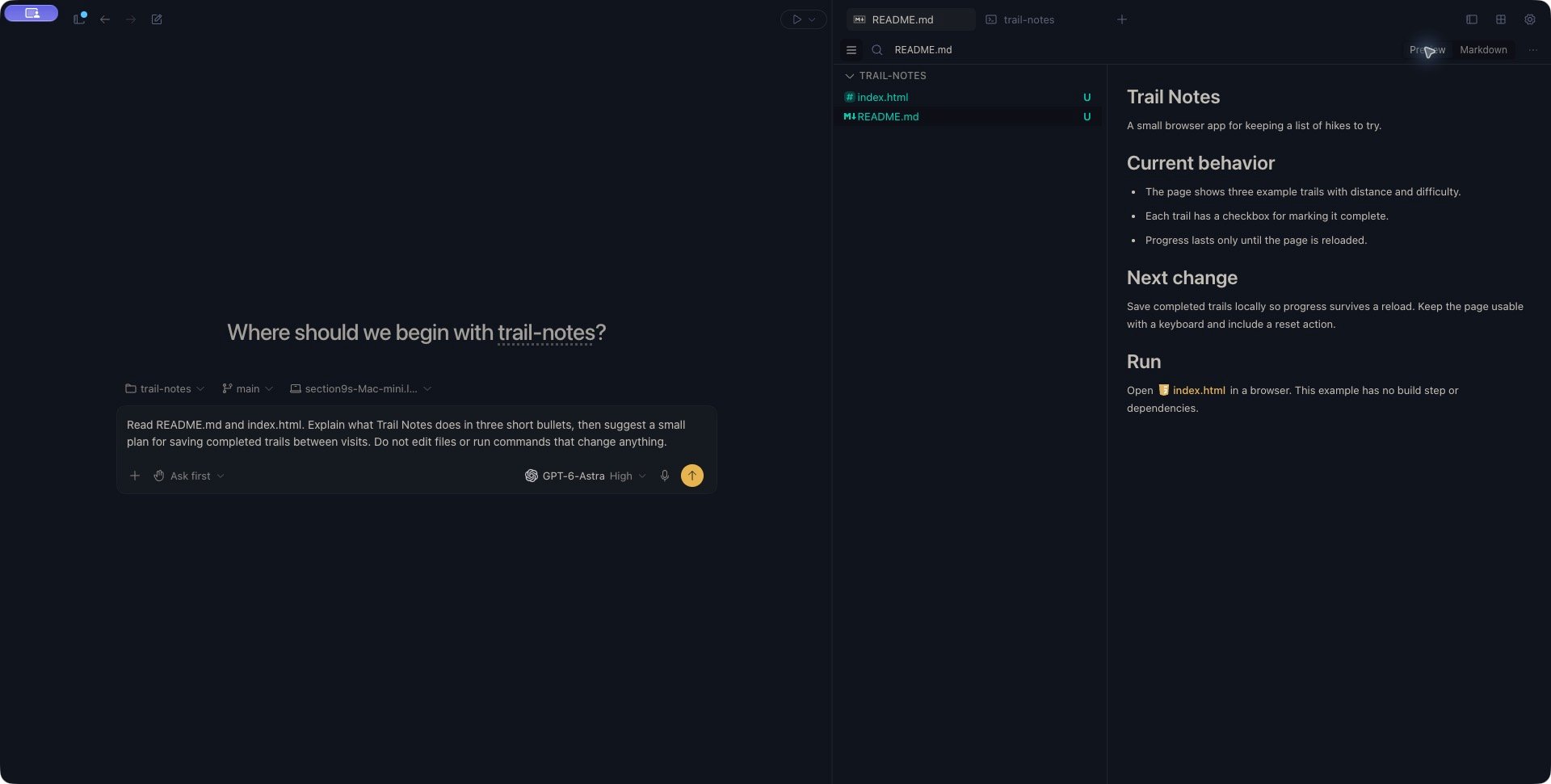
A project README open beside a new Zen conversation. The composer contains a draft; no agent response is shown.
If the folder will not open
After an error, confirm the project shown in the workspace before acting. Choosing a folder in the browser is not the same as successfully opening it.
Continue with Files and the editor or Terminal. To work on another branch in a separate folder, create a worktree from Zen.