Recognize the question panel
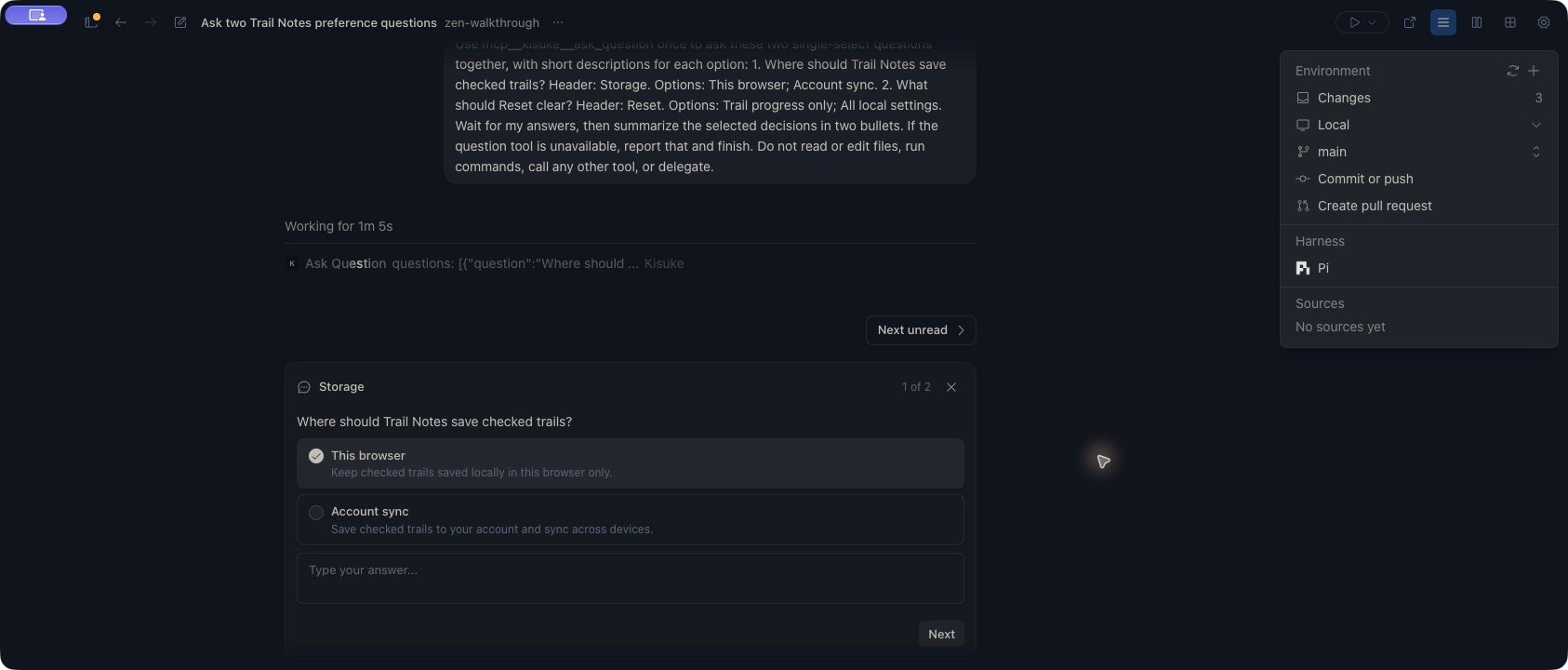
In Zen mode, a structured question replaces the normal composer with the question, answer options, Type your answer…, and Next or Submit. A request with several questions also shows your position, such as 1 of 2. The panel appears when the active harness sends a supported question request. Asking the agent to clarify something does not guarantee this panel will appear. A numbered list of questions in the transcript is ordinary response text; use a chat reply when the normal composer remains available.A two-question request from Pi in Zen. The first option is preselected; Next advances the draft to the next question.
View the question in the full Zen workspace
View the question in the full Zen workspace
Review and submit an answer
- Read the question and the descriptions under its options.
- Choose the answer you want, or enter a response in Type your answer….
- If there are several questions, choose Next to review each one. Use Back to revisit your answers.
- Choose Submit to send the answers together.
Write a custom answer
Use Type your answer… when none of the options fits or your decision needs more detail. For example:Save progress in this browser for now. Keep the storage format versioned so we can add account sync later. Do not add a sign-in flow in this change.Custom text replaces the selected options for that question; it is not an additional note sent alongside them. If you want an option plus a qualification, include both in your written answer. Selecting an option again switches the answer back to that option, even if text remains visible in the custom field. Check the selected state before submitting. Clearing custom text does not automatically restore the initial option—select an option yourself if you want to use it. An answer containing only spaces is empty. Next requires an answer to the current question, and Submit requires answers to all questions in the request.
Use the keyboard on desktop
When focus is in the options area:
Moving keyboard focus does not itself change the selected answer. Because options start preselected, Enter can advance or submit immediately. Review every question before using the submit shortcut.
Cancel a question
On desktop or web, use the × control at the top of the question panel, labelled Cancel question. This sends a request to cancel the question without submitting your drafted answers. Cancellation does not mean the agent’s entire task is finished. Some harnesses can continue without the missing information or ask another question. Use the conversation’s Stop control if you need to stop current work, and check the resulting status. For an ongoing goal, also check whether automatic work remains active.Answer on mobile
On iOS and Android, the question also appears in the composer area:- Tap an option, or scroll to Type your answer… beneath or type your own response.
- Use Next and Back to review a request with several questions.
- Tap Submit on the last question to send the complete set of answers.
The mobile question panel’s × control currently does not cancel the request from the main chat. To cancel without supplying an answer, open the same conversation on desktop or web with access to its connected device, check that the question is still pending, and use Cancel question there.
Answer a question written in chat
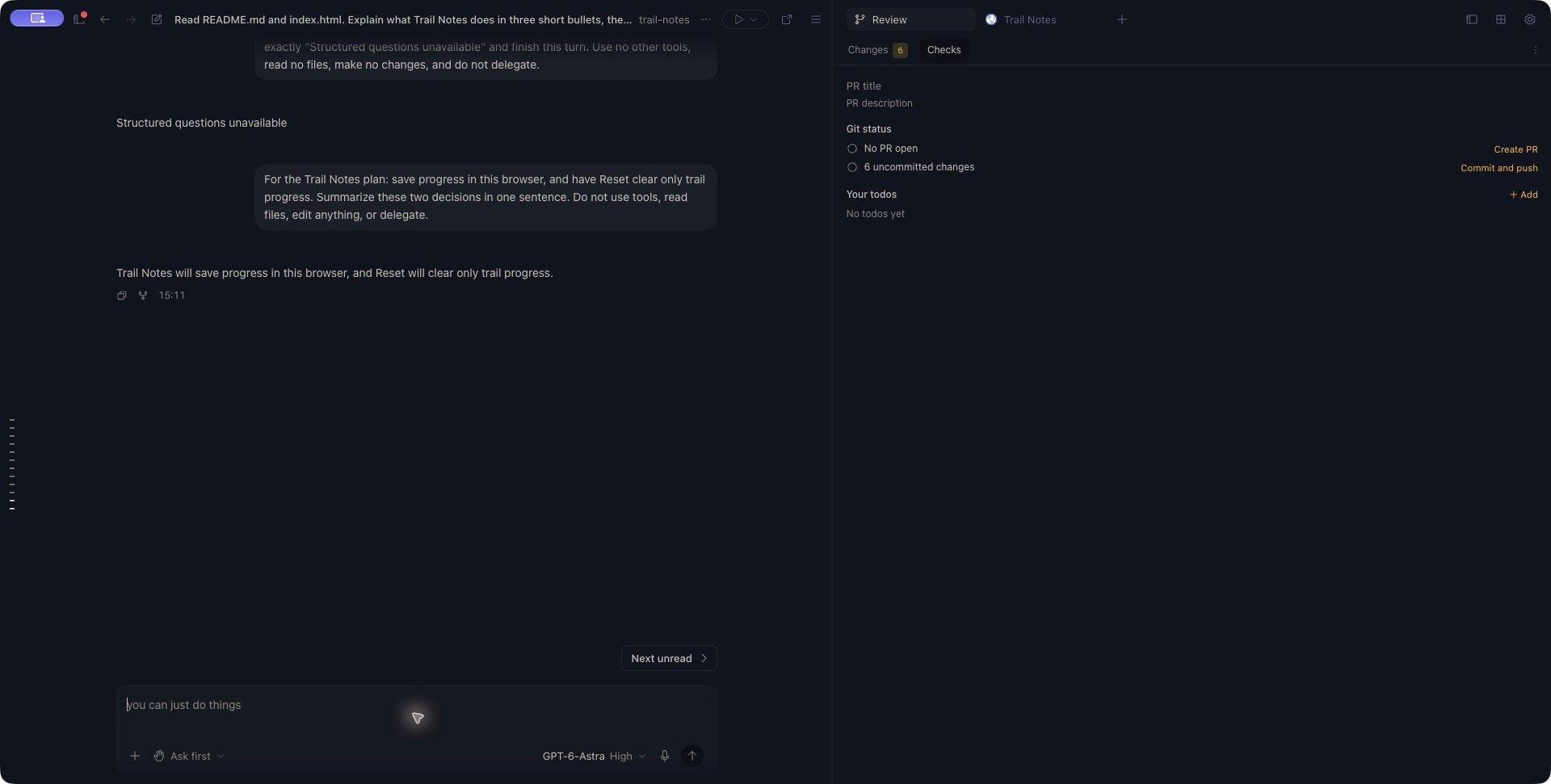
When questions appear as ordinary response text, write your decisions in the normal composer. Include enough context to identify which question each answer resolves. For example:For the Trail Notes plan: save progress in this browser, and have Reset clear only trail progress. Summarize these two decisions in one sentence. Do not use tools or edit files.Send the message, then check the acknowledgment. In this example, it should confirm browser storage and a reset limited to trail progress. A summary confirms the decision was understood; it does not mean the storage feature has been implemented.
A normal reply supplies both decisions after this Codex conversation reported that structured questions were unavailable. The agent acknowledges the choices without editing files.
View the reply in the full Zen workspace
View the reply in the full Zen workspace