Review the scope first
Open Review → Changes beside the conversation. Check the project, branch, and file contents before committing. Finish or stop any work that could change the files while you review them. Staged shows the versions prepared in Git’s index. Changes shows unstaged edits and untracked files. A file can appear in both groups if you edited it again after staging. To make a commit containing only selected files, stage those files first. The commit menu’s scope setting determines whether other changes are included too.Commit staged files
- In the conversation’s top bar, choose Show summary if the summary is hidden.
- Under Environment, check the branch and choose Commit or push.
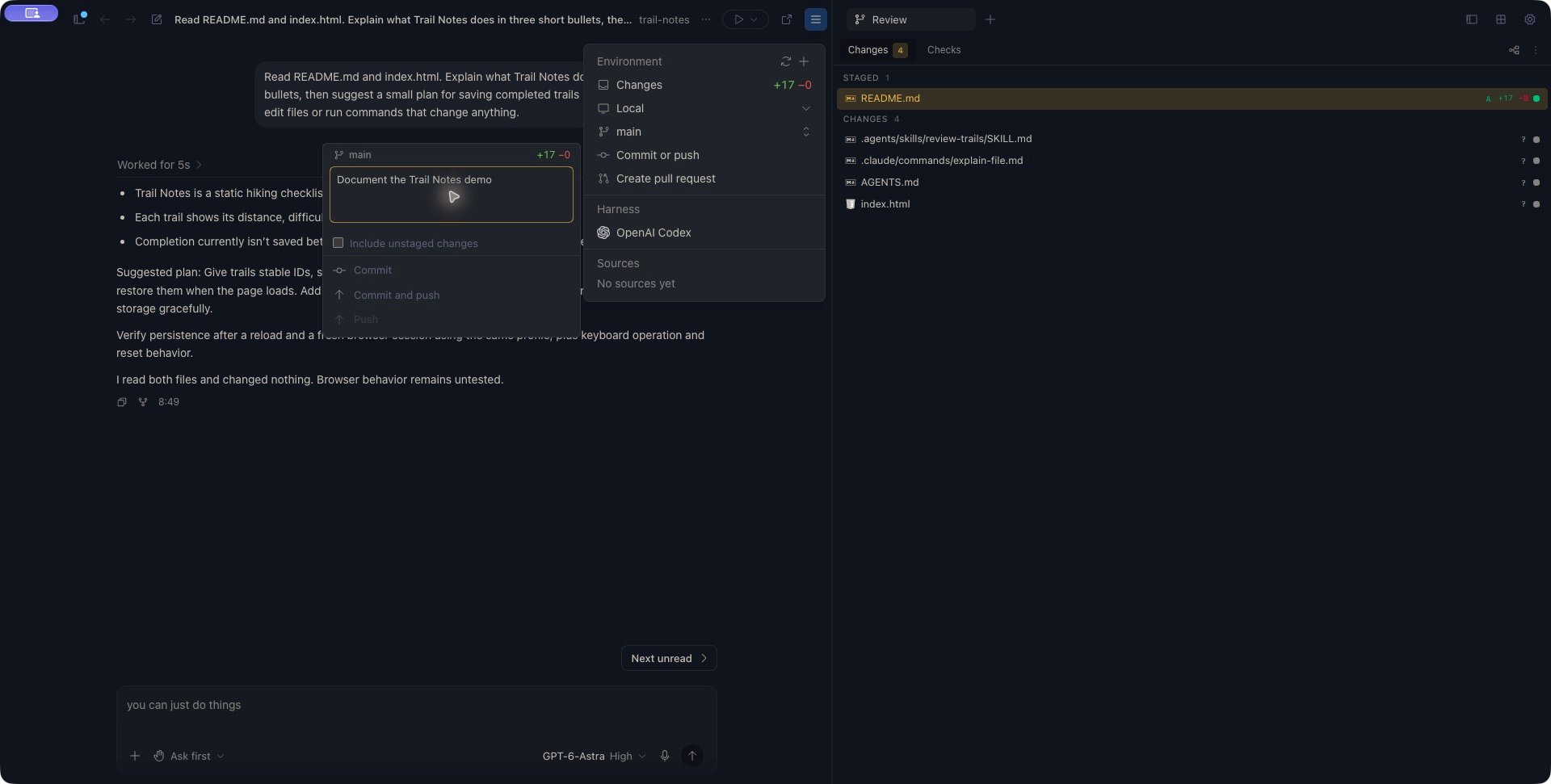
- Clear Include unstaged changes. It is selected when this menu first opens.
- Enter a message in Commit message or generate…, such as
Document the Trail Notes demo. - Choose Commit.
- Wait for the operation to finish, then inspect Review again.
The staged-only scope in Commit or push: Include unstaged changes is cleared. Review the staged files before submitting.
View the full Zen workspace
View the full Zen workspace
Include all current changes
Leave Include unstaged changes selected when you intend to include all current repository changes. This stages unstaged edits and untracked files as part of the operation, alongside anything already staged. Review the entire Changes list first. Clearing a file’s staged status does not exclude it from an operation that includes all changes.Generate a message
If the message is empty, choosing Commit or Commit and push fills in a suggested message first. Review or edit that text, then choose the action again to execute it. The current suggestion uses changed file names, with results such asUpdate README.md or Update 4 files. Replace it with a description of the change when that would make the history clearer.
Push commits
Use Commit and push when you want to create the scoped commit and then send commits toorigin. Use Push for commits you have already created. In the summary menu, Push is enabled when the reported branch state shows commits ahead of its upstream.
Check the branch and destination first. If Kisuke recognizes a default-branch update, it asks you to confirm it. Read that prompt before accepting; the presence or absence of a prompt does not replace checking the selected branch yourself.
A commit can succeed before a later fetch or push fails. The local commit remains in that case. Read the error and check the repository before trying again.
After pushing a feature branch, create a pull request from Zen to prepare it for review.
Recognize the other commit dialog
Review’s Checks tab can offer Commit and push for uncommitted changes. This opens a different dialog with a file preview, Commit message, and Push to origin/… after commit. That dialog commits all current changes, including unstaged files. Its push checkbox starts selected. Clear the push checkbox for a local commit, or use the summary’s Commit or push menu with Include unstaged changes cleared when you need a staged-only commit. Do not assume every Commit button has the same file scope. Check the controls in the surface you opened.Recover from a failed or uncertain operation
Read the error and refresh Git status before repeating a mutation. Closing a menu or losing the connection does not prove that a commit or push was cancelled.
For a local check, open the project’s terminal and inspect: