Ask for a useful checklist
Give the agent an outcome and verification criteria. For example:Review how Trail Notes saves completed trails. Track three steps if your tools support a checklist: inspect README.md and index.html, confirm which behavior to emphasize, and propose acceptance checks. Ask me whether to focus on reload and Reset or keyboard operation. Keep the checklist updated. Label the checks proposed, not executed. Do not edit files, run commands or tests, access the network, or delegate.The checklist depends on tools available to the running session. If the agent supplies a numbered list only in its response, that is ordinary text; it does not necessarily create Kisuke’s progress indicator. A session without a plan or task tool can still explain its steps in chat. A checklist is also separate from Plan mode and plan approval. It describes progress; it does not change your permission mode or ask you to approve implementation. Check the composer permission menu when deciding what the agent may do.
Read Step n / total
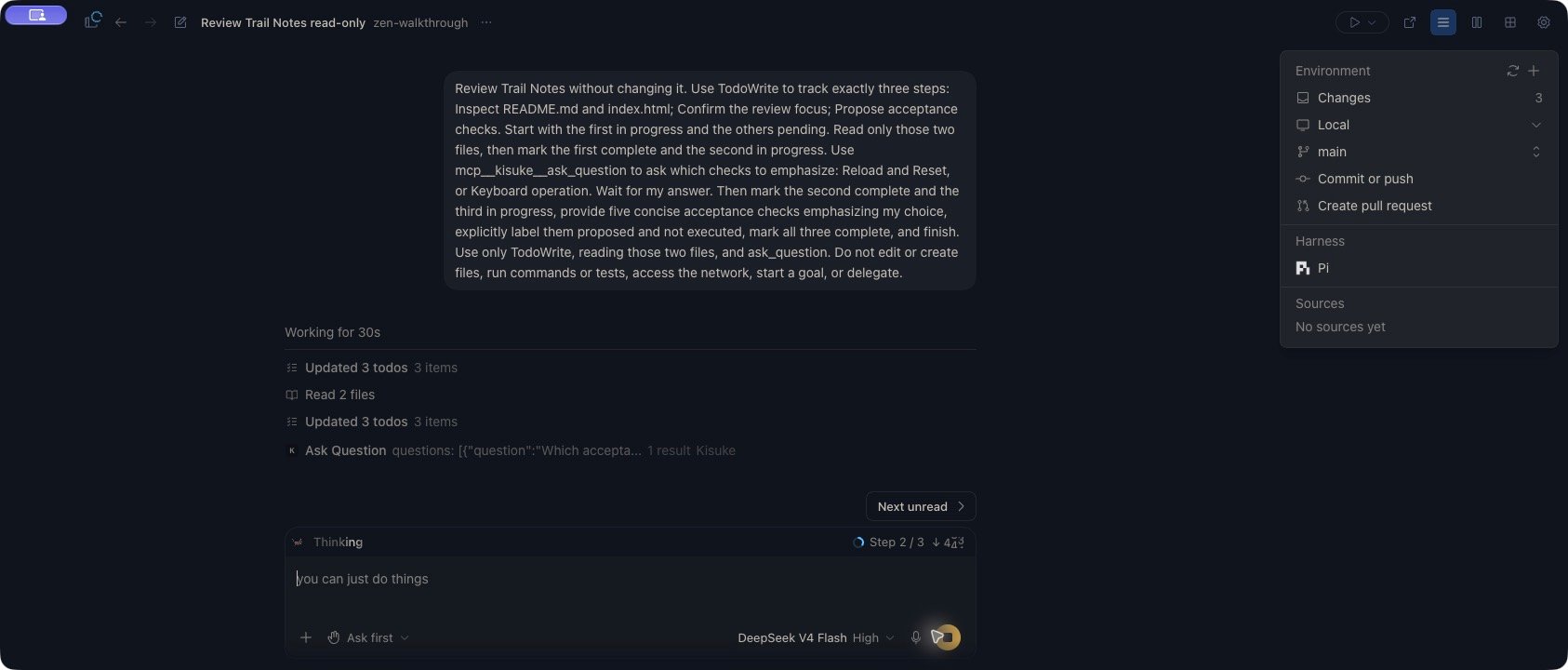
When the response has a current checklist, its status area shows a progress ring and a label such as Step 2 / 3. On desktop and web, hover over this label to inspect the checklist. Completed entries are crossed out. An entry can include blocked by followed by task IDs when the harness supplies dependencies. The phone shows the same step count and completion ring in the response’s status area. It does not provide the desktop hover checklist.
For example, if the first entry is complete, the second is in progress, and the third is pending, the label is Step 2 / 3 and the ring is one-third complete.
A live Pi response using DeepSeek V4 Flash shows Step 2 / 3 above the Zen composer. The files have been read; the checklist still identifies confirming the review focus as the current step.
View the live checklist review in Zen
View the live checklist review in Zen
Distinguish the kinds of work
Several features can describe work in progress:
An activity entry such as Created task, Updated task, or a plan-tool update records what the agent did at that moment. Historical tool entries are not another live copy of the current checklist.
On desktop, expand Worked for… above a completed response to review its activity and earlier findings. In the Trail Notes example, this reveals the checklist updates and five proposed acceptance checks. Completing the review checklist did not execute those checks.
Check files separately from steps
The status area can also show a file count and addition/deletion counts for changes reported during the current response. These are separate from checklist completion. On desktop and web, hover over the file count for the listed files, or select it to open the changes view. Use Git Review to inspect the working tree, including changes that existed before the current response. Finishing a checklist does not commit changes or prove that tests passed. Read the final response for what changed, what was verified, and what remains untested. Check the actual files and test output for work you intend to keep.Read context usage
Context is the information available to the model for a response. In a long conversation, inspect context usage to understand how much of the displayed context window is occupied. This is separate from the step checklist and its completion ring. On desktop and web, select the small ring in the composer, labeled Show context usage. It normally appears at 70% usage or higher. To keep it visible below that threshold, enable Always show context usage in Settings → General. An empty conversation can show No context yet. On your phone, tap the message field to expand the composer, then tap its context ring to open Context Window. The phone ring depicts remaining capacity; the desktop ring depicts used capacity. The phone ring also includes accumulated output tokens that the detail sheet does not, so the ring and sheet can disagree. Use the detail sheet’s figures when inspecting the reported context.Interpret the breakdown
The header shows used tokens, the displayed window size, and the percentage used. The grid summarizes used space, free space, and any reported buffer. For example,150k/200k tkns (75%) describes the displayed context estimate; it does not mean the task is 75% complete.
These are estimates, not a count of every token processed over the conversation’s lifetime. Some harnesses supply an active-context total without category details; Kisuke then places that total under Messages. A missing Skills or MCP tools row does not prove those capabilities are absent.
Window size comes from the reported context or available model information, with a fallback when neither is available. Do not assume every model has the same limit, or that selecting a model guarantees a fresh usage reading. Figures update when usage information arrives; resumed conversations and active responses can have incomplete or older readings.
Continue a long conversation
Compaction reduces the context carried forward, typically by summarizing earlier work. Preserve critical decisions and verification results in project files or project instructions, and restate constraints that must guide the next response. Kisuke exposes Compact context in the desktop context popover and Compact Context in the phone sheet. The composer also offers/compact.
Manual compaction depends on the harness. Kisuke sends
/compact through its prompt path; it does not issue a dedicated native compaction operation for Codex or Pi. Do not rely on this control to force compaction in those harnesses. An ACP agent’s handling also depends on that agent. Automatic compaction performed by a harness is separate from this manual action.- Wait until the current response has stopped and resolve any pending request.
- Choose the compact action once, or submit
/compactby itself. In the desktop/web composer, extra text after/compactis not passed through as custom compaction instructions. - Read the subsequent activity and result. Compacting…, a closing phone sheet, or a Compacted row alone is not a reliable success signal across harnesses. In Pi, the row can appear when compaction starts, before a later failure.
- Recheck context usage after fresh information arrives, then send a focused follow-up with the remaining outcome and essential constraints.
/compact as an ordinary message or reports an error, stop repeating the command. Continue with a concise request if the session can still respond, or start a new conversation with a handoff summary. Include the goal, relevant files, decisions, completed checks, and remaining work; ask the new conversation to inspect the actual project before editing.
Step away and return
Use attention notifications to learn when a conversation needs permission, an answer, or plan review. Desktop alerts are suppressed while the Kisuke window is focused. Android can also alert for a different conversation from the one you are viewing; on iOS, check the conversation while the app is in the foreground. The separate desktop completion sound can play when a response stops streaming. An interrupted or failed response can also trigger it. Return to the conversation, read its current state and final message, and inspect the work before deciding what to do next.When progress disappears or looks wrong
There is no step indicator
There is no step indicator
The agent may not have emitted a supported checklist, or the response may already have ended. Asking for a plan in prose does not guarantee that the active session has a plan tool.A pending question can also replace the normal composer and its status row. In the Pi example above, the step indicator returns after submitting the answer. Resolve the visible question and inspect the continuing response before assuming the checklist was lost.Read its activity and answer. Ask for a concise progress summary if you need one; avoid resubmitting an implementation request solely because the step indicator is absent.
The checklist disappeared after the response
The checklist disappeared after the response
The live status area is scoped to the current running or pending response. It is not a persistent project task list. Read the completed response and its activity for the recorded work.To continue, send a follow-up describing the remaining outcome. Use a goal when you want to track an objective across responses.
A step looks complete, but the result is missing
A step looks complete, but the result is missing
Checklist entries report the agent’s progress. Check the actual file, command result, or test output and tell the agent what is missing. A completed entry is not an independent verification result.If you interrupted the response, review partial changes before continuing. Stop does not undo completed side effects.
Progress stopped after losing the connection
Progress stopped after losing the connection
Restore the connection to the conversation’s computer and inspect the current response and workspace before sending the same request again. If files, terminal, and Git are also unavailable, follow device connection recovery.An unchanged step count alone does not tell you whether the agent stopped, is waiting for input, or is still working remotely.