Model and selection errors
See Models and harnesses for the relationship between your provider connection, selected harness, and available models.
When “Models are still loading” persists
This notice can also mean the selection was submitted against a catalog that is no longer current. Seeing a model name in the composer is not proof that the start request has a valid current selection.- Open the model picker and check its loading or error state.
- If the picker offers Retry, address the reported problem and use it.
- Review the selected device and harness, choose an available model, and try sending again.
- If the same notice returns, keep the draft and record the exact error, harness, model, and device involved when reporting the problem. Repeatedly sending an unchanged selection does not establish that the catalog has recovered.
Agent update required
Agent Update Required means the installed agent is too old for the selected model. The notice can name the required version, the detected installed version and an update command.- Note the harness and the computer running the conversation.
- Use Agent settings if the notice offers it, or open Settings → Harnesses on that computer.
- Review the selected installation. Copy its update command when offered and run it on the Connect computer. Opening Settings or copying the command does not perform the update.
- Choose Re-scan, check the reported version and selected installation, then return to the conversation and retry the request deliberately.
Expired provider session
If the notice says Your provider session expired or Your OpenAI session expired (with the affected provider’s name), sign in to that provider again from the desktop app. Then return to the conversation and resend. An error that merely names a provider does not establish that its sign-in expired. Use Settings → Providers to review the connection. Retrying the prompt alone does not renew expired credentials.Connection or unclassified start failure
For Could not start the chat, check the connection to the device running the project and try again after it is available. If the failure repeats, retain the error text and the project/device context for investigation. Avoid using Full control as a remedy for a model or connection error. Permissions govern actions after the relevant runtime accepts them; they do not repair provider authentication or model availability.If a response starts, then fails
A model can produce text before the conversation reports an error. Treat that text as a partial result until the response finishes successfully. For example, Something Went Wrong with An unexpected error occurred. Please try again. does not identify whether the failure came from the provider, the harness or their integration.A response can fail even while the composer still shows the selected model. This generic notice does not identify an expired sign-in.
View the failed response in Zen
View the failed response in Zen
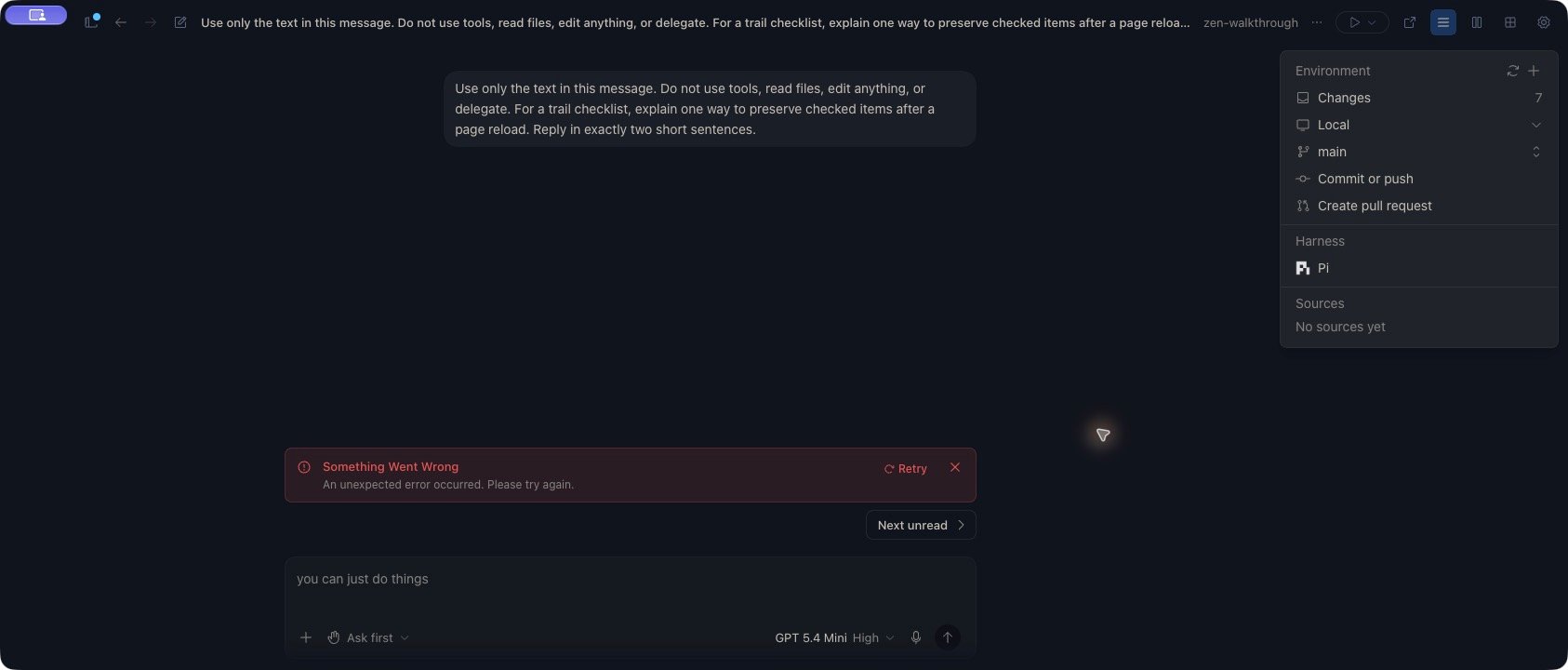
- Check whether the response is still active or has ended with an error. Avoid sending another copy while it is active.
- Preserve the visible error and the approximate time. Note the project device, provider group, harness, model and reasoning level so the failing combination can be investigated.
- Review any completed tool work before retrying. A failed response does not roll back edits or commands.
- Resolve a specific reported authentication, availability or connection problem before retrying. If the generic error repeats, report that combination rather than repeatedly resending an unchanged request.