With Codex or Pi, include the relevant context in your question. These harnesses currently open Side Chat without the parent conversation’s snapshot. See Inherited context before relying on an earlier discussion.
Open a Side Chat in Zen
Start from an existing conversation with a ready model selection. A new, unsent draft cannot open a Side Chat from the panel launcher.- Open the right panel in Zen mode. If it already has tabs, select + to open the new-tab menu.
- Choose Side Chat.
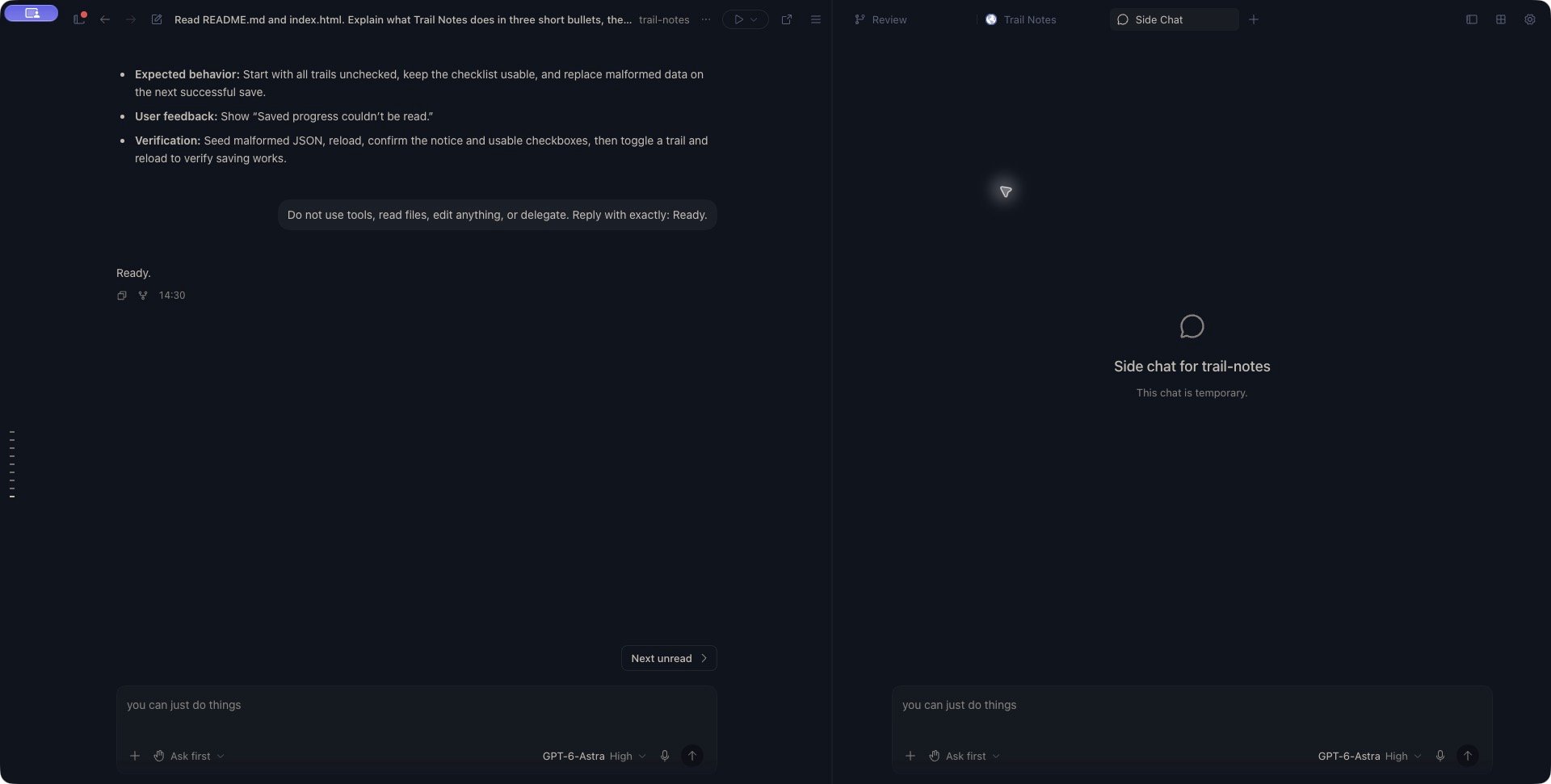
- Wait for Creating Side Chat… to finish. The empty conversation identifies itself with This chat is temporary.
- Check the model and permissions beneath the right-hand composer. Write your question there, including any context it needs, and send it.
- Wait for the response to finish and check it for errors. Continue in that composer for related follow-ups. The main conversation keeps its own messages and draft.
The empty panel identifies the project and marks the discussion as temporary. Expand the full workspace below to see both composers.
View both conversations in Zen
View both conversations in Zen
Use only these facts: Trail Notes stores checked trails in browser storage. Reset unchecks the trails; if clearing saved progress fails, old checks may return after reload. Write one short warning sentence for that failure. Do not use tools, read files, edit anything, or delegate.The Side Chat replied: “Warning: If clearing saved progress fails, your previously checked trails may come back after a reload.” It used the facts supplied in the question.
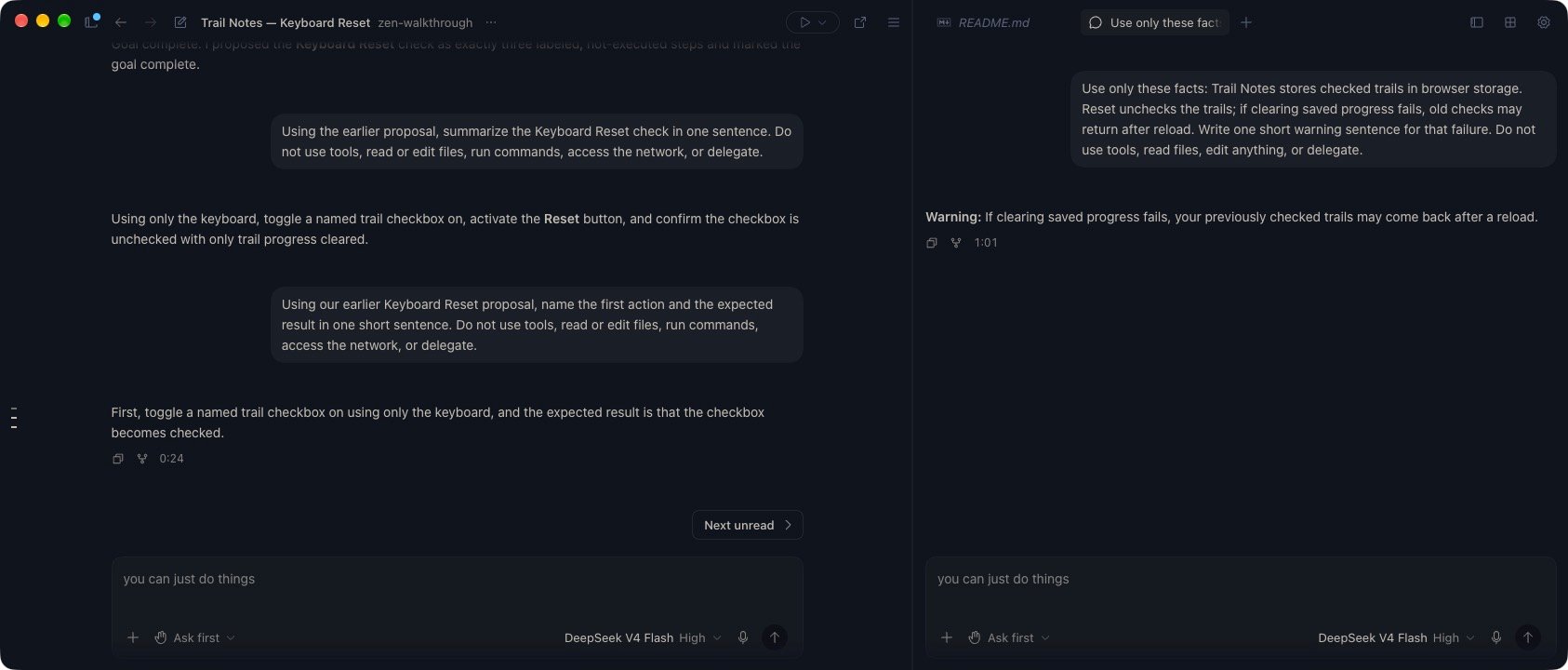
Pi with DeepSeek V4 Flash answers in the right-hand Side Chat while the main conversation remains visible on the left.
Start with a slash command
You can also submit/side followed by a question in the main conversation’s composer:
/side Our reset action can fail to clear saved progress. Suggest a short warning that explains why old completions may return after reopening. Do not use tools or edit files.This command creates a Side Chat and sends the question there. The question appears in the new panel, not as a request for the main agent.
/side on its own needs a question before it will submit. Keep a copy of a longer question until creation succeeds if you may need to retry it.
Understand the inherited context
Context inheritance depends on the harness:
When a snapshot is supplied:
- Recent completed conversation content is included within a size limit. Older content and very long items can be omitted or shortened.
- Assistant text from an unfinished turn is excluded. If your question depends on the answer currently streaming, wait for it to finish first.
- Inline image data is removed from the inherited context. Attach the image in the Side Chat if it needs to inspect it.
- Later messages in the main chat are not automatically added to that snapshot. Supply new information in the Side Chat when it matters.
If the answer is missing context
Paste the relevant decision, excerpt or constraint into the Side Chat and ask the question again with that information. For example:The plan is named Moss. Reset should uncheck the trails and clear only its saved progress. If clearing fails, old completions may return after reopening. Write one short warning for that failure.Check that the answer uses the supplied details before relying on it. An empty panel is expected, but a successful first reply does not establish that the agent received the parent history. Repeatedly opening new Side Chats does not resolve the current Codex/Pi context limitation.
Bring a conclusion back to the main chat
Side Chat does not automatically append its discussion to the parent’s transcript.- Use Copy response beneath the answer you want to keep.
- Select the main conversation’s composer and paste it there.
- Add what you want the main agent to do with it: adopt a decision, revise a plan, or investigate a remaining question.
- Review the draft and send it when you are ready.
Keep shared files in mind
A separate discussion does not create a separate worktree or copy of your project. An edit or command from either conversation can affect the files the other one reads. For an explanation or comparison, say what you want investigated and whether files should be changed. Review any resulting changes in Git Review. Closing or expiring the Side Chat does not undo file changes or remove files its tools created.Choose a supported harness
Side Chat depends on the harness, not only the model provider. Claude Code, Codex, and Pi have temporary-session implementations. ACP harnesses currently reject Side Chat creation because Kisuke cannot request a portable temporary session from them. An available model still needs a working provider connection and a valid selection. A visible Side Chat option does not prove creation or the first response will succeed. You cannot create another Side Chat from inside a Side Chat.Preserve anything you need later
Treat Side Chat as temporary working context. Use an ordinary conversation when you need a discussion you can return to through chat history. Use the close control on the Side Chat tab when you are finished. Save any useful text first. Closing the tab is not an interrupt command: use Stop response in that Side Chat before closing it if you want active work to stop. See Stop and continue for what interruption does and does not undo. An unobserved, inactive Side Chat becomes eligible to expire after one hour. Active work, a pending interaction, or an active view can keep it alive longer. Restarting the daemon ends these temporary sessions; their transcripts cannot be resumed after that restart. If the panel shows Side chat has expired:- Return to main chat returns to the parent conversation.
- Start a new Side Chat returns to the parent and places
/sidein its composer. Add your question and submit it to create a new discussion; this does not restore the expired transcript.