> ## Documentation Index
> Fetch the complete documentation index at: https://docs.kisuke.dev/llms.txt
> Use this file to discover all available pages before exploring further.
# Organize Linear work in Tasks
> Find your team's issues, save useful views, edit issue details, and recover from a missing or outdated board.
Use **Tasks** to browse Linear issues and follow the agent work attached to them. Choose **Inbox** for a list or **Board** for workflow columns. You can return to [Zen](/zen-mode) from the same layout menu when you want to focus on a conversation and its workspace tools.
This guide follows the desktop Tasks layout. You need a connected Linear organization to use its issue workspace. Reading an issue does not require starting an agent.
Looking for **New task** in the Zen sidebar? That opens a conversation draft. See the [glossary's task distinction](/reference/glossary#task-and-tasks) for the different uses of the label.
## Work with or without Linear
Choose **Tasks** when you want to browse your team's Linear issues or attach an agent run to an issue. Connecting OpenAI, Anthropic, Google, or another model provider does not connect Linear; the issue workspace has its own connection.
For project work without a Linear issue, open **Switch layout → Zen**. You can start a conversation, use a [goal](/conversations/goals), or ask the agent to maintain a [response checklist](/conversations/track-progress) without connecting Linear. Those workflows keep their work in the conversation and do not create a Linear issue.
Switching back to Zen also lets you return to an existing conversation while you leave Linear setup for later. Check the conversation title and project before sending another message.
## Open your team's issues
Open **Switch layout** in the top bar and choose **Tasks**.
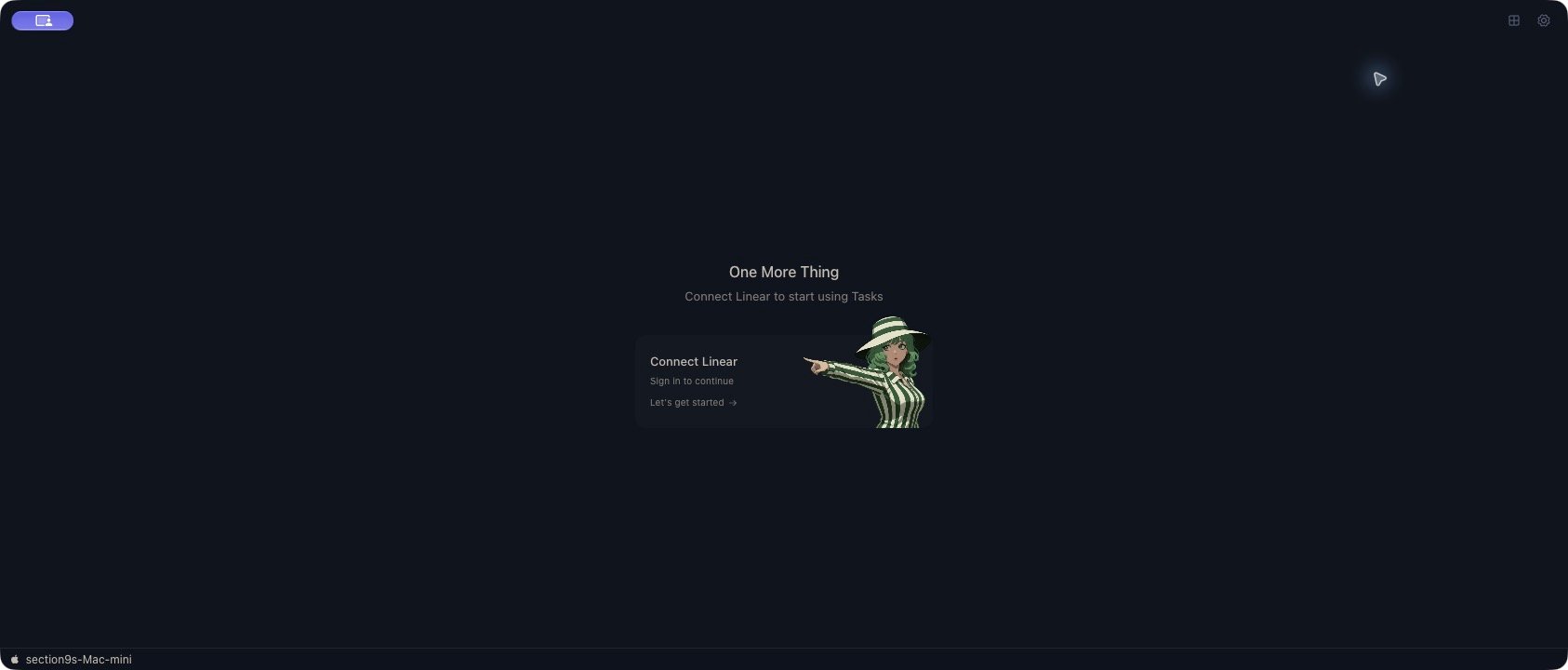
If you see **Connect Linear to start using Tasks**, wait for the initial check. If no usable connection is available, choose **Connect Linear** and complete the sign-in flow. Return to Kisuke and wait for the team list to load.
If the app reports that Linear sign-in is unavailable on the current platform, use the desktop app for this setup.
The selector at the bottom of the sidebar shows the current team and organization. Open it to switch among connected organizations and teams.
**Add team** lists available teams that have not been added to Kisuke yet. Adding one opens that team's issues in Kisuke; it does not create a team in Linear. **Add organization** opens another Linear connection flow.
Select **All team issues**, then **All issues** under **Issues** for the broadest view of the selected team. Choose **Inbox** or **Board** in the top bar.
A newly selected team can show loading placeholders while its issues arrive. An older list can remain visible during a refresh. Wait for loading to finish before treating an empty or unchanged list as the current result.
The two “all” controls have different scopes. **All team issues** leaves a saved view's filters. **All issues** leaves a status category. Toolbar search and filters can still narrow the results.
## Understand the sidebar
**Views** contains **All team issues** and your saved views. **Issues** narrows the current view by workflow status:
| Category | Included work |
| - | - |
| **Active** | Backlog, Todo, and in-progress workflow states. |
| **Backlog**, **Todo**, **In progress** | Issues in the corresponding Linear status type. Custom statuses can share a type. |
| **Done**, **Cancelled** | Issues in completed or cancelled workflow states. |
| **Stale** | Previously imported issues missing from a subsequent full team sync. |
Choosing a category opens the Inbox list. You can switch to **Board** afterward; the selected category still limits its columns and issues.
The separate **Tasks** section lists issues with an attached agent conversation. Its **Filter tasks** menu offers **All**, **Running**, **Completed**, and **Failed**. This is a view of agent execution, not the same filter as the issue's Linear workflow status. For example, **Completed** includes work ready for review; it does not establish that someone reviewed or merged it.
An issue can be in an in-progress workflow column while its agent is waiting for input. Read both the issue status and the conversation before deciding what needs attention.
## Search, filter, and sort
Use **Search…** to match an issue's title, description, or identifier, such as `TRAIL-42`. Matching ignores capitalization. Search works over the selected team's loaded issues and the current saved view; it does not search every connected organization or every conversation.
Use **Filters** to narrow by **Priority**, **Assignee**, or **Label**. Available assignee and label choices come from the loaded issues.
* Multiple priorities match any selected priority.
* Multiple assignees match any selected assignee.
* Multiple labels in the toolbar require every selected label.
* Different filter types combine. A high-priority issue assigned to someone else will not match your high-priority, assigned-to-you filter.
Use **Sort** to choose **Manual (drag order)**, **Priority**, **Recently updated**, **Recently created**, or **Title (A→Z)**. Priority puts Urgent first and issues with no priority last. Recently created and updated refer to Kisuke's issue records, so imported issues can have different ordering from Linear's own history.
**Clear filters** removes the toolbar search and filters and resets the sort to manual. It does not remove the selected saved view or issue category. Toolbar choices are useful for temporary exploration; use a saved view for a filter you want to return to.
## Save a reusable view
A saved view points at the same team issues. It does not copy them, create another Linear team, or create a Linear view.
Choose **New view** in the sidebar. The dialog is titled **New board**.
Enter a **Name**, choose the **Linear team**, and select the available **Priority**, **Assignee**, **Labels**, and **Project** filters you need.
**Project** here means the issue's Linear project. It does not select the local repository or computer where an agent will work.
Choose **Save board**. The saved view appears under **Views** and becomes selected. Check its results, including any toolbar filters and status category still in effect.
For example, create a view named **Trail Notes bugs**, choose the relevant team, select the **Bug** label and **Trail Notes** Linear project, then save. Leave priority unselected if you want bugs at every priority.
Saved-view label filters match **any** selected label. Toolbar label filters match **all** selected labels. Selecting Bug and Desktop in a saved view includes either label; selecting both in the toolbar requires both. A toolbar filter further narrows the saved view.
Use the gear beside a saved view to edit its name or filters. **Delete view** removes that saved view after confirmation and leaves the team's issues intact. The separate **Team settings** gear opens workflow and task execution settings for the team.
See [Task automation](/workspace/task-automation) for execution defaults, routing rules, and Auto-run. Saved-view and toolbar filters do not define which issues Auto-run may start.
If saving takes too long or the connection drops, inspect **Views** before creating the view again. A missing acknowledgement does not prove that the save failed.
## Read and edit an issue
Select an issue row or card to open its details. Use **Properties** to inspect **Status**, **Priority**, and **Assignee**. For an issue with an agent conversation, **Details**, **Chat**, and **Changes** provide different views of the work.
* **Title:** edit it, then press Enter or leave the field to save. Shift+Enter inserts a line break.
* **Description:** edit the body, then click outside it or press Cmd+Enter on macOS, or Ctrl+Enter on Windows and Linux.
* **Priority and Assignee:** choose the value from the corresponding control. Assignment uses a Linear member selection.
* **Status:** choose a workflow state. In **Board**, you can also move a card between columns. Choose manual sorting to reorder cards within a column.
Changes to a linked issue's title, description, priority, assignee, and status are sent to Linear. They affect the team's issue, including when you edit it through a saved view.
Title, description, priority, and assignee edits can appear in Kisuke before Linear confirms the update. If a change matters to a handoff, or you encountered a connection problem, check the issue in Linear. A locally updated field alone is not confirmation of the remote save.
Status changes may be rejected or redirected by the team's workflow. A card can return to its earlier column after reconciliation. Moving work to a completed or cancelled state can also interrupt its active agent; use status changes to reflect the actual workflow outcome.
The row's **Run task** control can start work using configured defaults. To read an issue first, select its title or card rather than the run control. Follow [Run and review a task](/workspace/run-a-task) to choose its project, model, and permissions, inspect the result, and understand interruption and workspace cleanup.
Before moving an issue to a completed or cancelled workflow state, preserve any work you need. Task worktrees in those states can be removed at daemon startup, including uncommitted files, even with Auto-run off. See [Review and finish](/workspace/run-a-task#review-and-finish).
## Refresh and recover
Kisuke refreshes the selected team's issues while Tasks is visible and when you return to it. Use **Refresh from Linear** in the top bar when you need a fresh full-team check. A visible cached board does not establish that the latest refresh succeeded.
Wait for **Checking Linear** to finish. This setup screen means Kisuke does not currently have a usable Linear connection; it does not identify the cause by itself.
If you connected Linear previously, check the connection to the project computer before signing in again. An initial status request can fail because the computer or connection is unavailable. Restore that connection and reopen Tasks. If the setup screen remains, use **Connect Linear** and complete the sign-in flow.
You can return to **Switch layout → Zen** to continue ordinary project conversations while resolving the issue connection.
Check the organization and team. Select **All team issues**, then **All issues**, and clear the toolbar filters. Refresh from Linear and search by the exact issue identifier.
Archived Linear issues are excluded from the live import. Check the issue directly in Linear if you still cannot find it, including whether it was archived, deleted, moved to another team, or is no longer visible to your connected account.
Kisuke retains a previously imported issue when it disappears from a full-team sync. **Stale** describes that missing import result; it does not mean that an agent has been inactive for too long.
Check its current location and access in Linear, then refresh the correct team. A returning issue clears the stale marker when imported again. Starting new work on a stale issue is disabled; resolve the issue's availability first.
Inspect the refresh control's error text, restore the connection, and use it to retry. The previous issue list can remain visible during a failure, so avoid treating it as a newly confirmed snapshot.
If Files, Terminal, Git, or the conversation are also unavailable, check the [connection to the project computer](/workspace/devices#diagnose-missing-or-unavailable-devices). A Linear-specific error and an unavailable project device need different recovery steps.
Open **All team issues** to check the source list. Inspect the view's priority, assignee, labels, and Linear project filters, then check the separate status category and toolbar filters.
A view can legitimately become empty after an issue's properties change. Deleting and recreating it is not needed to clear toolbar filters.
Refresh and inspect the actual issue in Linear. Another edit, a rejected workflow transition, or a failed remote save can change the result shown in Kisuke.
Preserve any unsaved description text before leaving the editor. Reapply only the change that is still needed after checking the current issue; repeated submissions are not evidence that the earlier write failed.
## Return to focused work
Choose **Switch layout → Zen** to return to the conversation workspace. An issue board, a response's [step checklist](/conversations/track-progress), a [goal](/conversations/goals), and a [subagent](/conversations/subagents) track different things. Use the issue for team workflow, the conversation for instructions and decisions, and [Review](/workspace/git) to inspect the actual changes.
This documentation is built and hosted on [Mintlify](https://mintlify.com), a developer documentation platform.