> ## Documentation Index
> Fetch the complete documentation index at: https://docs.kisuke.dev/llms.txt
> Use this file to discover all available pages before exploring further.
# Git changes
> Open Review in Zen, understand staged and unstaged files, and choose which edits to stage.
Use **Review** beside your Zen conversation to see the project's changed files and prepare them for a commit. You can open it while composing a new conversation; you do not need to send a message first.
This walkthrough uses the desktop Zen workspace and an existing Git repository on the selected project device.
## Open Review
1. [Open your project](/projects/open-a-project) and check its device and folder.
2. Open Zen's right panel from the top bar.
3. Choose **Review** in the launcher. If other tabs are already open, use the panel's **+** menu and choose **Review**.
4. Select **Changes**.
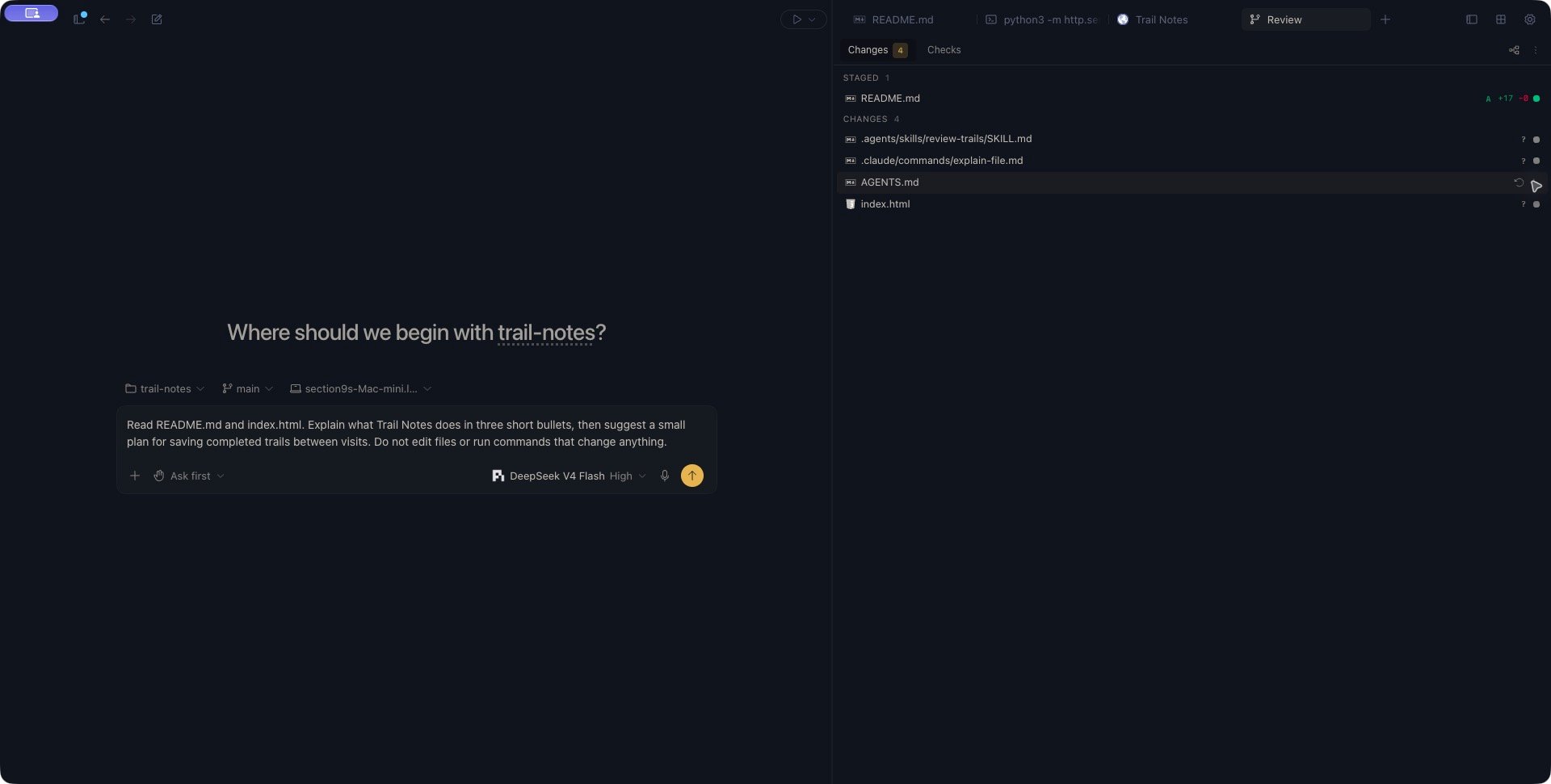 Use **Show as tree** to group files by directory, or **Show as list** to return to paths in a flat list. In tree view, select a directory to collapse or expand it.
## Read the file groups
**Staged** contains changes in Git's index: the version you have prepared for a commit. **Changes** contains unstaged working-folder changes, including new untracked files.
A file can appear in both groups. For example, if you stage a README and then edit it again, the staged version and the later edits are separate. Staging is not a commit and does not upload your work.
The number beside the **Changes** tab counts files with unstaged changes. Check the **Staged** group too; a missing tab count does not mean there is nothing staged.
Common status letters are:
| Letter | Meaning |
| - | - |
| **?** | Untracked: a new file that Git has not added to the index. |
| **A** | Added. |
| **M** | Modified. |
| **D** | Deleted. |
| **R** | Renamed. |
| **U** | Unmerged. |
When available, green and red numbers show added and removed lines. For a file with both staged and unstaged changes, these badges combine the two counts; they are not a staged-only preview. **bin** indicates binary content instead of a line count.
Open the file in [Files](/workspace/files) when you need to read its current contents. Keep its tab beside Review so you can check the content before staging it.
## Stage a file
1. Find the file under **Changes**.
2. Move the pointer over its row to reveal the actions.
3. Choose the **+** action, **Stage**.
4. Check that the file appears under **Staged**.
Stage applies the file's current changes, rather than an individual line or selected hunk. If you make more edits afterward, check the file again before committing: those later edits may still be under Changes.
When the staged set is ready, follow [Commit and push from Zen](/workspace/commit-and-push). Its scope controls determine whether unstaged files are included too.
To work in a separate folder and branch, use [Worktrees](/projects/worktrees). Ordinary worktree creation starts from committed files, so check what you have committed before creating one.
For example, staging a new `README.md` changes its status from **?** under Changes to **A** under Staged. Its contents stay in your working folder.
## Unstage without losing edits
Move the pointer over a file under **Staged** and choose **Unstage**. This removes that file's changes from the index while keeping its working-folder contents.
The changes return to **Changes** when they still differ from the committed version. A newly added file becomes untracked again. You can edit it further and stage it later.
## Discard unwanted edits
Under **Changes**, a file's hover actions also include **Discard changes**. Kisuke asks you to confirm the selected path.
Discarding a tracked file restores its working-folder contents from the index. Discarding an untracked file deletes it. This action has no undo in Review. Use **Unstage** when you want to keep your edits but remove them from the staged set.
Read the file and preserve anything you need before confirming. Discard applies to the selected file's working-folder changes; it is not a way to undo a commit.
## Refresh or resolve a missing repository
Open **More → Refresh** to request fresh Git status. If a staging action does not appear to take effect, refresh and inspect both groups before repeating it. Check the selected project device and its connection if the status remains unavailable.
These states mean different things:
| What you see | What to check |
| - | - |
| **No changes.** | The current file list has no staged or unstaged changes. This does not tell you whether commits have been pushed. |
| **No Source Control** | Kisuke has not recognized the selected folder as a repository. Check that you opened the intended project folder. |
| **Source control unavailable** | Git could not read the repository. Read the reported reason, address it, then choose **Retry**. |
If an existing repository is unreadable, resolve the reported problem before trying to initialize a repository. **Initialize repo** starts a separate setup flow; it is not a refresh action.
Continue with [pull requests in Zen](/workspace/pull-requests), or use [Git recovery](/workspace/git-recovery) when conflicts, authentication, or an interrupted operation need attention.
This documentation is built and hosted on [Mintlify](https://mintlify.com), a developer documentation platform.
Use **Show as tree** to group files by directory, or **Show as list** to return to paths in a flat list. In tree view, select a directory to collapse or expand it.
## Read the file groups
**Staged** contains changes in Git's index: the version you have prepared for a commit. **Changes** contains unstaged working-folder changes, including new untracked files.
A file can appear in both groups. For example, if you stage a README and then edit it again, the staged version and the later edits are separate. Staging is not a commit and does not upload your work.
The number beside the **Changes** tab counts files with unstaged changes. Check the **Staged** group too; a missing tab count does not mean there is nothing staged.
Common status letters are:
| Letter | Meaning |
| - | - |
| **?** | Untracked: a new file that Git has not added to the index. |
| **A** | Added. |
| **M** | Modified. |
| **D** | Deleted. |
| **R** | Renamed. |
| **U** | Unmerged. |
When available, green and red numbers show added and removed lines. For a file with both staged and unstaged changes, these badges combine the two counts; they are not a staged-only preview. **bin** indicates binary content instead of a line count.
Open the file in [Files](/workspace/files) when you need to read its current contents. Keep its tab beside Review so you can check the content before staging it.
## Stage a file
1. Find the file under **Changes**.
2. Move the pointer over its row to reveal the actions.
3. Choose the **+** action, **Stage**.
4. Check that the file appears under **Staged**.
Stage applies the file's current changes, rather than an individual line or selected hunk. If you make more edits afterward, check the file again before committing: those later edits may still be under Changes.
When the staged set is ready, follow [Commit and push from Zen](/workspace/commit-and-push). Its scope controls determine whether unstaged files are included too.
To work in a separate folder and branch, use [Worktrees](/projects/worktrees). Ordinary worktree creation starts from committed files, so check what you have committed before creating one.
For example, staging a new `README.md` changes its status from **?** under Changes to **A** under Staged. Its contents stay in your working folder.
## Unstage without losing edits
Move the pointer over a file under **Staged** and choose **Unstage**. This removes that file's changes from the index while keeping its working-folder contents.
The changes return to **Changes** when they still differ from the committed version. A newly added file becomes untracked again. You can edit it further and stage it later.
## Discard unwanted edits
Under **Changes**, a file's hover actions also include **Discard changes**. Kisuke asks you to confirm the selected path.
Discarding a tracked file restores its working-folder contents from the index. Discarding an untracked file deletes it. This action has no undo in Review. Use **Unstage** when you want to keep your edits but remove them from the staged set.
Read the file and preserve anything you need before confirming. Discard applies to the selected file's working-folder changes; it is not a way to undo a commit.
## Refresh or resolve a missing repository
Open **More → Refresh** to request fresh Git status. If a staging action does not appear to take effect, refresh and inspect both groups before repeating it. Check the selected project device and its connection if the status remains unavailable.
These states mean different things:
| What you see | What to check |
| - | - |
| **No changes.** | The current file list has no staged or unstaged changes. This does not tell you whether commits have been pushed. |
| **No Source Control** | Kisuke has not recognized the selected folder as a repository. Check that you opened the intended project folder. |
| **Source control unavailable** | Git could not read the repository. Read the reported reason, address it, then choose **Retry**. |
If an existing repository is unreadable, resolve the reported problem before trying to initialize a repository. **Initialize repo** starts a separate setup flow; it is not a refresh action.
Continue with [pull requests in Zen](/workspace/pull-requests), or use [Git recovery](/workspace/git-recovery) when conflicts, authentication, or an interrupted operation need attention.
This documentation is built and hosted on [Mintlify](https://mintlify.com), a developer documentation platform.