> ## Documentation Index
> Fetch the complete documentation index at: https://docs.kisuke.dev/llms.txt
> Use this file to discover all available pages before exploring further.
# Commit and push from Zen
> Choose which changes to commit, write a message, and check the result before pushing.
A commit records a version of your files in the local repository. Pushing sends commits to a remote repository. Zen's summary gives you separate **Commit**, **Commit and push**, and **Push** actions.
This guide uses an open conversation in desktop Zen and a Git repository on the selected project device. Before pushing, the repository needs the intended remote and working Git authentication on that device.
## Review the scope first
Open [Review → Changes](/workspace/git) beside the conversation. Check the project, branch, and file contents before committing. Finish or stop any work that could change the files while you review them.
**Staged** shows the versions prepared in Git's index. **Changes** shows unstaged edits and untracked files. A file can appear in both groups if you edited it again after staging.
To make a commit containing only selected files, stage those files first. The commit menu's scope setting determines whether other changes are included too.
## Commit staged files
1. In the conversation's top bar, choose **Show summary** if the summary is hidden.
2. Under **Environment**, check the branch and choose **Commit or push**.
3. Clear **Include unstaged changes**. It is selected when this menu first opens.
4. Enter a message in **Commit message or generate…**, such as `Document the Trail Notes demo`.
5. Choose **Commit**.
6. Wait for the operation to finish, then inspect Review again.
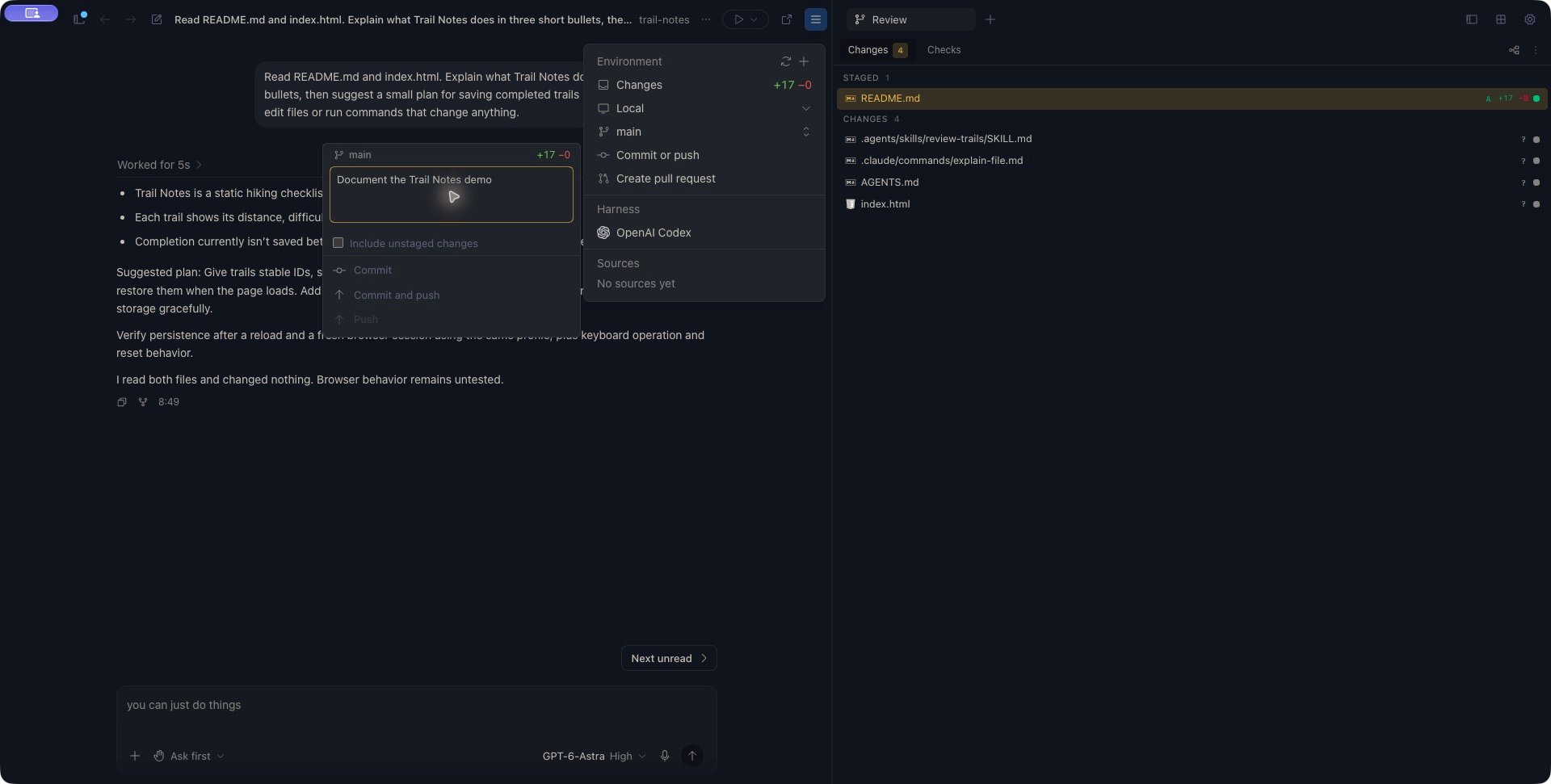 After a successful commit, the menu closes and Review can show **Commit complete**. The committed staged entries leave the pending list. Uncommitted changes remain; a successful commit does not necessarily leave the working folder clean.
With **Include unstaged changes** cleared, later edits to an already-staged file remain outside the commit. Stage the newer version first if you want to include it. If nothing is staged, there is no staged content to commit; check the list before submitting.
### Include all current changes
Leave **Include unstaged changes** selected when you intend to include all current repository changes. This stages unstaged edits and untracked files as part of the operation, alongside anything already staged.
Review the entire Changes list first. Clearing a file's staged status does not exclude it from an operation that includes all changes.
### Generate a message
If the message is empty, choosing **Commit** or **Commit and push** fills in a suggested message first. Review or edit that text, then choose the action again to execute it.
The current suggestion uses changed file names, with results such as `Update README.md` or `Update 4 files`. Replace it with a description of the change when that would make the history clearer.
## Push commits
Use **Commit and push** when you want to create the scoped commit and then send commits to `origin`. Use **Push** for commits you have already created. In the summary menu, Push is enabled when the reported branch state shows commits ahead of its upstream.
Check the branch and destination first. If Kisuke recognizes a default-branch update, it asks you to confirm it. Read that prompt before accepting; the presence or absence of a prompt does not replace checking the selected branch yourself.
A commit can succeed before a later fetch or push fails. The local commit remains in that case. Read the error and check the repository before trying again.
After pushing a feature branch, [create a pull request from Zen](/workspace/pull-requests) to prepare it for review.
## Recognize the other commit dialog
Review's **Checks** tab can offer **Commit and push** for uncommitted changes. This opens a different dialog with a file preview, **Commit message**, and **Push to origin/… after commit**.
That dialog commits all current changes, including unstaged files. Its push checkbox starts selected. Clear the push checkbox for a local commit, or use the summary's **Commit or push** menu with **Include unstaged changes** cleared when you need a staged-only commit.
Do not assume every Commit button has the same file scope. Check the controls in the surface you opened.
## Recover from a failed or uncertain operation
Read the error and refresh Git status before repeating a mutation. Closing a menu or losing the connection does not prove that a commit or push was cancelled.
| What happened | Next step |
| - | - |
| Repository state changed, or another operation is running | Let the active work settle, refresh, and review the file scope again. |
| Commit hook failed | Read the hook output, fix its reported problem, and inspect the staged files before another commit. |
| Detached HEAD or unresolved conflicts | Create or select the intended branch, or resolve the conflicts, before continuing. |
| Fetch or push failed after committing | Check the latest local commit and remote state. You may need only Push after resolving the cause. |
| Remote history diverged or a push was rejected | Inspect both histories and integrate using your project's normal Git workflow. A retry alone does not resolve divergence. |
| Authentication failed | Check Git access on the device that owns the project. Kisuke account sign-in and AI-provider access are separate from remote Git credentials. |
| Progress timed out or the connection dropped | Reconnect and inspect history and status. Treat the result as uncertain until you verify what happened. |
For a local check, open the project's [terminal](/workspace/terminal) and inspect:
```bash theme={null}
git status --short
git log -1 --oneline
git branch -vv
git remote -v
```
These commands inspect local state and configuration. They do not fetch fresh remote history or prove that the remote currently contains a commit.
Keep the commit message and error while investigating. A completed phase is not automatically rolled back when a later phase fails.
For step-by-step conflict resolution and device-specific GitHub access checks, use [Recover Git and GitHub operations](/workspace/git-recovery).
This documentation is built and hosted on [Mintlify](https://mintlify.com), a developer documentation platform.
After a successful commit, the menu closes and Review can show **Commit complete**. The committed staged entries leave the pending list. Uncommitted changes remain; a successful commit does not necessarily leave the working folder clean.
With **Include unstaged changes** cleared, later edits to an already-staged file remain outside the commit. Stage the newer version first if you want to include it. If nothing is staged, there is no staged content to commit; check the list before submitting.
### Include all current changes
Leave **Include unstaged changes** selected when you intend to include all current repository changes. This stages unstaged edits and untracked files as part of the operation, alongside anything already staged.
Review the entire Changes list first. Clearing a file's staged status does not exclude it from an operation that includes all changes.
### Generate a message
If the message is empty, choosing **Commit** or **Commit and push** fills in a suggested message first. Review or edit that text, then choose the action again to execute it.
The current suggestion uses changed file names, with results such as `Update README.md` or `Update 4 files`. Replace it with a description of the change when that would make the history clearer.
## Push commits
Use **Commit and push** when you want to create the scoped commit and then send commits to `origin`. Use **Push** for commits you have already created. In the summary menu, Push is enabled when the reported branch state shows commits ahead of its upstream.
Check the branch and destination first. If Kisuke recognizes a default-branch update, it asks you to confirm it. Read that prompt before accepting; the presence or absence of a prompt does not replace checking the selected branch yourself.
A commit can succeed before a later fetch or push fails. The local commit remains in that case. Read the error and check the repository before trying again.
After pushing a feature branch, [create a pull request from Zen](/workspace/pull-requests) to prepare it for review.
## Recognize the other commit dialog
Review's **Checks** tab can offer **Commit and push** for uncommitted changes. This opens a different dialog with a file preview, **Commit message**, and **Push to origin/… after commit**.
That dialog commits all current changes, including unstaged files. Its push checkbox starts selected. Clear the push checkbox for a local commit, or use the summary's **Commit or push** menu with **Include unstaged changes** cleared when you need a staged-only commit.
Do not assume every Commit button has the same file scope. Check the controls in the surface you opened.
## Recover from a failed or uncertain operation
Read the error and refresh Git status before repeating a mutation. Closing a menu or losing the connection does not prove that a commit or push was cancelled.
| What happened | Next step |
| - | - |
| Repository state changed, or another operation is running | Let the active work settle, refresh, and review the file scope again. |
| Commit hook failed | Read the hook output, fix its reported problem, and inspect the staged files before another commit. |
| Detached HEAD or unresolved conflicts | Create or select the intended branch, or resolve the conflicts, before continuing. |
| Fetch or push failed after committing | Check the latest local commit and remote state. You may need only Push after resolving the cause. |
| Remote history diverged or a push was rejected | Inspect both histories and integrate using your project's normal Git workflow. A retry alone does not resolve divergence. |
| Authentication failed | Check Git access on the device that owns the project. Kisuke account sign-in and AI-provider access are separate from remote Git credentials. |
| Progress timed out or the connection dropped | Reconnect and inspect history and status. Treat the result as uncertain until you verify what happened. |
For a local check, open the project's [terminal](/workspace/terminal) and inspect:
```bash theme={null}
git status --short
git log -1 --oneline
git branch -vv
git remote -v
```
These commands inspect local state and configuration. They do not fetch fresh remote history or prove that the remote currently contains a commit.
Keep the commit message and error while investigating. A completed phase is not automatically rolled back when a later phase fails.
For step-by-step conflict resolution and device-specific GitHub access checks, use [Recover Git and GitHub operations](/workspace/git-recovery).
This documentation is built and hosted on [Mintlify](https://mintlify.com), a developer documentation platform.