> ## Documentation Index
> Fetch the complete documentation index at: https://docs.kisuke.dev/llms.txt
> Use this file to discover all available pages before exploring further.
# Browser and local previews
> Preview apps in Zen, inspect pages, research web sources, and open localhost on the device that owns it.
Open your app in the Zen right panel to keep the page, terminal, files, and conversation in one workspace. Start with the desktop walkthrough below, or jump to [previewing from your phone](#preview-from-your-phone).
## Preview your project
1. [Open the project](/projects/open-a-project) on the device where you want to run it.
2. Open a [Terminal](/workspace/terminal) and run the project's documented development command. Check its output for the listening address and port.
3. Choose **Browser** from the right panel's new-tab menu.
4. Enter the server's address in the address bar and press Enter. For example, use `http://localhost:3000` if that is the address your server reports.
5. Wait for the page itself to appear. If you opened the address before the server was ready, choose **Reload** after it starts listening.
For a repeatable command with output in its own pane, configure a [Run script](/projects/scripts). HTTP and HTTPS links in that output can open the browser directly.
Keep the server process running while you use the preview. Opening a browser tab does not start your project's server.
### Try a static HTML preview
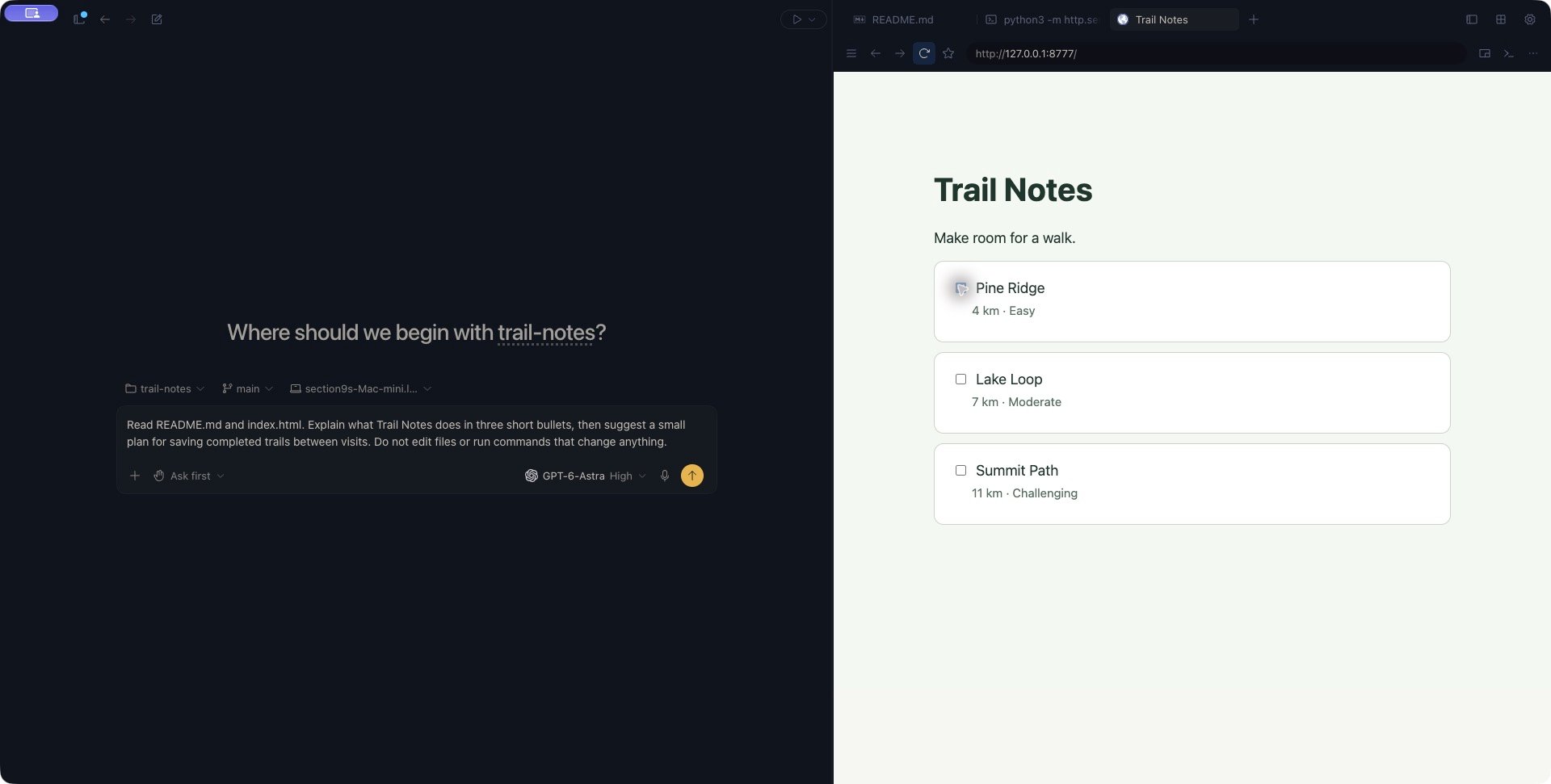
For a folder containing an `index.html` file, you can use Python 3 if it is installed on the project's device:
```sh theme={null}
python3 -m http.server 8777 --bind 127.0.0.1
```
Run this from the folder you want to serve, then open `http://127.0.0.1:8777` in Kisuke. Use your project's own development server when it needs a build step or application backend. To stop this Python server, focus its terminal and press Ctrl+C.
 ### Verify a change in the preview
After the agent changes your app, check the result in Browser before asking it to move on.
1. Confirm the address, project computer, and page title. Open the specific route affected by the change; a working home page does not verify another route.
2. Perform the action you asked to change, using test data you can safely modify. Check the visible result. For a keyboard interaction, use the keyboard for that check.
3. If the feature should retain state, choose **Reload** and check it again. Keep the same protocol, hostname, and port while testing: [local browser storage](https://developer.mozilla.org/en-US/docs/Web/API/Window/localStorage) belongs to that page's origin.
4. For a failure, record the action, expected result, actual result, and [page or server errors](#inspect-a-desktop-preview). Attach a [screenshot](/conversations/attachments) when the problem is visual.
5. Open [Review](/workspace/git) to inspect the changed files. Return to the same Browser tab and repeat the failing action after the next edit.
For the Trail Notes example in the [Zen walkthrough](/zen-mode#implement-and-verify-a-small-change), the check was to select trails, reload, and confirm the same selections remained. A separate keyboard check used **Tab** and **Space** to toggle a trail, then **Tab** and **Enter** to activate **Reset**. Reloading afterward kept every trail unchecked.
### Verify a change in the preview
After the agent changes your app, check the result in Browser before asking it to move on.
1. Confirm the address, project computer, and page title. Open the specific route affected by the change; a working home page does not verify another route.
2. Perform the action you asked to change, using test data you can safely modify. Check the visible result. For a keyboard interaction, use the keyboard for that check.
3. If the feature should retain state, choose **Reload** and check it again. Keep the same protocol, hostname, and port while testing: [local browser storage](https://developer.mozilla.org/en-US/docs/Web/API/Window/localStorage) belongs to that page's origin.
4. For a failure, record the action, expected result, actual result, and [page or server errors](#inspect-a-desktop-preview). Attach a [screenshot](/conversations/attachments) when the problem is visual.
5. Open [Review](/workspace/git) to inspect the changed files. Return to the same Browser tab and repeat the failing action after the next edit.
For the Trail Notes example in the [Zen walkthrough](/zen-mode#implement-and-verify-a-small-change), the check was to select trails, reload, and confirm the same selections remained. A separate keyboard check used **Tab** and **Space** to toggle a trail, then **Tab** and **Enter** to activate **Reset**. Reloading afterward kept every trail unchecked.
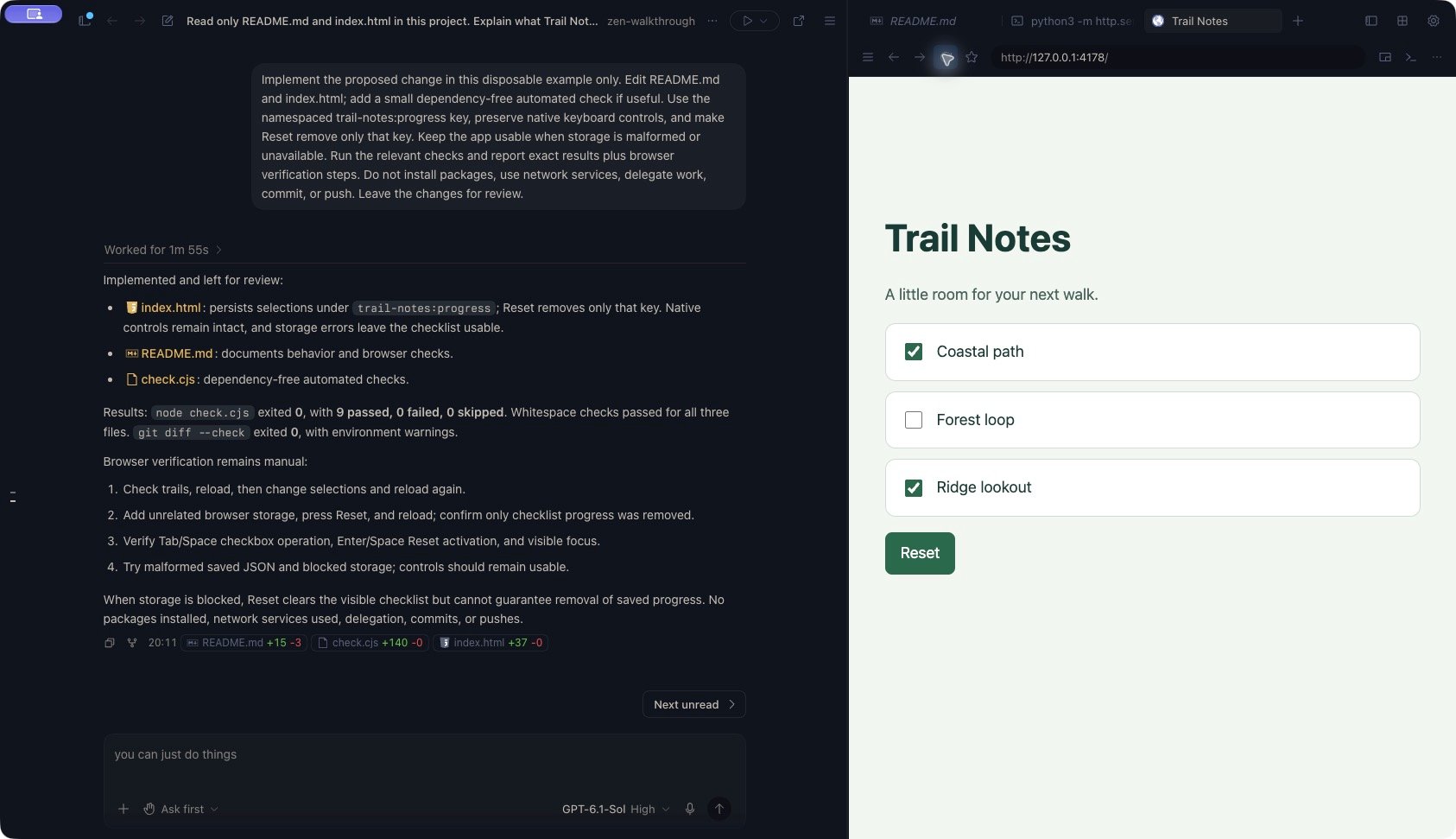 Give a follow-up enough detail to reproduce the problem. For example, if a Reset check fails:
> In the Trail Notes preview, I checked Coastal path, activated Reset, and reloaded the same address. Expected: all trails stay unchecked. Actual: Coastal path is checked again. Investigate the reset and saved-progress handling before editing, and keep the other page behavior unchanged.
This is a reporting example, not the result of the check above. Ask the agent to distinguish checks it ran from checks you still need to perform.
## Understand localhost and devices
`localhost` describes an address on a particular device. If your project runs on another computer, the server must run on that computer too. Starting the same port on your viewing device does not start the remote project.
Kisuke associates localhost navigation with a device. If the desktop app needs you to disambiguate it, **Open localhost on** asks you to choose the device that owns the address. Choose the computer running the server.
A tab that already belongs to a device keeps that association when you reload. If that device is unavailable, reconnect it. Do not expect Reload to find a different computer that happens to use the same port.
### Choose an available server
On desktop, a blank browser tab shows **Available** when Kisuke has servers to list.
1. Find the server by its name and port. The name can come from the page title or server information.
2. If two devices offer the same address, check the device name shown with each entry.
3. Select the entry and wait for the actual page to load. The entry identifies which device to use.
This list can include services from other projects on connected devices. An entry is a way to open a server; it does not mean that the server belongs to your current project or that your app is healthy.
If your server is missing, check its terminal output and enter its full address yourself. You do not need a listed entry to type an address. Keep the port and protocol the server reports: `http://localhost:3000` and `https://localhost:3000` are different addresses.
**Available** is not an inventory of every listening port. A service that does not speak HTTP can be running without appearing here. For explicit forwarding controls, see [Manage a forwarded port](#manage-a-forwarded-port).
## Navigate and return to your work
Use **Back**, **Forward**, and **Reload** in the browser toolbar. Switch to a file or terminal tab when you need to inspect the project or its server output, then return to the browser tab.
The address bar accepts HTTP and HTTPS addresses. A hostname such as `example.com` opens as HTTPS; a local address such as `localhost:3000` opens as HTTP. Text that is not recognized as an address becomes a Google search. Include the full `http://` or `https://` prefix when you want to make the intended address explicit.
### Save a favorite or find a recent page
In the desktop app:
1. Open the page you want to keep, then choose the star labeled **Bookmark This Page** in the toolbar.
2. Choose **Favorites, Recents** to open the browser library.
3. Use **Search** to filter favorites and history by page title or address. Recent pages are grouped by when you visited them.
4. Select an entry to open its address in the current tab.
Choose **Remove Bookmark** on a saved page, or use the entry's remove control in **Favorites**, to remove the favorite. Removing a favorite does not erase its browsing history.
Favorites and history save addresses without remembering the original device. For a saved localhost address, check which device the tab belongs to before reopening it. Use an [Available server entry](#choose-an-available-server) with the intended device name when you need to choose that computer explicitly.
To copy the current address, open **More options → Copy Current URL**. Copying a localhost address does not publish the server or give another person access to its device.
## Inspect a desktop preview
Wait for the intended page to load, then choose **Show Console** in the browser toolbar. The desktop app opens developer tools in a separate window for that page. Use them to inspect errors and network requests while you reproduce the problem. Choose **Show Console** again to close the tools.
For a layout problem, right-click the relevant part of the page and choose **Inspect Element**. Keep the project's [Terminal](/workspace/terminal) available too: an error in the page and an error in the server can require different fixes.
When asking the agent for help, provide the failing action, address and relevant error text. For example:
```text theme={null}
Saving a note fails.
Address: [preview URL]
Page: [paste error text]
Server: [paste output]
Find the cause before
changing code.
```
### Reload or reset browser data
The desktop browser's **More options** menu contains several different actions. Start with **Reload** after checking that your server is running. Save any work entered into the page before reloading or resetting it.
**Reload** loads the page again. Use **Hard Reload** when you suspect cached page resources are stale; it requests a reload that ignores the HTTP cache. Neither action is a site-data reset or a way to start the development server.
**Clear Cache** clears the HTTP cache for the page's browser session, then reloads the active page ignoring that cache. Other tabs sharing the session can be affected. This action does not request removal of cookies, local storage or IndexedDB.
**Clear Cookies** also removes local storage, IndexedDB, Cache Storage and service workers. It applies across the browser session used by the page, including other sites and tabs sharing that session. You can lose sign-ins, saved preferences and unsynced site data.
Use this only when you intend to reset that site data. Choose **More options → Clear Cookies**, then review **Clear all cookies?**. Choose **Cancel** to keep the data, or **Clear cookies** to request the reset. The active page reloads after clearing; check its resulting state before continuing.
**Clear Browsing History** removes this client's recorded browser history. It keeps favorites and open tabs, and does not clear cookies or site storage. To remove only one history entry, open **Favorites, Recents** and use that entry's remove control.
If a localhost page still fails, check the server and its device connection before clearing more data. Browser resets do not repair an unavailable project connection.
## Check browser access for your agent
Opening a page in **Browser** lets you view it beside the conversation. It does not, by itself, give the agent access to that page.
| How you inspect the page | What it establishes |
| - | - |
| Open the page and interact with it yourself | You can check the rendered page. Give the agent your observations, relevant errors, or a screenshot. |
| Ask Pi to use **WebFetch** on a URL | The agent reads the HTTP response as text. This does not inspect the current Browser tab, run its JavaScript, or share its signed-in session. |
| Use an available browser-control integration | The agent must reach the intended tab and report the actions and results it actually observed. Tool availability alone does not verify the page. |
### Check your harness
Kisuke provides its built-in desktop tab-control tools to Claude Code and offers them through MCP to compatible ACP harnesses. The target desktop tab must be open and reachable. An ACP harness must accept the HTTP MCP integration; appearing in the [harness catalog](/models/overview#harnesses-in-kisuke) does not establish that support.
Pi and Codex do not automatically receive this built-in desktop tab-control toolset through their native integrations. Their own tools or separately configured [MCP servers](/customization/mcp) can provide other browser capabilities. Check which browser and tab those tools actually use. Selecting an OpenAI, Anthropic, or Google model does not grant access to your Zen Browser tab.
Before asking the agent to test an interaction, give it the exact address and ask it to establish access. For example:
> Check whether your available tools can inspect the Trail Notes preview at \[preview URL]. Identify the tool and page you can actually reach. Do not claim to have inspected the rendered page from a text fetch or from reading the source files. If you cannot reach it, tell me what screenshot, error text, or manual check you need. Do not change files or page data during this access check.
After access is established, request one specific interaction and its expected result. If the agent reports a missing tab, unavailable tool, or connection error, check that the intended desktop tab is still open and the page loads for you. Use the [manual preview checks](#verify-a-change-in-the-preview) and [attach the result](/conversations/attachments) when agent access remains unavailable. A page loading on your phone does not establish access through the desktop tab-control tools.
## Research web sources from Zen
Ask for web research in the conversation when you need an explanation based on outside sources. The available search and page-reading tools depend on your [harness and integrations](/models/overview), as well as their configuration. Choosing an OpenAI, Anthropic, or Google model does not establish which web tools that conversation can use.
1. Name the question, the library or product version, and the sources you want used. Include exact URLs when you already know the relevant pages.
2. Ask the agent to open the sources and explain the evidence, rather than relying only on search snippets.
3. Review any [permission request](/conversations/permissions) that appears, then wait for the response and check for retrieval errors.
4. Open the cited pages and compare their version, date, and contents with the answer. Ask a follow-up when a conclusion has no supporting source.
For a small first check, use a Pi conversation and provide a known source URL:
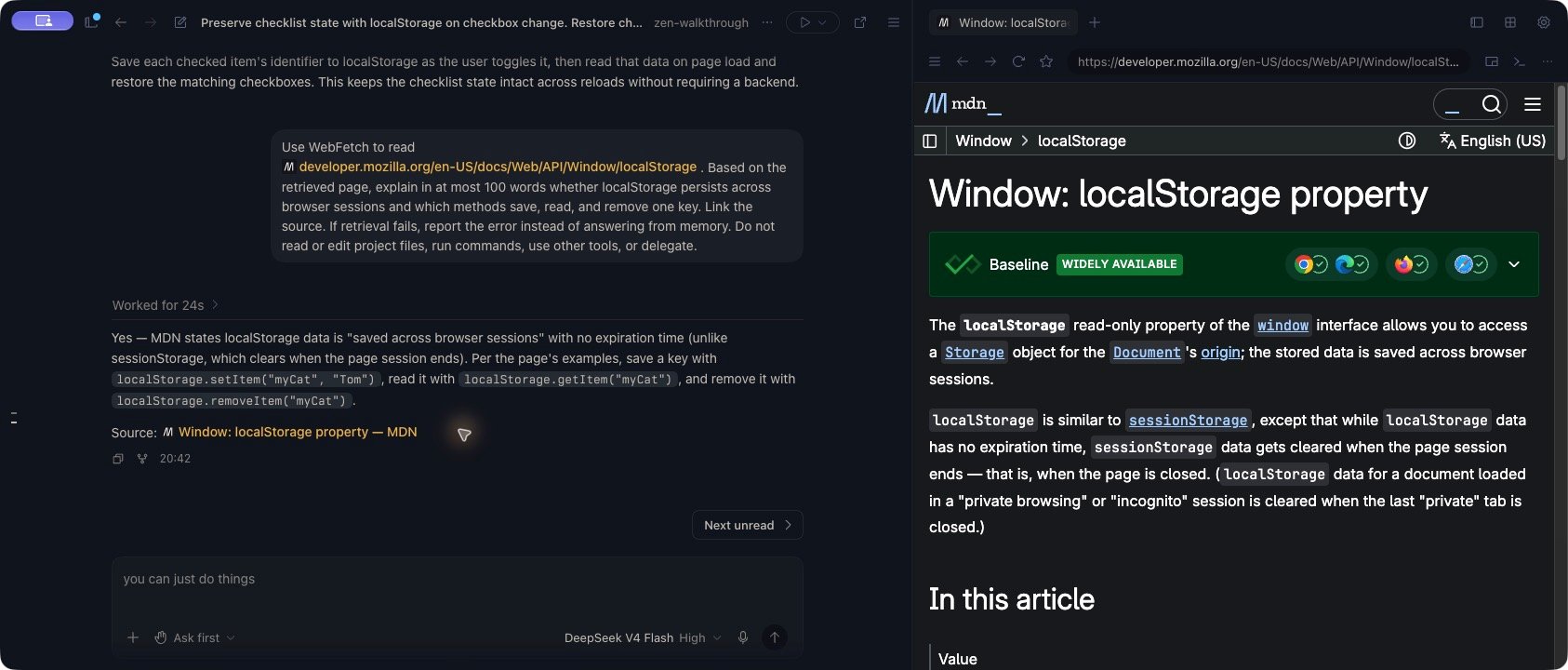
> Use WebFetch to read [https://developer.mozilla.org/en-US/docs/Web/API/Window/localStorage](https://developer.mozilla.org/en-US/docs/Web/API/Window/localStorage). Based on the retrieved page, explain in at most 100 words whether localStorage persists across browser sessions and which methods save, read, and remove one key. Link the source. If retrieval fails, report the error instead of answering from memory. Do not read or edit project files, run commands, use other tools, or delegate.
If Kisuke asks to read that address, review it and choose **Allow once** to permit this request. Wait for the answer to finish, then select its MDN citation. On desktop, you can compare the cited page in Zen's Browser panel beside the answer.
Give a follow-up enough detail to reproduce the problem. For example, if a Reset check fails:
> In the Trail Notes preview, I checked Coastal path, activated Reset, and reloaded the same address. Expected: all trails stay unchecked. Actual: Coastal path is checked again. Investigate the reset and saved-progress handling before editing, and keep the other page behavior unchanged.
This is a reporting example, not the result of the check above. Ask the agent to distinguish checks it ran from checks you still need to perform.
## Understand localhost and devices
`localhost` describes an address on a particular device. If your project runs on another computer, the server must run on that computer too. Starting the same port on your viewing device does not start the remote project.
Kisuke associates localhost navigation with a device. If the desktop app needs you to disambiguate it, **Open localhost on** asks you to choose the device that owns the address. Choose the computer running the server.
A tab that already belongs to a device keeps that association when you reload. If that device is unavailable, reconnect it. Do not expect Reload to find a different computer that happens to use the same port.
### Choose an available server
On desktop, a blank browser tab shows **Available** when Kisuke has servers to list.
1. Find the server by its name and port. The name can come from the page title or server information.
2. If two devices offer the same address, check the device name shown with each entry.
3. Select the entry and wait for the actual page to load. The entry identifies which device to use.
This list can include services from other projects on connected devices. An entry is a way to open a server; it does not mean that the server belongs to your current project or that your app is healthy.
If your server is missing, check its terminal output and enter its full address yourself. You do not need a listed entry to type an address. Keep the port and protocol the server reports: `http://localhost:3000` and `https://localhost:3000` are different addresses.
**Available** is not an inventory of every listening port. A service that does not speak HTTP can be running without appearing here. For explicit forwarding controls, see [Manage a forwarded port](#manage-a-forwarded-port).
## Navigate and return to your work
Use **Back**, **Forward**, and **Reload** in the browser toolbar. Switch to a file or terminal tab when you need to inspect the project or its server output, then return to the browser tab.
The address bar accepts HTTP and HTTPS addresses. A hostname such as `example.com` opens as HTTPS; a local address such as `localhost:3000` opens as HTTP. Text that is not recognized as an address becomes a Google search. Include the full `http://` or `https://` prefix when you want to make the intended address explicit.
### Save a favorite or find a recent page
In the desktop app:
1. Open the page you want to keep, then choose the star labeled **Bookmark This Page** in the toolbar.
2. Choose **Favorites, Recents** to open the browser library.
3. Use **Search** to filter favorites and history by page title or address. Recent pages are grouped by when you visited them.
4. Select an entry to open its address in the current tab.
Choose **Remove Bookmark** on a saved page, or use the entry's remove control in **Favorites**, to remove the favorite. Removing a favorite does not erase its browsing history.
Favorites and history save addresses without remembering the original device. For a saved localhost address, check which device the tab belongs to before reopening it. Use an [Available server entry](#choose-an-available-server) with the intended device name when you need to choose that computer explicitly.
To copy the current address, open **More options → Copy Current URL**. Copying a localhost address does not publish the server or give another person access to its device.
## Inspect a desktop preview
Wait for the intended page to load, then choose **Show Console** in the browser toolbar. The desktop app opens developer tools in a separate window for that page. Use them to inspect errors and network requests while you reproduce the problem. Choose **Show Console** again to close the tools.
For a layout problem, right-click the relevant part of the page and choose **Inspect Element**. Keep the project's [Terminal](/workspace/terminal) available too: an error in the page and an error in the server can require different fixes.
When asking the agent for help, provide the failing action, address and relevant error text. For example:
```text theme={null}
Saving a note fails.
Address: [preview URL]
Page: [paste error text]
Server: [paste output]
Find the cause before
changing code.
```
### Reload or reset browser data
The desktop browser's **More options** menu contains several different actions. Start with **Reload** after checking that your server is running. Save any work entered into the page before reloading or resetting it.
**Reload** loads the page again. Use **Hard Reload** when you suspect cached page resources are stale; it requests a reload that ignores the HTTP cache. Neither action is a site-data reset or a way to start the development server.
**Clear Cache** clears the HTTP cache for the page's browser session, then reloads the active page ignoring that cache. Other tabs sharing the session can be affected. This action does not request removal of cookies, local storage or IndexedDB.
**Clear Cookies** also removes local storage, IndexedDB, Cache Storage and service workers. It applies across the browser session used by the page, including other sites and tabs sharing that session. You can lose sign-ins, saved preferences and unsynced site data.
Use this only when you intend to reset that site data. Choose **More options → Clear Cookies**, then review **Clear all cookies?**. Choose **Cancel** to keep the data, or **Clear cookies** to request the reset. The active page reloads after clearing; check its resulting state before continuing.
**Clear Browsing History** removes this client's recorded browser history. It keeps favorites and open tabs, and does not clear cookies or site storage. To remove only one history entry, open **Favorites, Recents** and use that entry's remove control.
If a localhost page still fails, check the server and its device connection before clearing more data. Browser resets do not repair an unavailable project connection.
## Check browser access for your agent
Opening a page in **Browser** lets you view it beside the conversation. It does not, by itself, give the agent access to that page.
| How you inspect the page | What it establishes |
| - | - |
| Open the page and interact with it yourself | You can check the rendered page. Give the agent your observations, relevant errors, or a screenshot. |
| Ask Pi to use **WebFetch** on a URL | The agent reads the HTTP response as text. This does not inspect the current Browser tab, run its JavaScript, or share its signed-in session. |
| Use an available browser-control integration | The agent must reach the intended tab and report the actions and results it actually observed. Tool availability alone does not verify the page. |
### Check your harness
Kisuke provides its built-in desktop tab-control tools to Claude Code and offers them through MCP to compatible ACP harnesses. The target desktop tab must be open and reachable. An ACP harness must accept the HTTP MCP integration; appearing in the [harness catalog](/models/overview#harnesses-in-kisuke) does not establish that support.
Pi and Codex do not automatically receive this built-in desktop tab-control toolset through their native integrations. Their own tools or separately configured [MCP servers](/customization/mcp) can provide other browser capabilities. Check which browser and tab those tools actually use. Selecting an OpenAI, Anthropic, or Google model does not grant access to your Zen Browser tab.
Before asking the agent to test an interaction, give it the exact address and ask it to establish access. For example:
> Check whether your available tools can inspect the Trail Notes preview at \[preview URL]. Identify the tool and page you can actually reach. Do not claim to have inspected the rendered page from a text fetch or from reading the source files. If you cannot reach it, tell me what screenshot, error text, or manual check you need. Do not change files or page data during this access check.
After access is established, request one specific interaction and its expected result. If the agent reports a missing tab, unavailable tool, or connection error, check that the intended desktop tab is still open and the page loads for you. Use the [manual preview checks](#verify-a-change-in-the-preview) and [attach the result](/conversations/attachments) when agent access remains unavailable. A page loading on your phone does not establish access through the desktop tab-control tools.
## Research web sources from Zen
Ask for web research in the conversation when you need an explanation based on outside sources. The available search and page-reading tools depend on your [harness and integrations](/models/overview), as well as their configuration. Choosing an OpenAI, Anthropic, or Google model does not establish which web tools that conversation can use.
1. Name the question, the library or product version, and the sources you want used. Include exact URLs when you already know the relevant pages.
2. Ask the agent to open the sources and explain the evidence, rather than relying only on search snippets.
3. Review any [permission request](/conversations/permissions) that appears, then wait for the response and check for retrieval errors.
4. Open the cited pages and compare their version, date, and contents with the answer. Ask a follow-up when a conclusion has no supporting source.
For a small first check, use a Pi conversation and provide a known source URL:
> Use WebFetch to read [https://developer.mozilla.org/en-US/docs/Web/API/Window/localStorage](https://developer.mozilla.org/en-US/docs/Web/API/Window/localStorage). Based on the retrieved page, explain in at most 100 words whether localStorage persists across browser sessions and which methods save, read, and remove one key. Link the source. If retrieval fails, report the error instead of answering from memory. Do not read or edit project files, run commands, use other tools, or delegate.
If Kisuke asks to read that address, review it and choose **Allow once** to permit this request. Wait for the answer to finish, then select its MDN citation. On desktop, you can compare the cited page in Zen's Browser panel beside the answer.
 When a **Searched web** row shows a result count, expand it to inspect the links returned by that tool. The **Searched web** label can also appear when Pi reports **WebSearch unavailable**, so check the response for retrieval errors. The row alone does not prove that useful sources were retrieved or that the agent read an entire page. Ask which pages it successfully read if the answer lacks sources or describes a tool error.
### Pi's built-in web tools
Pi includes **WebFetch** for reading HTTP and HTTPS pages, and **WebSearch** backed by Brave Search. Its search tool requires `KISUKE_BRAVE_API_KEY` in the environment of the Kisuke Connect process on the computer running the conversation. This is separate from connecting your chat model's provider.
If Pi reports **WebSearch unavailable**, supplying known source URLs lets the agent try WebFetch without that search credential. A URL still needs to be reachable and return readable content.
WebFetch reads the HTTP response as text. It does not run the page's JavaScript or use your signed-in cookies from the Zen browser panel. Long responses can be truncated, and a redirect can return an empty or intermediate page instead of its destination. Opening a page yourself and retrieving it through this tool are separate operations.
### When a source cannot be read
| What happens | What to do |
| - | - |
| Search is unavailable | Provide the exact source URLs and ask whether the harness has a page-reading tool. If it does not, paste the relevant text or attach a file. |
| Pi returns an empty page or redirect response | Open the page yourself, copy its final destination URL, and ask the agent to read that address. |
| The page needs sign-in or renders its content with JavaScript | Paste an excerpt or [attach a document or screenshot](/conversations/attachments) containing the material you want reviewed. Identify the source and what is missing. |
| The returned text is truncated | Narrow the request to a relevant page or section, or supply the missing passage directly. Do not assume the whole document was read. |
| The answer has no verifiable sources | Ask which URLs were successfully retrieved and which claims are based on those pages. Supply a source yourself if retrieval remains unavailable. |
Keep a preview or reference page in **Browser** beside the conversation while you compare the answer with the source. For an error in your own app, include the address and the [page and server errors](#inspect-a-desktop-preview) in your request.
## Preview from your phone
First [connect your phone to the computer](/workspace/devices) that runs the project. Open that project in Kisuke and make sure its server is running. The phone displays the preview; the development command still runs on the project's computer.
1. Open **Browser** in the mobile workspace.
2. Enter the server's full address, such as `http://localhost:3000`, in the address bar and submit it.
3. Wait for the page to appear. If **Preparing browser connection…** remains visible or an error appears, check the computer's connection and the server's terminal output.
A blank mobile tab can also show **Available** servers for the selected project's device. Tap an entry to open it. **Reconnecting…** means the entry cannot be opened yet; **Connecting…** means an opening attempt is in progress. If **Try again →** appears, check the device and server before trying again. For an HTTPS server, enter its full HTTPS address in the address bar.
Use the **+** button for a new tab and the button showing the tab count to see your open tabs. Tap a preview to return to that page.
The three-dot menu contains **Reload** (or **Stop** while loading), **Zoom**, **Desktop Site**, and **DevTools**. Use **Desktop Site** to request a desktop layout, **Zoom** to adjust page size, and **DevTools** to inspect the loaded page. Stopping a page load does not stop the development server.
### Use localhost on iPhone and iPad
An address using `127.0.0.1` or `[::1]` can show **Use localhost for this remote service** before the page loads. This is an iOS browser limitation when reaching a server on another device.
1. Check that the address refers to the server you intended to open.
2. Choose **Try localhost** to change the hostname to `localhost` on the same device. The port, path, query, and fragment are retained.
3. Wait for the page to load at the new address.
This is a change of site origin. Cookies and storage associated with the original IP address can differ, so the app may show a different sign-in or saved state. Kisuke asks you to choose the alternative instead of silently changing the address.
Android does not use this iOS prompt. For a connection error there, check the original address, device, and server, then use **Reload**.
Check the addresses used by the page itself. Absolute requests to `localhost`, `127.0.0.1`, or `[::1]` can bypass the iOS browser connection even when the main page opens.
Where your app supports it, use relative asset and API URLs, such as `/assets/logo.svg` and `/api/notes`, so they follow the loaded page's origin. Check the development server's WebSocket or live-reload URL too. Changing the address bar alone does not rewrite URLs embedded in your app.
## Manage a forwarded port
You can usually preview a web app by entering its full address in **Browser**, without adding a manual forward first. Use **Settings → Tunnels** when you want to create or remove an explicit forward for the selected project's computer.
Start the service on that computer and note its port. Enter the service's port, such as `3000`, rather than a full URL. Forwarding provides a connection; it does not start the service or publish a public website.
### Add or close a forward on desktop
1. Open the project on the computer that runs the service, then open **Settings**.
2. Under **Connections**, choose **Tunnels**.
3. Under **Forward a Port**, enter an integer from `1` to `65535` in **Port**, then choose **Forward**.
4. Check **Forwarded Ports** for the matching address, or read the error below the form.
5. For a web service, choose **Open**, then **Back to app** to view it in your workspace. Wait for the page itself to load.
Choose **Close** on the matching row when you no longer need that forward. If **Failed to close tunnel** appears, closure was not confirmed; check the connection and current row before trying again.
### Add or close a forward on mobile
Select the project first, then open **Settings → Connections → Tunnels**. If tapping Tunnels does nothing, return to the workspace and open the intended project before entering Settings again.
1. In **Forward a Port**, enter the service's port and tap **Forward**.
2. Watch its row under **Forwarded Ports**. Clearing the input means the request was saved; it does not mean the connection is ready.
3. Wait for **Open**, then tap it to request the page in Browser. Return to the workspace's **Browser** view if Settings remains in front. Check the loaded page as well as the forwarding row.
Kisuke saves mobile forwarding requests and attempts to restore them when the corresponding device connection becomes available. Use the row's state to decide what to do next:
* **Waiting for connection:** reconnect the project's computer and return to that project. Keep the existing request while the connection recovers.
* **Connecting:** the forward is being prepared. Wait for **Open** or an error.
* **Retry:** read the error, check the device and service, then retry that row.
* **Closing** or **Retry close:** the stop request is still pending or needs another attempt. Reconnect if necessary and finish closing it before forwarding the same port again.
To stop a mobile forward, tap its **×** control, labeled **Stop forwarding port** with the port number. Wait for the saved request to disappear. Leaving Settings alone does not remove the saved forwarding request.
### Check the address and connection
**Open** uses an HTTP localhost address at `/`. If the service requires HTTPS or a particular path, enter the full address in Browser, such as `https://localhost:3000/dashboard`. A non-HTTP service does not become a web page merely because its port is forwarded.
On desktop and mobile, check the selected project and its device connection. **Requires a connection to the remote machine** means the form cannot currently forward a port.
The web client's Settings page currently leaves manual forwarding unavailable. Return to the project and enter the service's full address in Browser instead.
Check whether the forward already appears before adding it again. A timeout does not establish that nothing happened. On mobile, use the existing row's **Retry** after restoring the connection.
If the error says **Couldn’t allocate a local endpoint**, check for a local port conflict. Do not change the remote port number unless the service itself is listening on that new port.
Closing a forward does not stop the development server. A page already open in Browser can use a separate browser connection. To stop the app itself, stop its process in the [Terminal](/workspace/terminal#interrupt-hide-clear-or-close) or use the [Run script's Stop control](/projects/scripts).
## Troubleshoot a page that will not load
Start with the server's terminal output and the device associated with the tab. A correct-looking address alone does not prove that the server is running.
If files and terminals on the same device are also unavailable, start with the [device connection checks](/workspace/devices#diagnose-missing-or-unavailable-devices). If those tools work, check the browser message and the server's address next.
| Message | What to check |
| - | - |
| **Device connection unavailable** | Reconnect the device this tab belongs to, then reload. |
| **Browser connection unavailable** | Reload to retry the browser connection. Check the selected device if it continues. |
| **Server refused the connection** | Confirm that the server is running on the intended device and listening on the address and port you entered. |
| **Address not found** | Check the hostname and the DNS connection on the device serving the tab. |
| **Network unavailable** | Restore the required network connection, then reload. |
| **Connection timed out** | Check the server and network, then reload. |
| **Secure connection failed** | Check the server's certificate and the device clock. |
| **This page cannot be embedded** | Use a page that permits embedding, or a separate browser that can reach the server's device. |
| **Couldn’t load this page** | Check the address and connection. Expand **Details** for the available error information. |
An error page returned by your own server, such as a 404 or 503 response, is still the server's page. Inspect the application and its logs for those errors.
When reporting a persistent problem, include the address, which device runs the server, the displayed message, and relevant details. Remove credentials or private query parameters before sharing an address or log.
This documentation is built and hosted on [Mintlify](https://mintlify.com), a developer documentation platform.
When a **Searched web** row shows a result count, expand it to inspect the links returned by that tool. The **Searched web** label can also appear when Pi reports **WebSearch unavailable**, so check the response for retrieval errors. The row alone does not prove that useful sources were retrieved or that the agent read an entire page. Ask which pages it successfully read if the answer lacks sources or describes a tool error.
### Pi's built-in web tools
Pi includes **WebFetch** for reading HTTP and HTTPS pages, and **WebSearch** backed by Brave Search. Its search tool requires `KISUKE_BRAVE_API_KEY` in the environment of the Kisuke Connect process on the computer running the conversation. This is separate from connecting your chat model's provider.
If Pi reports **WebSearch unavailable**, supplying known source URLs lets the agent try WebFetch without that search credential. A URL still needs to be reachable and return readable content.
WebFetch reads the HTTP response as text. It does not run the page's JavaScript or use your signed-in cookies from the Zen browser panel. Long responses can be truncated, and a redirect can return an empty or intermediate page instead of its destination. Opening a page yourself and retrieving it through this tool are separate operations.
### When a source cannot be read
| What happens | What to do |
| - | - |
| Search is unavailable | Provide the exact source URLs and ask whether the harness has a page-reading tool. If it does not, paste the relevant text or attach a file. |
| Pi returns an empty page or redirect response | Open the page yourself, copy its final destination URL, and ask the agent to read that address. |
| The page needs sign-in or renders its content with JavaScript | Paste an excerpt or [attach a document or screenshot](/conversations/attachments) containing the material you want reviewed. Identify the source and what is missing. |
| The returned text is truncated | Narrow the request to a relevant page or section, or supply the missing passage directly. Do not assume the whole document was read. |
| The answer has no verifiable sources | Ask which URLs were successfully retrieved and which claims are based on those pages. Supply a source yourself if retrieval remains unavailable. |
Keep a preview or reference page in **Browser** beside the conversation while you compare the answer with the source. For an error in your own app, include the address and the [page and server errors](#inspect-a-desktop-preview) in your request.
## Preview from your phone
First [connect your phone to the computer](/workspace/devices) that runs the project. Open that project in Kisuke and make sure its server is running. The phone displays the preview; the development command still runs on the project's computer.
1. Open **Browser** in the mobile workspace.
2. Enter the server's full address, such as `http://localhost:3000`, in the address bar and submit it.
3. Wait for the page to appear. If **Preparing browser connection…** remains visible or an error appears, check the computer's connection and the server's terminal output.
A blank mobile tab can also show **Available** servers for the selected project's device. Tap an entry to open it. **Reconnecting…** means the entry cannot be opened yet; **Connecting…** means an opening attempt is in progress. If **Try again →** appears, check the device and server before trying again. For an HTTPS server, enter its full HTTPS address in the address bar.
Use the **+** button for a new tab and the button showing the tab count to see your open tabs. Tap a preview to return to that page.
The three-dot menu contains **Reload** (or **Stop** while loading), **Zoom**, **Desktop Site**, and **DevTools**. Use **Desktop Site** to request a desktop layout, **Zoom** to adjust page size, and **DevTools** to inspect the loaded page. Stopping a page load does not stop the development server.
### Use localhost on iPhone and iPad
An address using `127.0.0.1` or `[::1]` can show **Use localhost for this remote service** before the page loads. This is an iOS browser limitation when reaching a server on another device.
1. Check that the address refers to the server you intended to open.
2. Choose **Try localhost** to change the hostname to `localhost` on the same device. The port, path, query, and fragment are retained.
3. Wait for the page to load at the new address.
This is a change of site origin. Cookies and storage associated with the original IP address can differ, so the app may show a different sign-in or saved state. Kisuke asks you to choose the alternative instead of silently changing the address.
Android does not use this iOS prompt. For a connection error there, check the original address, device, and server, then use **Reload**.
Check the addresses used by the page itself. Absolute requests to `localhost`, `127.0.0.1`, or `[::1]` can bypass the iOS browser connection even when the main page opens.
Where your app supports it, use relative asset and API URLs, such as `/assets/logo.svg` and `/api/notes`, so they follow the loaded page's origin. Check the development server's WebSocket or live-reload URL too. Changing the address bar alone does not rewrite URLs embedded in your app.
## Manage a forwarded port
You can usually preview a web app by entering its full address in **Browser**, without adding a manual forward first. Use **Settings → Tunnels** when you want to create or remove an explicit forward for the selected project's computer.
Start the service on that computer and note its port. Enter the service's port, such as `3000`, rather than a full URL. Forwarding provides a connection; it does not start the service or publish a public website.
### Add or close a forward on desktop
1. Open the project on the computer that runs the service, then open **Settings**.
2. Under **Connections**, choose **Tunnels**.
3. Under **Forward a Port**, enter an integer from `1` to `65535` in **Port**, then choose **Forward**.
4. Check **Forwarded Ports** for the matching address, or read the error below the form.
5. For a web service, choose **Open**, then **Back to app** to view it in your workspace. Wait for the page itself to load.
Choose **Close** on the matching row when you no longer need that forward. If **Failed to close tunnel** appears, closure was not confirmed; check the connection and current row before trying again.
### Add or close a forward on mobile
Select the project first, then open **Settings → Connections → Tunnels**. If tapping Tunnels does nothing, return to the workspace and open the intended project before entering Settings again.
1. In **Forward a Port**, enter the service's port and tap **Forward**.
2. Watch its row under **Forwarded Ports**. Clearing the input means the request was saved; it does not mean the connection is ready.
3. Wait for **Open**, then tap it to request the page in Browser. Return to the workspace's **Browser** view if Settings remains in front. Check the loaded page as well as the forwarding row.
Kisuke saves mobile forwarding requests and attempts to restore them when the corresponding device connection becomes available. Use the row's state to decide what to do next:
* **Waiting for connection:** reconnect the project's computer and return to that project. Keep the existing request while the connection recovers.
* **Connecting:** the forward is being prepared. Wait for **Open** or an error.
* **Retry:** read the error, check the device and service, then retry that row.
* **Closing** or **Retry close:** the stop request is still pending or needs another attempt. Reconnect if necessary and finish closing it before forwarding the same port again.
To stop a mobile forward, tap its **×** control, labeled **Stop forwarding port** with the port number. Wait for the saved request to disappear. Leaving Settings alone does not remove the saved forwarding request.
### Check the address and connection
**Open** uses an HTTP localhost address at `/`. If the service requires HTTPS or a particular path, enter the full address in Browser, such as `https://localhost:3000/dashboard`. A non-HTTP service does not become a web page merely because its port is forwarded.
On desktop and mobile, check the selected project and its device connection. **Requires a connection to the remote machine** means the form cannot currently forward a port.
The web client's Settings page currently leaves manual forwarding unavailable. Return to the project and enter the service's full address in Browser instead.
Check whether the forward already appears before adding it again. A timeout does not establish that nothing happened. On mobile, use the existing row's **Retry** after restoring the connection.
If the error says **Couldn’t allocate a local endpoint**, check for a local port conflict. Do not change the remote port number unless the service itself is listening on that new port.
Closing a forward does not stop the development server. A page already open in Browser can use a separate browser connection. To stop the app itself, stop its process in the [Terminal](/workspace/terminal#interrupt-hide-clear-or-close) or use the [Run script's Stop control](/projects/scripts).
## Troubleshoot a page that will not load
Start with the server's terminal output and the device associated with the tab. A correct-looking address alone does not prove that the server is running.
If files and terminals on the same device are also unavailable, start with the [device connection checks](/workspace/devices#diagnose-missing-or-unavailable-devices). If those tools work, check the browser message and the server's address next.
| Message | What to check |
| - | - |
| **Device connection unavailable** | Reconnect the device this tab belongs to, then reload. |
| **Browser connection unavailable** | Reload to retry the browser connection. Check the selected device if it continues. |
| **Server refused the connection** | Confirm that the server is running on the intended device and listening on the address and port you entered. |
| **Address not found** | Check the hostname and the DNS connection on the device serving the tab. |
| **Network unavailable** | Restore the required network connection, then reload. |
| **Connection timed out** | Check the server and network, then reload. |
| **Secure connection failed** | Check the server's certificate and the device clock. |
| **This page cannot be embedded** | Use a page that permits embedding, or a separate browser that can reach the server's device. |
| **Couldn’t load this page** | Check the address and connection. Expand **Details** for the available error information. |
An error page returned by your own server, such as a 404 or 503 response, is still the server's page. Inspect the application and its logs for those errors.
When reporting a persistent problem, include the address, which device runs the server, the displayed message, and relevant details. Remove credentials or private query parameters before sharing an address or log.
This documentation is built and hosted on [Mintlify](https://mintlify.com), a developer documentation platform.