> ## Documentation Index
> Fetch the complete documentation index at: https://docs.kisuke.dev/llms.txt
> Use this file to discover all available pages before exploring further.
# Work in a separate checkout
> Create a worktree from Zen, check its files and branch, and start a conversation in the intended checkout.
Use a Git worktree when you want another working folder and branch for the same repository. For example, keep your main checkout available while you develop a storage feature in a separate checkout.
This guide follows the desktop Zen environment menu. Creating a worktree here selects another folder; it does not move the open conversation or copy its messages. To inherit an earlier discussion, use [Continue from a response](/conversations/continue-from-response).
## Before you start
[Open the project](/projects/open-a-project) on an available device. Its repository needs at least one commit and an existing branch to start from. Inspect [Git changes](/workspace/git) and decide which files the new checkout should contain.
An ordinary worktree starts from the selected branch's committed files. It does not automatically carry over your staged changes, unstaged edits, or untracked files. [Commit the changes you want to include](/workspace/commit-and-push) first, or plan how to bring them into the new checkout.
Project file-copy rules and setup scripts can add or modify files afterward. Review those settings before creating the checkout.
## Create a worktree from Zen
1. Open a conversation in the project.
2. Choose **Show summary** if the environment summary is hidden.
3. Under **Environment**, select **Local** for the main checkout or **Worktree** for a linked checkout.
4. In **Continue in**, find **New worktree from branch**.
5. Select the branch whose committed files you want to start with, such as `main`.
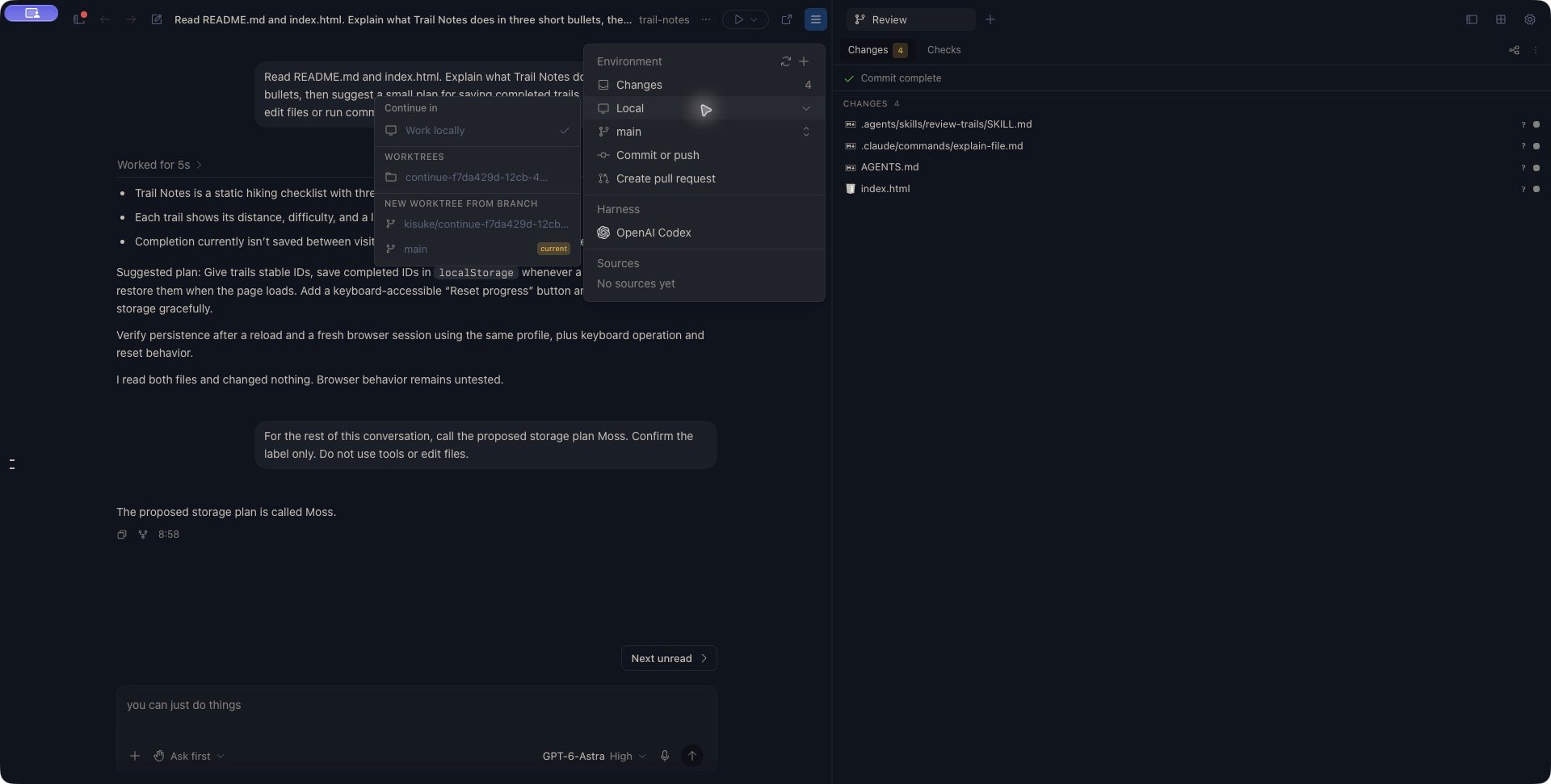 Kisuke generates a checkout name and a new branch name. Your Git branch-prefix setting can affect the branch name. The original checkout stays on its existing branch.
If a listed branch already belongs to an existing managed worktree, selecting that branch opens that worktree instead. To return to a checkout you already created, use its entry under **Worktrees**.
The **Continue in** menu changes the selected checkout. It does not perform the history-copying operation offered by **Continue from this response**.
## Check the destination before sending
Wait for the destination workspace to open, then verify the folder, branch, and device above the composer. Open **Files** in the right panel and inspect a familiar file.
If the composer shows **New task**, open its project picker. If **Don't work in a project** is selected, choose **Open Folder…** and open the generated checkout on the correct device. Confirm that the composer now shows the checkout and branch before sending. This extra selection may be needed even though worktree creation succeeded.
If you need to find the generated path, run this read-only command from the original repository's [Terminal](/workspace/terminal):
```bash theme={null}
git worktree list
```
Choose your [model and harness](/models/overview) and [permissions](/conversations/permissions). A useful first request is:
> Inspect this checkout without changing files. Report the working directory and Git branch, list the project files, and summarize the README. Do not make edits.
For example, if you have committed only `README.md` and your app files are still untracked, the new worktree contains the README but not those app files. The first inspection helps catch that before you ask for an implementation.
For an independent check, open a Terminal in the destination and run:
```bash theme={null}
pwd
git branch --show-current
git status --short
```
The directory and branch should match the checkout you intended. Check them before running commands or asking the agent to edit files.
## Understand which files appear
| Source of files | What the ordinary worktree receives |
| - | - |
| Selected branch | Its committed files, checked out on the new branch. |
| Uncommitted work in the original folder | Not automatically transferred. |
| Configured **Files to copy** | Matching files copied from the repository's main checkout after Git creates the destination. |
| Configured **Setup** script | Any files or dependencies the script creates or changes. |
File-copy rules can include ignored local files. They copy the main checkout's current contents, even when you start worktree creation from another linked checkout. A matching rule can overwrite a file that Git just checked out, so inspect the resulting changes.
A file-copy error can leave the checkout in place. Verify that the local configuration or other files you need actually arrived before using them.
These are copies made during creation, not ongoing synchronization. Later edits in one working folder do not automatically update the other. Coordinate any shared external services or resources separately.
## Location and setup
For ordinary worktrees, the default destination is `.kisuke/worktrees/` inside the repository's main checkout. A configured **Workspaces path** changes that location; relative paths resolve from the main checkout. Creating a worktree while viewing another worktree still uses the main checkout's configuration.
Open the main checkout's **Settings → Project** to inspect **Workspaces path**, **Files to copy**, and **Scripts → Setup**. Shared configuration lives in `.kisuke/project.json`; local overrides live in `.kisuke/project.local.json`.
See [Project scripts](/projects/scripts) for configuration scope, Setup output, Run controls, and environment variables.
The setup script runs in the new checkout on the project's device. In this ordinary creation flow, setup runs in the background: an open workspace or enabled composer does not prove dependencies have finished installing. Check the setup's expected result before starting work that depends on it. A failed setup can leave a usable Git checkout with an incomplete environment.
Response continuation has different preparation rules: its new-worktree option carries over current Git changes and waits for setup before opening the chat. Follow that workflow's [file and setup guidance](/conversations/continue-from-response#files-in-a-new-worktree).
## Switch between checkouts
From an open conversation's environment summary, select **Local** or **Worktree**, then choose:
* **Work locally** to open the repository's main checkout on the same project device.
* An entry under **Worktrees** to open that managed checkout.
Here, **Work locally** means the main checkout. It does not transfer a remote project to the computer displaying Kisuke.
Switching folders does not relocate an existing conversation's working directory. Reopen the conversation associated with the checkout you want, or start a new conversation after checking its project selection.
The branch picker on a new-conversation screen also lists **Branches in this folder**. Selecting an ordinary branch there can switch branches in the current folder. Use its separate **Create a separate checkout for…** action when available, or the Zen environment menu above, when you want another working folder.
## Remove a worktree you no longer need
First preserve any files and commits you need, and stop work that uses the checkout. Open the repository's main checkout, open the environment menu, and use **Remove worktree** on the unwanted worktree's row.
Removing a worktree deletes its working folder. **Settings → Git → Delete branch on archive** can also delete its branch. Do not rely on this action as an archive of uncommitted files or unmerged work.
The shared checkout controls require you to leave the selected worktree before removing it. Git may reject removal when the checkout contains changes. Inspect and preserve those changes before deciding how to proceed.
The removal attempt closes terminals whose working directories are inside the checkout before asking Git to remove it. Those terminals can close even if Git later rejects removal.
If an **Archive** script is configured, it runs before Git removal is attempted. Its failure does not guarantee that removal will stop; it is not a backup or a protection against deletion.
## Troubleshoot creation or selection
| What happens | What to check |
| - | - |
| **No branches yet** | Confirm the selected folder is a Git repository with an initial commit. |
| The generated folder contains fewer files than the original | Check which files were committed on the selected branch and which were only local changes. Review file-copy rules. |
| The composer says **New task** after creation | Select the generated checkout through **Open Folder…**, then verify its branch and device before sending. |
| Dependencies or generated files are missing | Check the configured setup command and whether it completed successfully in this checkout. |
| The menu closes but no destination opens | Inspect the original repository with `git worktree list` before creating another worktree. The checkout may already exist. |
| An existing checkout is absent from **Worktrees** | The menu lists Kisuke-managed locations. Use Open Folder for another checkout whose path you know. |
| Removal is rejected | Open the main checkout on the same device, check for uncommitted files, and inspect Git's error before retrying. |
Creating another worktree is a new request and can allocate another folder. After a disconnect or uncertain result, inspect existing checkouts before repeating creation.
This documentation is built and hosted on [Mintlify](https://mintlify.com), a developer documentation platform.
Kisuke generates a checkout name and a new branch name. Your Git branch-prefix setting can affect the branch name. The original checkout stays on its existing branch.
If a listed branch already belongs to an existing managed worktree, selecting that branch opens that worktree instead. To return to a checkout you already created, use its entry under **Worktrees**.
The **Continue in** menu changes the selected checkout. It does not perform the history-copying operation offered by **Continue from this response**.
## Check the destination before sending
Wait for the destination workspace to open, then verify the folder, branch, and device above the composer. Open **Files** in the right panel and inspect a familiar file.
If the composer shows **New task**, open its project picker. If **Don't work in a project** is selected, choose **Open Folder…** and open the generated checkout on the correct device. Confirm that the composer now shows the checkout and branch before sending. This extra selection may be needed even though worktree creation succeeded.
If you need to find the generated path, run this read-only command from the original repository's [Terminal](/workspace/terminal):
```bash theme={null}
git worktree list
```
Choose your [model and harness](/models/overview) and [permissions](/conversations/permissions). A useful first request is:
> Inspect this checkout without changing files. Report the working directory and Git branch, list the project files, and summarize the README. Do not make edits.
For example, if you have committed only `README.md` and your app files are still untracked, the new worktree contains the README but not those app files. The first inspection helps catch that before you ask for an implementation.
For an independent check, open a Terminal in the destination and run:
```bash theme={null}
pwd
git branch --show-current
git status --short
```
The directory and branch should match the checkout you intended. Check them before running commands or asking the agent to edit files.
## Understand which files appear
| Source of files | What the ordinary worktree receives |
| - | - |
| Selected branch | Its committed files, checked out on the new branch. |
| Uncommitted work in the original folder | Not automatically transferred. |
| Configured **Files to copy** | Matching files copied from the repository's main checkout after Git creates the destination. |
| Configured **Setup** script | Any files or dependencies the script creates or changes. |
File-copy rules can include ignored local files. They copy the main checkout's current contents, even when you start worktree creation from another linked checkout. A matching rule can overwrite a file that Git just checked out, so inspect the resulting changes.
A file-copy error can leave the checkout in place. Verify that the local configuration or other files you need actually arrived before using them.
These are copies made during creation, not ongoing synchronization. Later edits in one working folder do not automatically update the other. Coordinate any shared external services or resources separately.
## Location and setup
For ordinary worktrees, the default destination is `.kisuke/worktrees/` inside the repository's main checkout. A configured **Workspaces path** changes that location; relative paths resolve from the main checkout. Creating a worktree while viewing another worktree still uses the main checkout's configuration.
Open the main checkout's **Settings → Project** to inspect **Workspaces path**, **Files to copy**, and **Scripts → Setup**. Shared configuration lives in `.kisuke/project.json`; local overrides live in `.kisuke/project.local.json`.
See [Project scripts](/projects/scripts) for configuration scope, Setup output, Run controls, and environment variables.
The setup script runs in the new checkout on the project's device. In this ordinary creation flow, setup runs in the background: an open workspace or enabled composer does not prove dependencies have finished installing. Check the setup's expected result before starting work that depends on it. A failed setup can leave a usable Git checkout with an incomplete environment.
Response continuation has different preparation rules: its new-worktree option carries over current Git changes and waits for setup before opening the chat. Follow that workflow's [file and setup guidance](/conversations/continue-from-response#files-in-a-new-worktree).
## Switch between checkouts
From an open conversation's environment summary, select **Local** or **Worktree**, then choose:
* **Work locally** to open the repository's main checkout on the same project device.
* An entry under **Worktrees** to open that managed checkout.
Here, **Work locally** means the main checkout. It does not transfer a remote project to the computer displaying Kisuke.
Switching folders does not relocate an existing conversation's working directory. Reopen the conversation associated with the checkout you want, or start a new conversation after checking its project selection.
The branch picker on a new-conversation screen also lists **Branches in this folder**. Selecting an ordinary branch there can switch branches in the current folder. Use its separate **Create a separate checkout for…** action when available, or the Zen environment menu above, when you want another working folder.
## Remove a worktree you no longer need
First preserve any files and commits you need, and stop work that uses the checkout. Open the repository's main checkout, open the environment menu, and use **Remove worktree** on the unwanted worktree's row.
Removing a worktree deletes its working folder. **Settings → Git → Delete branch on archive** can also delete its branch. Do not rely on this action as an archive of uncommitted files or unmerged work.
The shared checkout controls require you to leave the selected worktree before removing it. Git may reject removal when the checkout contains changes. Inspect and preserve those changes before deciding how to proceed.
The removal attempt closes terminals whose working directories are inside the checkout before asking Git to remove it. Those terminals can close even if Git later rejects removal.
If an **Archive** script is configured, it runs before Git removal is attempted. Its failure does not guarantee that removal will stop; it is not a backup or a protection against deletion.
## Troubleshoot creation or selection
| What happens | What to check |
| - | - |
| **No branches yet** | Confirm the selected folder is a Git repository with an initial commit. |
| The generated folder contains fewer files than the original | Check which files were committed on the selected branch and which were only local changes. Review file-copy rules. |
| The composer says **New task** after creation | Select the generated checkout through **Open Folder…**, then verify its branch and device before sending. |
| Dependencies or generated files are missing | Check the configured setup command and whether it completed successfully in this checkout. |
| The menu closes but no destination opens | Inspect the original repository with `git worktree list` before creating another worktree. The checkout may already exist. |
| An existing checkout is absent from **Worktrees** | The menu lists Kisuke-managed locations. Use Open Folder for another checkout whose path you know. |
| Removal is rejected | Open the main checkout on the same device, check for uncommitted files, and inspect Git's error before retrying. |
Creating another worktree is a new request and can allocate another folder. After a disconnect or uncertain result, inspect existing checkouts before repeating creation.
This documentation is built and hosted on [Mintlify](https://mintlify.com), a developer documentation platform.