> ## Documentation Index
> Fetch the complete documentation index at: https://docs.kisuke.dev/llms.txt
> Use this file to discover all available pages before exploring further.
# Set up and run project scripts
> Configure Setup, Run, and Archive commands, follow their output in Zen, and understand how scripts behave in separate checkouts.
Project scripts give you repeatable commands for preparing a checkout, starting a development server, and cleaning up before removing a worktree. In desktop Zen, use **Workspace scripts** in the conversation's top bar to open Setup output or start Run.
| Script | When and why to use it |
| - | - |
| **Setup** | Runs after Kisuke creates a worktree. Use it to install dependencies or prepare generated files. |
| **Run** | Runs when you choose **Run script** or the Run control. Use it to start a development server or run a project check. |
| **Archive** | Runs before Kisuke attempts to remove a worktree. Use it to stop a checkout-specific service or perform cleanup. |
Archiving a conversation in the sidebar is a [different operation](/conversations/organize-and-archive). It does not mean the worktree is being removed.
## Configure a script
[Open the project](/projects/open-a-project) on the device that owns its files. Install the tools your command needs on that device, and use commands appropriate for its shell. The walkthrough below uses the desktop app.
1. Open **Settings → Project** and check the displayed project path.
2. Choose **Shared** or **Local** under **Save changes to**.
3. Enter a command in **Scripts → Setup**, **Run**, or **Archive**. Commands can span multiple lines.
4. Choose **Save to .kisuke/project.json** for Shared, or **Save to .kisuke/project.local.json** for Local.
5. Wait for the saved confirmation, then return to the conversation.
You can also reach Project settings through **Workspace scripts → Add run script** or **Add setup script** when that command is missing.
### Shared and local configuration
**Shared** writes `.kisuke/project.json` in the selected project folder. You can review and commit this file so other checkouts and collaborators receive it. Saving does not create a Git commit.
**Local** writes `.kisuke/project.local.json`. Its values override the corresponding shared fields; other shared fields still apply. Kisuke also adds an ignore rule for the local file when needed. Review any resulting `.gitignore` change in [Git](/workspace/git).
The form shows the combined configuration. Check its values before saving them as Shared. A local override can continue to mask a shared script you just changed.
To remove an inherited command, inspect both configuration files. Clearing a Local field can expose the Shared command again; it does not disable that inherited command.
## Start Run and inspect its output
1. Return to an open conversation in the intended checkout.
2. Open **Workspace scripts** and choose **Run script**.
3. Follow the output in the right panel. Check the command's own messages for readiness or errors.
4. For a server, select an HTTP or HTTPS link in its output to open it in the [Browser](/workspace/browser).
5. Return through **Workspace scripts → Run script** to inspect the active run's output.
6. Choose **Stop** in the Run pane when you want to end the script.
Opening the output again while that run is active does not start another copy through this control. After it ends, **Run** starts a new execution. Treat rerunning a command as repeating its effects.
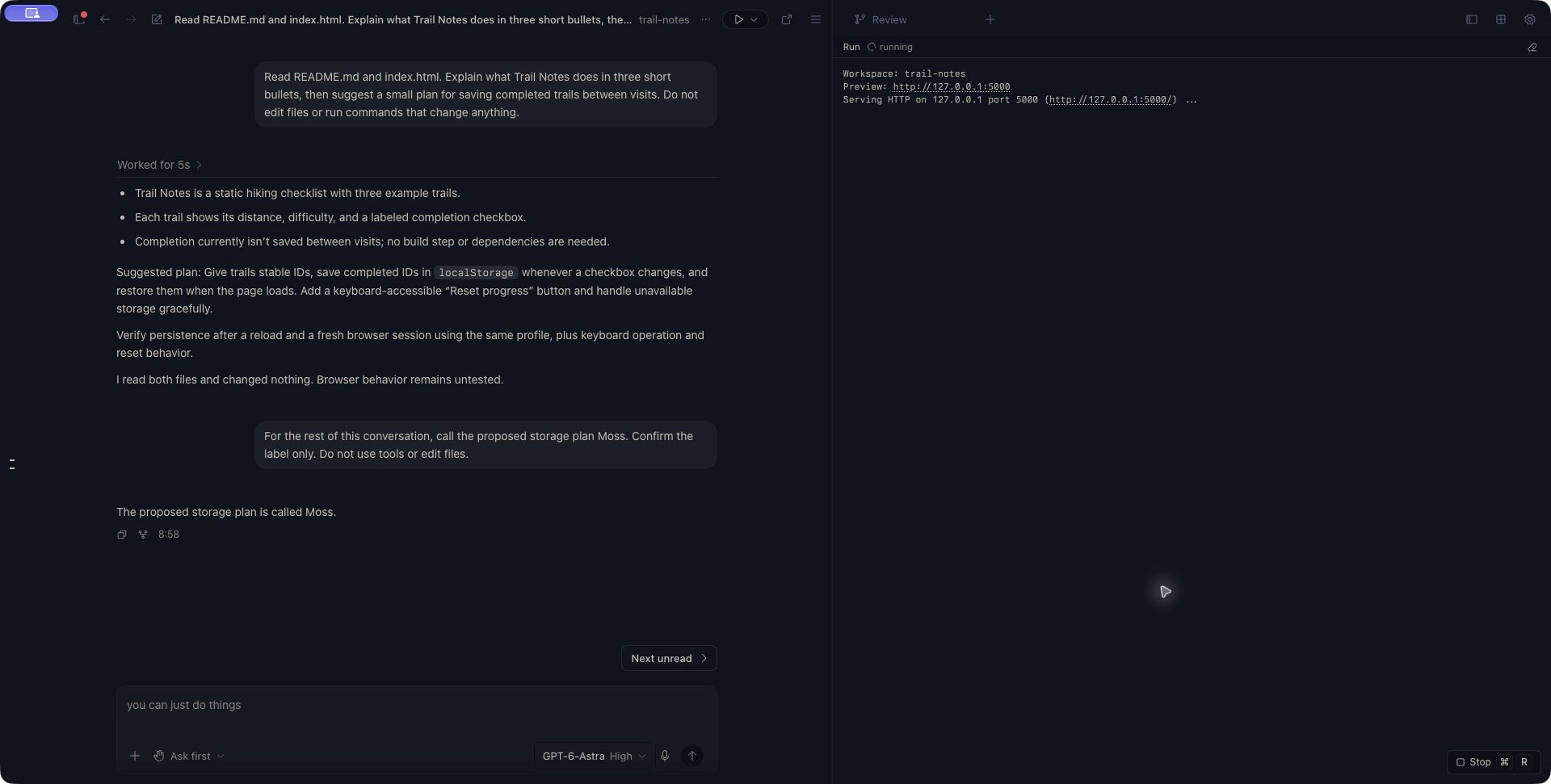 **Cmd+R** on macOS, or **Ctrl+R** on Windows and Linux, opens the Run surface and toggles a configured script between running and stopping. See [Keyboard shortcuts](/reference/keyboard-shortcuts) for other workspace controls.
The pane is an output viewer. Use a [Terminal](/workspace/terminal) for commands that require you to type interactive responses. **Clear output** clears the displayed text; it does not stop the script or undo its effects.
### Read the status
| Status | Meaning |
| - | - |
| **running** | Run is reported active. Check the output to learn whether the application is ready. |
| **completed** | The process reported exit code zero. This can also appear after Stop; check what the command actually accomplished. |
| **exited** followed by a number | The process reported a nonzero exit code. Read the preceding output before retrying. |
Hiding the pane or opening Browser does not stop the process. Use **Stop** explicitly. If a command starts detached services, check those services separately using their own controls.
Output is a bounded view of events received by the current app session, not a permanent log. After a disconnect or restart, inspect the actual process and its listening port before starting another run.
## Example: preview a static site
For a project containing `index.html`, with Python 3 installed on its device, put this in **Run** on macOS or Linux:
```sh theme={null}
printf 'Workspace: %s\n' \
"$KISUKE_WORKSPACE_NAME"
printf 'Preview: %s:%s\n' \
'http://127.0.0.1' "$KISUKE_PORT"
exec python3 -u -m http.server \
"$KISUKE_PORT" --bind 127.0.0.1
```
Start Run, wait for Python's **Serving HTTP** message, and open the printed address. This example serves the selected folder and stays running until you stop it. Use your project's development command instead when it needs compilation or a backend.
`KISUKE_PORT` supplies an assigned port number. It does not make your server start or guarantee that another application is not using the port. If the server reports an address conflict, choose a suitable available port in your command and open the address the server actually uses.
### Values available to commands
* `KISUKE_WORKSPACE_NAME`: the working folder's name.
* `KISUKE_WORKSPACE_PATH`: the folder where the script runs.
* `KISUKE_ROOT_PATH`: the project folder whose configuration started the script. Automatic worktree hooks use the main repository folder; Zen Run uses the selected checkout.
* `KISUKE_DEFAULT_BRANCH`: the configured **Branch new workspaces from** value, or `origin/main` when unset. This does not prove that branch exists.
* `KISUKE_PORT`: the port assigned to that working-folder path. Repeated allocations for the same path reuse it. The value is empty if no port can be assigned.
Commands run on the project's device. A path or `localhost` address on that device can differ from one on the computer displaying Kisuke.
## Setup and separate checkouts
Configure Setup in the repository's main checkout before [creating a worktree](/projects/worktrees). Kisuke reads that configuration and runs the command in the new checkout. Saving Setup for a folder that is already open does not run it retroactively.
For ordinary worktree creation, Setup runs in the background. The destination opening does not mean installation has finished. Check its result before starting a server or asking the agent to use the installed tools. A failed Setup can leave the checkout present but incomplete.
**Workspace scripts → View setup script** opens the Setup viewer when Setup is configured in the selected folder. It displays available session output; it is not a rerun button. If no output is available, inspect the checkout's actual files or dependencies. Use Terminal if you need to run the preparation command manually in an existing checkout.
[Continue from a response](/conversations/continue-from-response#files-in-a-new-worktree) follows different preparation rules: its new-worktree operation waits for Setup and reports a failure before opening the destination conversation.
### Make Run available in a worktree
Zen reads Run configuration from the currently selected folder. A local script stored only in the main checkout does not automatically appear in every linked checkout.
Commit the shared `.kisuke/project.json` on the branch you create the worktree from, or deliberately include the configuration you need in the main checkout's **Files to copy** rules. Those rules apply during creation; they do not synchronize later edits. Review copied local configuration before using it in another folder.
If the menu says **Add run script**, inspect `.kisuke/project.json` and `.kisuke/project.local.json` inside that checkout. If Project settings asks you to open a project, return to the main checkout to configure future worktrees, or edit the intended checkout's configuration through [Files](/workspace/files).
## Archive and cleanup
Archive runs in the worktree before Git removal is attempted, and Kisuke waits for the command to exit. Keep it focused on cleanup for that checkout.
An Archive error does not veto removal. Preserve files you need before removing a worktree; do not use Archive as your only backup or deletion safeguard.
Cleanup can run even if Git subsequently rejects removal. Inspect the checkout and any services before repeating the removal request. Follow the [worktree removal guidance](/projects/worktrees#remove-a-worktree-you-no-longer-need) for file and branch consequences.
## Troubleshoot a script
| What happens | What to check |
| - | - |
| **Add run script** appears | Check that Run is saved in the selected checkout, not only another folder. |
| A saved edit seems ignored | Check Local overrides, the selected device and folder, and the configuration files on disk. Stop an existing process before testing a changed command. |
| **command not found** | Install the tool on the project's device and check its executable path. A script shell may not load the same startup configuration as your interactive terminal. |
| A server does not open | Read its output for a listening address, startup errors, and port conflicts. A printed URL alone does not prove it is serving. |
| Setup output is empty | Saving Setup does not execute it in an existing folder, and earlier output may be unavailable. Inspect the expected setup result. |
| Run remains **running** | The command may be a long-lived server or be waiting for input. Inspect its output; use Stop or run it interactively in Terminal. |
| Connection drops while a script runs | Reconnect to the same device and inspect the process before rerunning. Do not assume it stopped with the client connection. |
When reporting a failure, include the script kind, selected folder and device, exit code, and relevant output. Remove credentials from any command or log you share.
This documentation is built and hosted on [Mintlify](https://mintlify.com), a developer documentation platform.
**Cmd+R** on macOS, or **Ctrl+R** on Windows and Linux, opens the Run surface and toggles a configured script between running and stopping. See [Keyboard shortcuts](/reference/keyboard-shortcuts) for other workspace controls.
The pane is an output viewer. Use a [Terminal](/workspace/terminal) for commands that require you to type interactive responses. **Clear output** clears the displayed text; it does not stop the script or undo its effects.
### Read the status
| Status | Meaning |
| - | - |
| **running** | Run is reported active. Check the output to learn whether the application is ready. |
| **completed** | The process reported exit code zero. This can also appear after Stop; check what the command actually accomplished. |
| **exited** followed by a number | The process reported a nonzero exit code. Read the preceding output before retrying. |
Hiding the pane or opening Browser does not stop the process. Use **Stop** explicitly. If a command starts detached services, check those services separately using their own controls.
Output is a bounded view of events received by the current app session, not a permanent log. After a disconnect or restart, inspect the actual process and its listening port before starting another run.
## Example: preview a static site
For a project containing `index.html`, with Python 3 installed on its device, put this in **Run** on macOS or Linux:
```sh theme={null}
printf 'Workspace: %s\n' \
"$KISUKE_WORKSPACE_NAME"
printf 'Preview: %s:%s\n' \
'http://127.0.0.1' "$KISUKE_PORT"
exec python3 -u -m http.server \
"$KISUKE_PORT" --bind 127.0.0.1
```
Start Run, wait for Python's **Serving HTTP** message, and open the printed address. This example serves the selected folder and stays running until you stop it. Use your project's development command instead when it needs compilation or a backend.
`KISUKE_PORT` supplies an assigned port number. It does not make your server start or guarantee that another application is not using the port. If the server reports an address conflict, choose a suitable available port in your command and open the address the server actually uses.
### Values available to commands
* `KISUKE_WORKSPACE_NAME`: the working folder's name.
* `KISUKE_WORKSPACE_PATH`: the folder where the script runs.
* `KISUKE_ROOT_PATH`: the project folder whose configuration started the script. Automatic worktree hooks use the main repository folder; Zen Run uses the selected checkout.
* `KISUKE_DEFAULT_BRANCH`: the configured **Branch new workspaces from** value, or `origin/main` when unset. This does not prove that branch exists.
* `KISUKE_PORT`: the port assigned to that working-folder path. Repeated allocations for the same path reuse it. The value is empty if no port can be assigned.
Commands run on the project's device. A path or `localhost` address on that device can differ from one on the computer displaying Kisuke.
## Setup and separate checkouts
Configure Setup in the repository's main checkout before [creating a worktree](/projects/worktrees). Kisuke reads that configuration and runs the command in the new checkout. Saving Setup for a folder that is already open does not run it retroactively.
For ordinary worktree creation, Setup runs in the background. The destination opening does not mean installation has finished. Check its result before starting a server or asking the agent to use the installed tools. A failed Setup can leave the checkout present but incomplete.
**Workspace scripts → View setup script** opens the Setup viewer when Setup is configured in the selected folder. It displays available session output; it is not a rerun button. If no output is available, inspect the checkout's actual files or dependencies. Use Terminal if you need to run the preparation command manually in an existing checkout.
[Continue from a response](/conversations/continue-from-response#files-in-a-new-worktree) follows different preparation rules: its new-worktree operation waits for Setup and reports a failure before opening the destination conversation.
### Make Run available in a worktree
Zen reads Run configuration from the currently selected folder. A local script stored only in the main checkout does not automatically appear in every linked checkout.
Commit the shared `.kisuke/project.json` on the branch you create the worktree from, or deliberately include the configuration you need in the main checkout's **Files to copy** rules. Those rules apply during creation; they do not synchronize later edits. Review copied local configuration before using it in another folder.
If the menu says **Add run script**, inspect `.kisuke/project.json` and `.kisuke/project.local.json` inside that checkout. If Project settings asks you to open a project, return to the main checkout to configure future worktrees, or edit the intended checkout's configuration through [Files](/workspace/files).
## Archive and cleanup
Archive runs in the worktree before Git removal is attempted, and Kisuke waits for the command to exit. Keep it focused on cleanup for that checkout.
An Archive error does not veto removal. Preserve files you need before removing a worktree; do not use Archive as your only backup or deletion safeguard.
Cleanup can run even if Git subsequently rejects removal. Inspect the checkout and any services before repeating the removal request. Follow the [worktree removal guidance](/projects/worktrees#remove-a-worktree-you-no-longer-need) for file and branch consequences.
## Troubleshoot a script
| What happens | What to check |
| - | - |
| **Add run script** appears | Check that Run is saved in the selected checkout, not only another folder. |
| A saved edit seems ignored | Check Local overrides, the selected device and folder, and the configuration files on disk. Stop an existing process before testing a changed command. |
| **command not found** | Install the tool on the project's device and check its executable path. A script shell may not load the same startup configuration as your interactive terminal. |
| A server does not open | Read its output for a listening address, startup errors, and port conflicts. A printed URL alone does not prove it is serving. |
| Setup output is empty | Saving Setup does not execute it in an existing folder, and earlier output may be unavailable. Inspect the expected setup result. |
| Run remains **running** | The command may be a long-lived server or be waiting for input. Inspect its output; use Stop or run it interactively in Terminal. |
| Connection drops while a script runs | Reconnect to the same device and inspect the process before rerunning. Do not assume it stopped with the client connection. |
When reporting a failure, include the script kind, selected folder and device, exit code, and relevant output. Remove credentials from any command or log you share.
This documentation is built and hosted on [Mintlify](https://mintlify.com), a developer documentation platform.