> ## Documentation Index
> Fetch the complete documentation index at: https://docs.kisuke.dev/llms.txt
> Use this file to discover all available pages before exploring further.
# Kisuke
> AI conversations and project tools in Zen.
Use **Zen mode** to keep project tools beside your conversation. Connect **OpenAI, Anthropic, Google**, and other providers; choose **Claude Code**, **OpenAI Codex**, **Pi**, or another available harness.
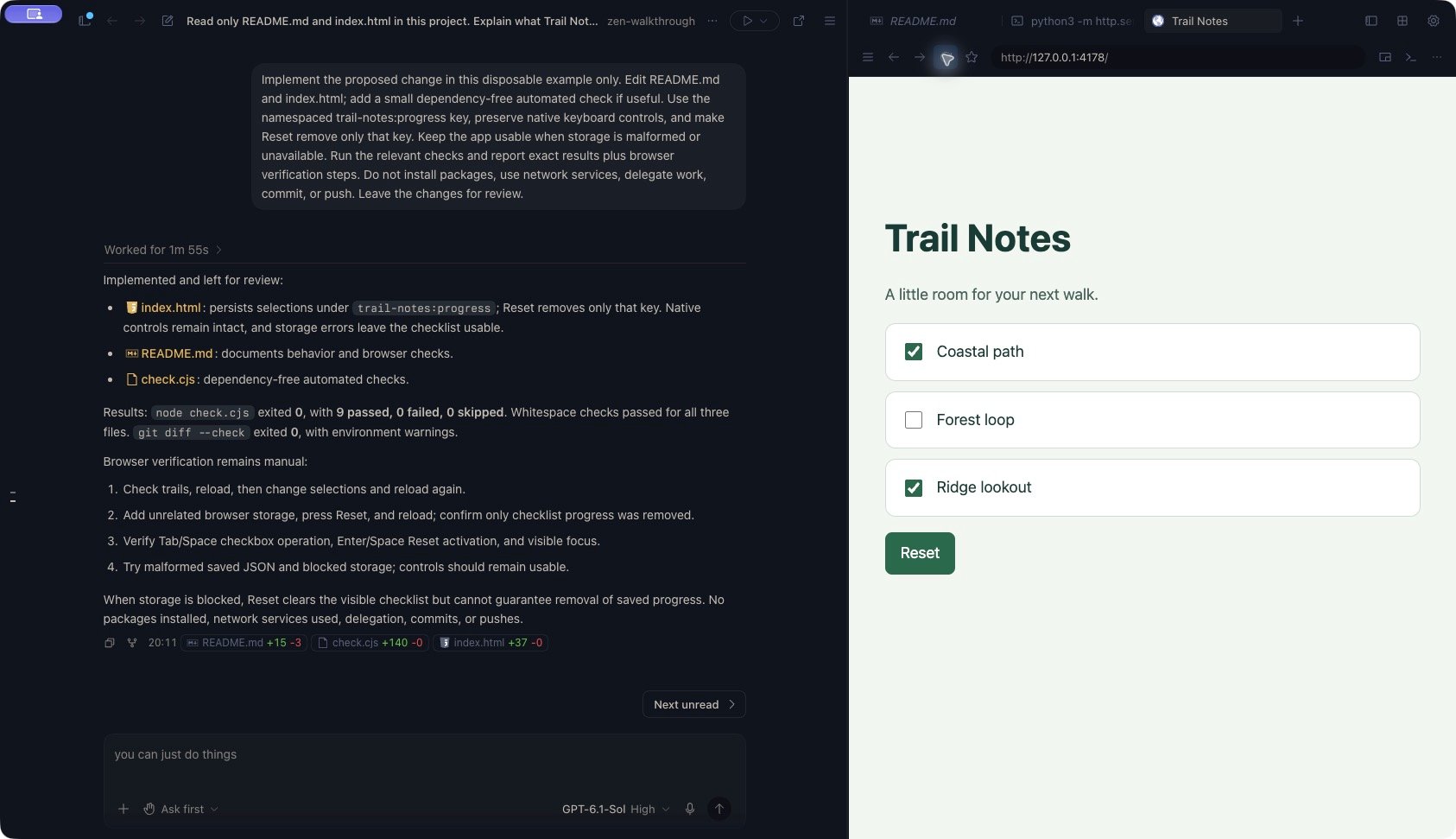 [Follow this workflow in Zen](/zen-mode#implement-and-verify-a-small-change), or explore the [provider integrations](/models/providers#choose-an-integration) and [agent harnesses](/models/overview#harnesses-in-kisuke).
Available models depend on provider access and harness support. A provider connection does not make every model available through every harness.
Choose the right desktop download, then sign in, set up Connect, and connect a provider.
Learn the workspace, bring tools beside your chat, and choose your default layout.
Understand providers, harnesses, model selection, and reasoning controls.
Set up OpenAI, Anthropic, Google, and other integrations offered in Settings.
Choose a device and folder, then inspect the workspace before your first prompt.
Ask for a plan, edit it, and decide when implementation should begin.
## Work through a change in Zen
New to the workspace? [Take a first tour](/zen-mode#take-a-first-tour) to ask about a project and inspect the answer with Files beside the conversation.
Ready to make a change? [Follow the implementation walkthrough](/zen-mode#implement-and-verify-a-small-change) from an agreed plan through tests, a working preview, and a scoped commit.
Keep the conversation and its supporting tools together:
1. [Attach a file or paste reference text](/conversations/attachments) and explain the outcome you want.
2. [Review permissions](/conversations/permissions) and [ask for a plan](/conversations/planning) before implementation.
3. [Read and edit files](/workspace/files), [run commands in Terminal](/workspace/terminal), and [preview a running app in Browser](/workspace/browser).
4. [Inspect Git changes and stage files](/workspace/git). Check the actual result before considering the work finished.
While an agent is working, [queue a next step or steer the current request](/conversations/follow-ups). The selected harness determines how a follow-up can be delivered.
## Return to earlier work
[Find a conversation](/conversations/find-conversations) by project, status, archive view, or device. [Rename and pin chats](/conversations/organize-and-archive) to make them easier to find, or search older archives in Settings.
An offline device or missing working folder can prevent a listed conversation from opening. The history guides explain how to distinguish those conditions from a hidden or archived row.
Away from your computer? [Pair your phone](/workspace/devices#pair-your-phone), keep Connect running on the project computer, and [find the existing chat on your phone](/conversations/find-conversations#find-and-resume-on-your-phone). Continue after checking its latest exchange and project context.
## Customize your setup
* **Project context:** [instruction files](/customization/project-instructions) describe repository conventions; [skills](/customization/skills) package reusable procedures; [custom commands](/customization/commands) save prompts with arguments.
* **Tools and integrations:** configure [MCP servers](/customization/mcp), inspect [plugins](/customization/plugins), or register a [plugin marketplace](/customization/plugin-marketplaces). Availability depends on the harness and runtime state.
* **Your own endpoint:** [add a custom model](/models/custom-models) when you have an OpenAI-compatible service and its model identifier.
Use [Settings and defaults](/reference/settings) to make Zen your launch layout and adjust the composer. The [keyboard reference](/reference/keyboard-shortcuts) covers common workspace actions, and the [glossary](/reference/glossary) explains how models, harnesses, conversations, goals, and tasks fit together.
If your first prompt cannot start, follow [Troubleshoot a first message](/help/starting-a-chat). A visible model selection alone does not confirm that the runtime has accepted it.
This documentation is built and hosted on [Mintlify](https://mintlify.com), a developer documentation platform.
[Follow this workflow in Zen](/zen-mode#implement-and-verify-a-small-change), or explore the [provider integrations](/models/providers#choose-an-integration) and [agent harnesses](/models/overview#harnesses-in-kisuke).
Available models depend on provider access and harness support. A provider connection does not make every model available through every harness.
Choose the right desktop download, then sign in, set up Connect, and connect a provider.
Learn the workspace, bring tools beside your chat, and choose your default layout.
Understand providers, harnesses, model selection, and reasoning controls.
Set up OpenAI, Anthropic, Google, and other integrations offered in Settings.
Choose a device and folder, then inspect the workspace before your first prompt.
Ask for a plan, edit it, and decide when implementation should begin.
## Work through a change in Zen
New to the workspace? [Take a first tour](/zen-mode#take-a-first-tour) to ask about a project and inspect the answer with Files beside the conversation.
Ready to make a change? [Follow the implementation walkthrough](/zen-mode#implement-and-verify-a-small-change) from an agreed plan through tests, a working preview, and a scoped commit.
Keep the conversation and its supporting tools together:
1. [Attach a file or paste reference text](/conversations/attachments) and explain the outcome you want.
2. [Review permissions](/conversations/permissions) and [ask for a plan](/conversations/planning) before implementation.
3. [Read and edit files](/workspace/files), [run commands in Terminal](/workspace/terminal), and [preview a running app in Browser](/workspace/browser).
4. [Inspect Git changes and stage files](/workspace/git). Check the actual result before considering the work finished.
While an agent is working, [queue a next step or steer the current request](/conversations/follow-ups). The selected harness determines how a follow-up can be delivered.
## Return to earlier work
[Find a conversation](/conversations/find-conversations) by project, status, archive view, or device. [Rename and pin chats](/conversations/organize-and-archive) to make them easier to find, or search older archives in Settings.
An offline device or missing working folder can prevent a listed conversation from opening. The history guides explain how to distinguish those conditions from a hidden or archived row.
Away from your computer? [Pair your phone](/workspace/devices#pair-your-phone), keep Connect running on the project computer, and [find the existing chat on your phone](/conversations/find-conversations#find-and-resume-on-your-phone). Continue after checking its latest exchange and project context.
## Customize your setup
* **Project context:** [instruction files](/customization/project-instructions) describe repository conventions; [skills](/customization/skills) package reusable procedures; [custom commands](/customization/commands) save prompts with arguments.
* **Tools and integrations:** configure [MCP servers](/customization/mcp), inspect [plugins](/customization/plugins), or register a [plugin marketplace](/customization/plugin-marketplaces). Availability depends on the harness and runtime state.
* **Your own endpoint:** [add a custom model](/models/custom-models) when you have an OpenAI-compatible service and its model identifier.
Use [Settings and defaults](/reference/settings) to make Zen your launch layout and adjust the composer. The [keyboard reference](/reference/keyboard-shortcuts) covers common workspace actions, and the [glossary](/reference/glossary) explains how models, harnesses, conversations, goals, and tasks fit together.
If your first prompt cannot start, follow [Troubleshoot a first message](/help/starting-a-chat). A visible model selection alone does not confirm that the runtime has accepted it.
This documentation is built and hosted on [Mintlify](https://mintlify.com), a developer documentation platform.