> ## Documentation Index
> Fetch the complete documentation index at: https://docs.kisuke.dev/llms.txt
> Use this file to discover all available pages before exploring further.
# Plan before implementing
> Use Plan mode to review an approach, edit a plan, and decide when implementation should begin.
Use **Plan** when you want the agent to investigate a project and propose an approach before implementing it. The mode is available through the composer when your harness supports it.
Start with a connected project and a working [model and provider](/models/providers#verify-a-complete-response). Plan controls permitted actions; the harness determines whether the result is an ordinary response or a submitted plan with review controls.
## Request a plan
1. Open a conversation in the project you want to investigate.
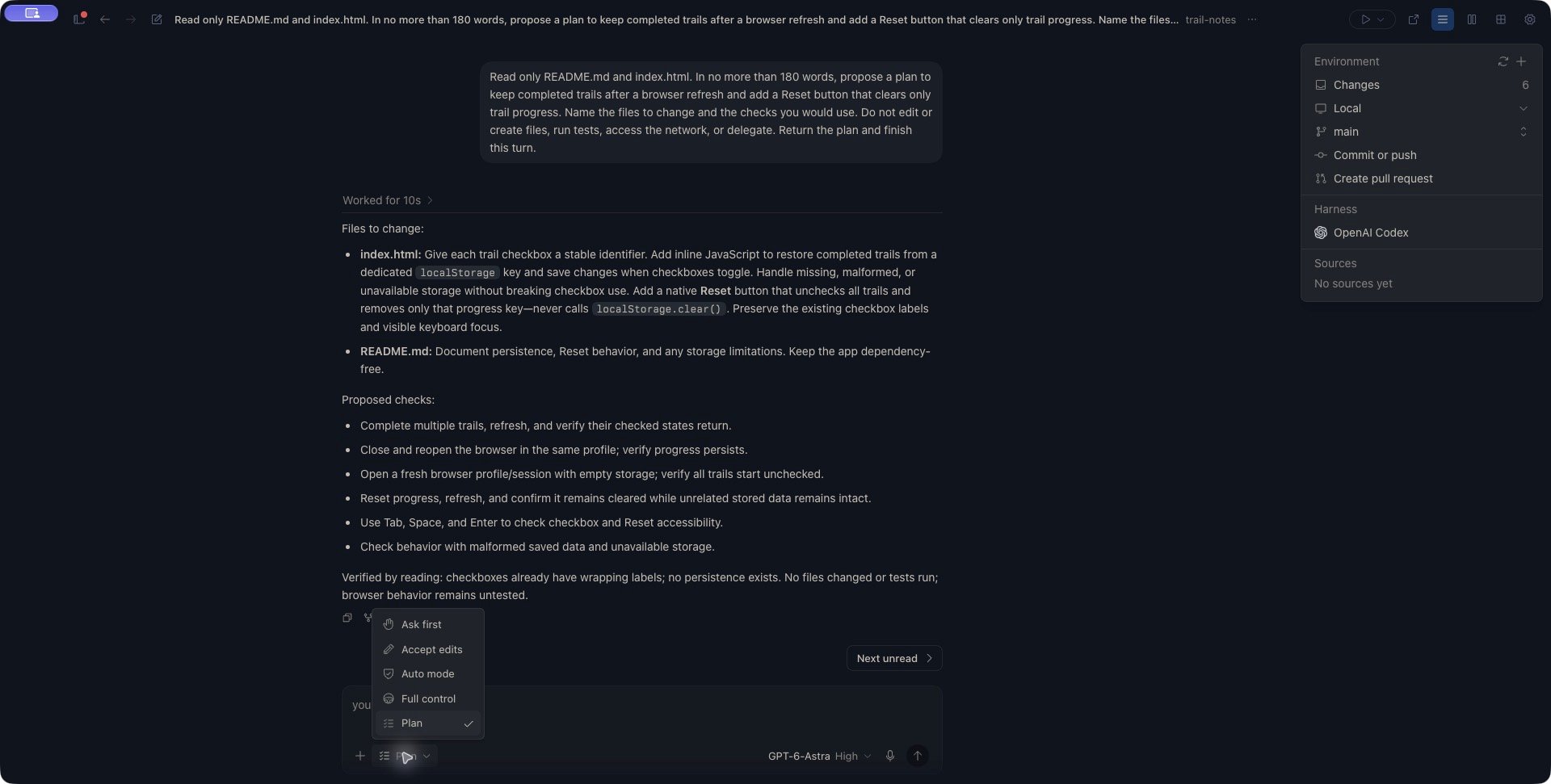
2. Open the permission menu and select **Plan**.
3. Describe the outcome, constraints, and questions the plan should answer.
4. Send the request and review the response. [Answer any questions from the agent](/conversations/answer-questions) before continuing.
For example:
> Read only README.md and index.html. In no more than 180 words, propose a plan to keep completed trails after a browser refresh and add a Reset button that clears only trail progress. Name the files to change and the checks you would use. Do not edit or create files, run tests, access the network, or delegate. Return the plan and finish this turn.
The mode governs permitted actions; your prompt supplies the task. Asking for a plan in ordinary prose does not itself select **Plan** mode. Conversely, choosing the mode does not send a task until you submit a prompt.
Plan mode restricts implementation actions. Some harnesses maintain a plan file, so planning can include writing that artifact.
The [step checklist shown during a response](/conversations/track-progress) is a separate progress display. A checklist does not itself select Plan mode or create a plan-review request.
 ## Check the proposed approach
Before approving work, check that the plan covers:
* The behavior you want and what should stay unchanged.
* The files or parts of the project involved.
* Failure cases, recovery, and any assumptions that need your decision.
* How the agent will verify the result, including the first real user interaction.
Separate findings from proposed checks. In the example above, reading the files established that the checklist lacked persistence. Browser refresh, Reset, and keyboard checks were proposed work; they had not been run.
## Refine a plan written in chat
If the agent returns a normal response, keep **Plan** selected and send a follow-up describing the revision you want. For example:
> Refine the plan without implementing it: add the user-visible behavior when saving progress fails or Reset cannot remove saved progress. Keep the checklist usable. Use only our existing discussion, do not use tools or delegate, and finish in no more than 100 words.
Read the revised response and check that it includes the new constraint. A completed planning response does not automatically change the permission mode or start implementation.
When you are ready to implement a plan that has no review card, select an appropriate [permission mode](/conversations/permissions), such as **Ask first** or **Accept edits**, and send a new request stating which plan to implement and which checks to run. Selecting a mode in an idle conversation stages it for that next send.
## Review a submitted plan
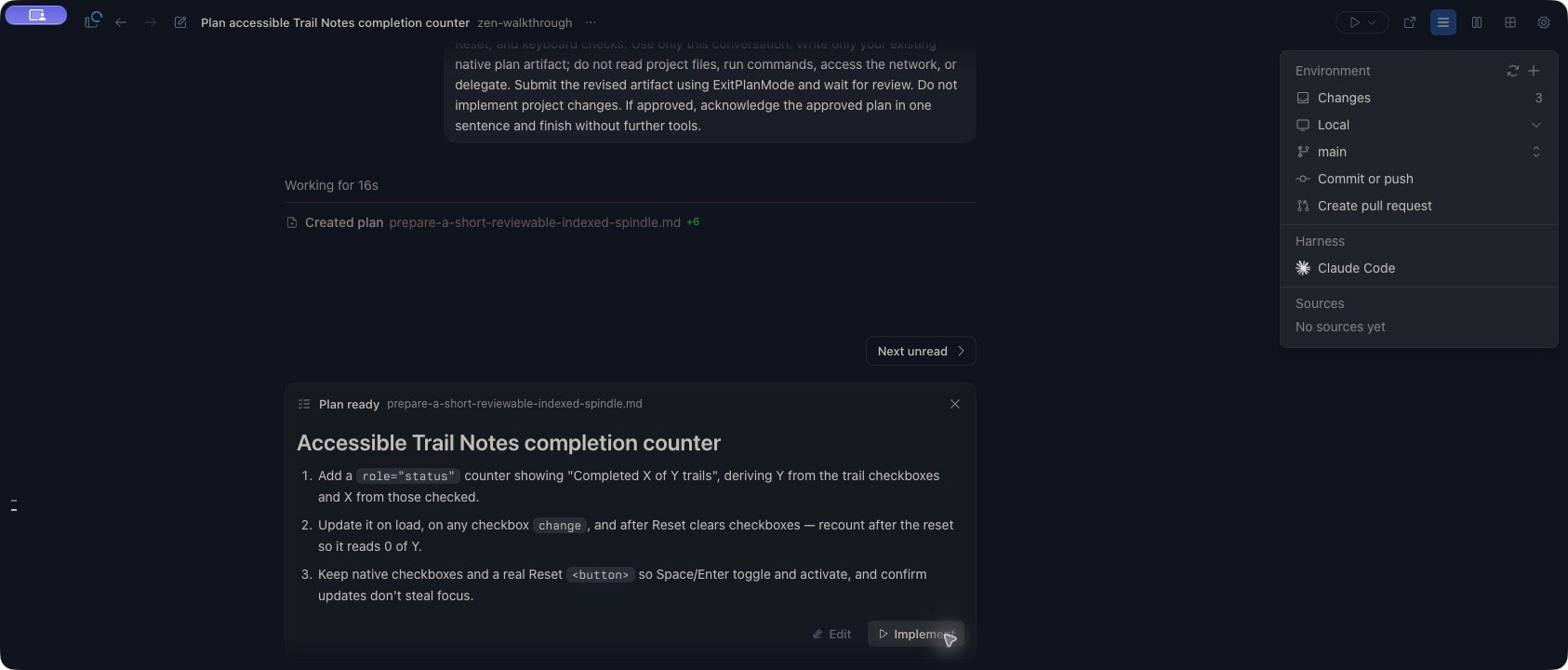
When the harness submits a plan through Kisuke's plan-review workflow, the composer shows **Plan ready** with the proposal and its actions. An ordinary response containing a list of steps does not necessarily create this review card.
Read the proposal for the intended behavior, affected files, testing, and any assumptions you need to resolve.
## Check the proposed approach
Before approving work, check that the plan covers:
* The behavior you want and what should stay unchanged.
* The files or parts of the project involved.
* Failure cases, recovery, and any assumptions that need your decision.
* How the agent will verify the result, including the first real user interaction.
Separate findings from proposed checks. In the example above, reading the files established that the checklist lacked persistence. Browser refresh, Reset, and keyboard checks were proposed work; they had not been run.
## Refine a plan written in chat
If the agent returns a normal response, keep **Plan** selected and send a follow-up describing the revision you want. For example:
> Refine the plan without implementing it: add the user-visible behavior when saving progress fails or Reset cannot remove saved progress. Keep the checklist usable. Use only our existing discussion, do not use tools or delegate, and finish in no more than 100 words.
Read the revised response and check that it includes the new constraint. A completed planning response does not automatically change the permission mode or start implementation.
When you are ready to implement a plan that has no review card, select an appropriate [permission mode](/conversations/permissions), such as **Ask first** or **Accept edits**, and send a new request stating which plan to implement and which checks to run. Selecting a mode in an idle conversation stages it for that next send.
## Review a submitted plan
When the harness submits a plan through Kisuke's plan-review workflow, the composer shows **Plan ready** with the proposal and its actions. An ordinary response containing a list of steps does not necessarily create this review card.
Read the proposal for the intended behavior, affected files, testing, and any assumptions you need to resolve.
 | Action | Result |
| - | - |
| **Edit**, when available on desktop/web | Opens the associated plan file in the full editor. |
| **Implement** | Approves the submitted plan and lets the agent continue. If the conversation is in Plan mode, approval changes it to **Accept edits**. |
| **Dismiss plan** | Rejects the plan review and interrupts the current turn. |
**Implement** authorizes the next work; it is not a confirmation that the implementation has already finished. Other actions can still require approval under [Accept edits](/conversations/permissions).
To request a different approach from a pending review card, use **Dismiss plan**, wait for the current turn to stop, and send a new planning request with your corrections. Dismissal does not undo files the agent already created while preparing the plan.
## Edit before approving
On desktop and web, if the plan has an associated file:
1. Select **Edit** to open it in the [file editor](/workspace/files).
2. Wait for the plan text to load, then make your changes.
3. Save and confirm that saving succeeds before selecting **Implement**.
The button changes to **Editing** while that file tab is active, and the plan preview moves out of the composer. **Editing** does not prove that the file loaded or that changes were saved.
Approval reads the saved plan file; unsaved editor changes are not that saved file.
If the plan file is missing, unreadable, or empty, Kisuke can fall back to the plan submitted with the review request. Do not delete or empty the file as a way to reject the plan. Use **Dismiss plan** to reject it.
### If the plan file will not open
If the editor shows **Could not open** with `resource_context_mismatch`, the file has not loaded. This can occur for a harness-generated plan even while its review card is visible. Do not enter replacement text into the empty editor or assume that **Editing** means your changes will be approved.
Close the failed file tab to return to the proposal in the review card. If you need changes, choose **Dismiss plan**, wait for **Response interrupted**, and send your corrections with **Plan** still selected. Ask the agent to revise and resubmit the plan, then review that new proposal before approving it.
For example:
> Revise the dismissed plan to a title and three short steps. Include updates after Reset and keyboard checks. Update the plan artifact and submit it for review. Do not implement project changes yet.
## Plan and review on mobile
On iOS and Android, open **Chat settings** from the model control. In **Permission**, select **Plan** when supported, then return to the composer and send your planning request. The supported mode controls depend on the harness.
A submitted plan appears as **Plan ready** in the composer. Scroll through the proposal before choosing **Implement**. The **×** control is labelled **Dismiss plan** and rejects the review; it is separate from cancelling edits.
Mobile edits use an inline text field:
1. Check that the plan header shows an associated filename, then choose **Edit**.
2. Make your changes under **Editing plan**.
3. Choose **Save**, then wait until the preview shows your edited text before approving. **Cancel** leaves editing without saving those changes.
The inline editor closes immediately after Save, before a file write necessarily finishes. If the preview stays unchanged, verify the plan file through [Files](/workspace/files) before choosing Implement.
If no filename appears in the mobile plan header, request a revised plan instead of relying on inline edits. Those edits currently update the displayed draft, but approval still uses the plan originally submitted for review.
## Exit without a submitted plan
A harness can request to leave planning without supplying a plan for review. In this case, the composer shows **Exit plan mode?** and **No plan was created**.
* Choose **Keep planning** to decline that exit and remain in the planning workflow.
* Choose **Exit plan mode** to allow the exit. A conversation leaving Plan this way switches to **Ask first**.
This decision does not approve an unseen plan. Review what the agent proposes to do next under the selected permission mode.
## If approval or dismissal does not finish
Check the conversation's connection, current mode, and latest response. A disappearing card is not evidence that implementation finished. Another client may also have resolved the review, so inspect the current state before trying the action again.
If the request returns after reconnecting, reread the proposal and verify any saved edits. Do not assume an unsaved editor draft, pending review, or native approval request survived an app or daemon restart.
## If the expected controls are missing
Check that the selected harness offers **Plan**. On desktop and web, **Edit** also requires an associated plan file. If you received only a normal response describing an approach, follow [Refine a plan written in chat](#refine-a-plan-written-in-chat); you may not have a pending plan-review request.
For a mode change that reports it needs a fresh session, start a new conversation using the desired mode. See [Permissions](/conversations/permissions#when-a-change-is-rejected) for other mode-change errors.
This documentation is built and hosted on [Mintlify](https://mintlify.com), a developer documentation platform.
| Action | Result |
| - | - |
| **Edit**, when available on desktop/web | Opens the associated plan file in the full editor. |
| **Implement** | Approves the submitted plan and lets the agent continue. If the conversation is in Plan mode, approval changes it to **Accept edits**. |
| **Dismiss plan** | Rejects the plan review and interrupts the current turn. |
**Implement** authorizes the next work; it is not a confirmation that the implementation has already finished. Other actions can still require approval under [Accept edits](/conversations/permissions).
To request a different approach from a pending review card, use **Dismiss plan**, wait for the current turn to stop, and send a new planning request with your corrections. Dismissal does not undo files the agent already created while preparing the plan.
## Edit before approving
On desktop and web, if the plan has an associated file:
1. Select **Edit** to open it in the [file editor](/workspace/files).
2. Wait for the plan text to load, then make your changes.
3. Save and confirm that saving succeeds before selecting **Implement**.
The button changes to **Editing** while that file tab is active, and the plan preview moves out of the composer. **Editing** does not prove that the file loaded or that changes were saved.
Approval reads the saved plan file; unsaved editor changes are not that saved file.
If the plan file is missing, unreadable, or empty, Kisuke can fall back to the plan submitted with the review request. Do not delete or empty the file as a way to reject the plan. Use **Dismiss plan** to reject it.
### If the plan file will not open
If the editor shows **Could not open** with `resource_context_mismatch`, the file has not loaded. This can occur for a harness-generated plan even while its review card is visible. Do not enter replacement text into the empty editor or assume that **Editing** means your changes will be approved.
Close the failed file tab to return to the proposal in the review card. If you need changes, choose **Dismiss plan**, wait for **Response interrupted**, and send your corrections with **Plan** still selected. Ask the agent to revise and resubmit the plan, then review that new proposal before approving it.
For example:
> Revise the dismissed plan to a title and three short steps. Include updates after Reset and keyboard checks. Update the plan artifact and submit it for review. Do not implement project changes yet.
## Plan and review on mobile
On iOS and Android, open **Chat settings** from the model control. In **Permission**, select **Plan** when supported, then return to the composer and send your planning request. The supported mode controls depend on the harness.
A submitted plan appears as **Plan ready** in the composer. Scroll through the proposal before choosing **Implement**. The **×** control is labelled **Dismiss plan** and rejects the review; it is separate from cancelling edits.
Mobile edits use an inline text field:
1. Check that the plan header shows an associated filename, then choose **Edit**.
2. Make your changes under **Editing plan**.
3. Choose **Save**, then wait until the preview shows your edited text before approving. **Cancel** leaves editing without saving those changes.
The inline editor closes immediately after Save, before a file write necessarily finishes. If the preview stays unchanged, verify the plan file through [Files](/workspace/files) before choosing Implement.
If no filename appears in the mobile plan header, request a revised plan instead of relying on inline edits. Those edits currently update the displayed draft, but approval still uses the plan originally submitted for review.
## Exit without a submitted plan
A harness can request to leave planning without supplying a plan for review. In this case, the composer shows **Exit plan mode?** and **No plan was created**.
* Choose **Keep planning** to decline that exit and remain in the planning workflow.
* Choose **Exit plan mode** to allow the exit. A conversation leaving Plan this way switches to **Ask first**.
This decision does not approve an unseen plan. Review what the agent proposes to do next under the selected permission mode.
## If approval or dismissal does not finish
Check the conversation's connection, current mode, and latest response. A disappearing card is not evidence that implementation finished. Another client may also have resolved the review, so inspect the current state before trying the action again.
If the request returns after reconnecting, reread the proposal and verify any saved edits. Do not assume an unsaved editor draft, pending review, or native approval request survived an app or daemon restart.
## If the expected controls are missing
Check that the selected harness offers **Plan**. On desktop and web, **Edit** also requires an associated plan file. If you received only a normal response describing an approach, follow [Refine a plan written in chat](#refine-a-plan-written-in-chat); you may not have a pending plan-review request.
For a mode change that reports it needs a fresh session, start a new conversation using the desired mode. See [Permissions](/conversations/permissions#when-a-change-is-rejected) for other mode-change errors.
This documentation is built and hosted on [Mintlify](https://mintlify.com), a developer documentation platform.