> ## Documentation Index
> Fetch the complete documentation index at: https://docs.kisuke.dev/llms.txt
> Use this file to discover all available pages before exploring further.
# Permissions
> Review agent actions, choose an approval mode, and manage saved permission rules for a project or computer.
Permissions control how the agent handles actions such as editing a file or running a command. Choose the mode in the composer before sending a request. The available modes depend on your harness.
 ## Choose a mode
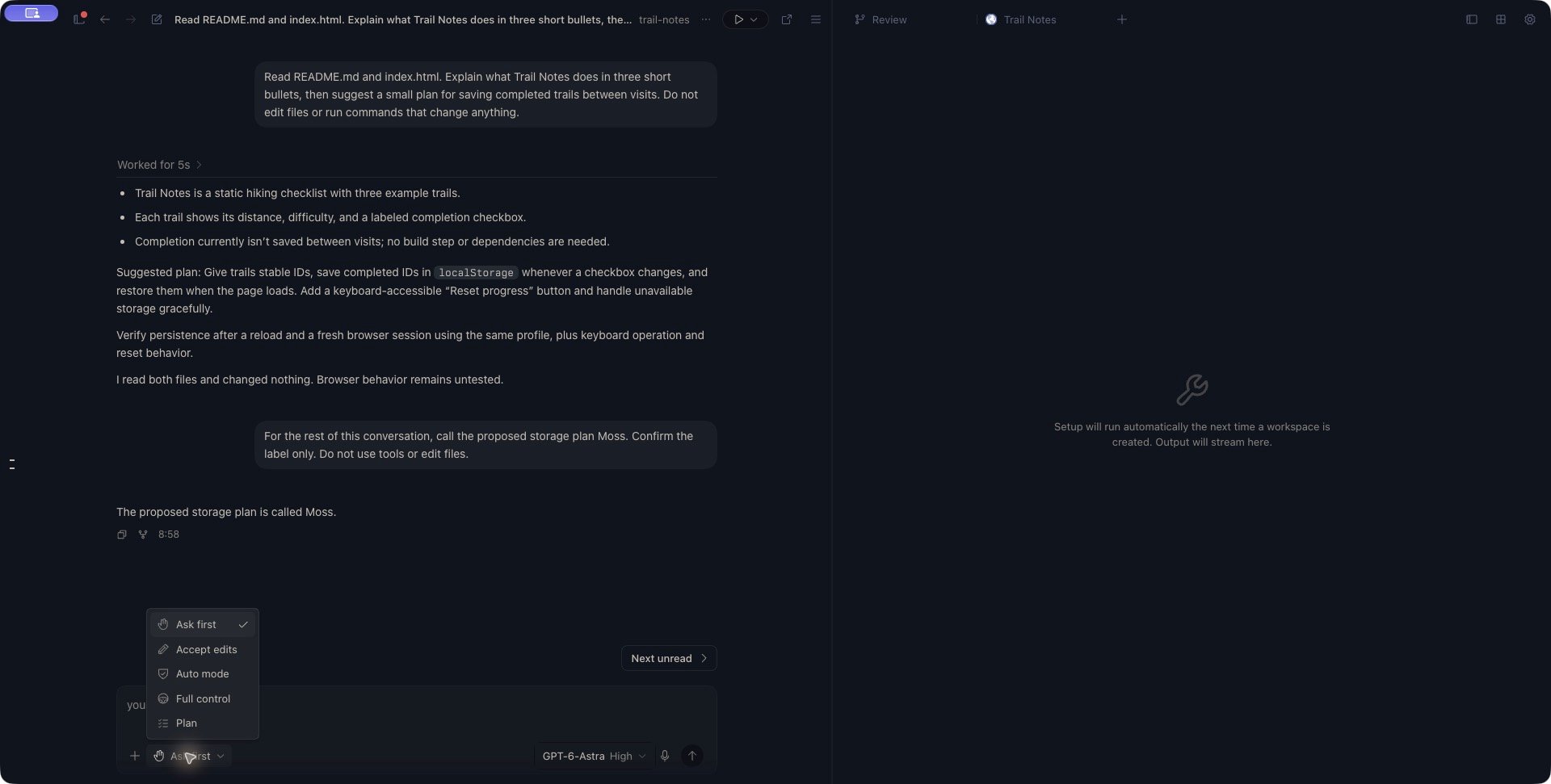
Open the permission button beside the model control in the composer, then select a mode.
| Mode | How it handles actions |
| - | - |
| **Ask first** | Asks about actions that have not already been allowed or denied by policy. Reading and workflow bookkeeping do not each require a prompt. |
| **Accept edits** | Allows recognized workspace edit actions. Other unresolved actions still require approval. |
| **Auto mode** | Uses the harness's automatic reviewer. It can still ask you when that reviewer defers a decision. This option is available only with a supporting harness. |
| **Full control** | Allows actions without the usual approval prompts, subject to hard boundaries and applicable rules. Questions requiring your input can still appear. |
| **Plan** | Restricts the agent to planning instead of implementing changes. A harness may write its own plan artifact as part of this workflow. |
For an unfamiliar project, **Ask first** lets you review proposed actions. For a change you have scoped and are ready to implement, **Accept edits** lets the agent edit while still asking about other unresolved actions. Use [Plan](/conversations/planning) when you want to review the approach first.
Modes work alongside permission rules and the harness's own enforcement. **Full control** does not override every denial, and **Accept edits** does not mean every shell command that edits a file is automatically allowed.
## Respond to an approval request
When an action needs your decision, an approval panel appears in the conversation's composer area.
1. Read the tool name, target path, and command or content preview. Confirm that the action belongs to the project and task you intended.
2. Choose **Allow once** to approve this request, or **Deny** to reject it. If you want to explain your decision, enter feedback before choosing the button.
3. Wait for the request to leave the panel, then check the agent's next action or response. An approval permits an attempt; it does not prove that the command or edit succeeded.
The preview can be incomplete. Write and Edit previews show at most the first 500 characters of the proposed content, and mobile can shorten other tool previews too. Use the [files and editor](/workspace/files) to inspect the relevant file when you need more context. A preview is not a complete before-and-after diff.
**Deny** rejects the requested action; it does not necessarily stop the whole turn. The agent may respond or try another approach. Use [Stop](/conversations/stop-and-continue) when you want to interrupt the turn.
Feedback delivery depends on the harness. For a change of direction you need the agent to address, send an ordinary follow-up after the approval is resolved instead of relying only on the feedback field.
### Use the approval keyboard controls
On desktop and web, **Allow once** receives focus when a new request appears. Use **Tab** to choose another control. The action buttons also support **Up**, **Down**, **Home**, and **End** navigation.
**Cmd/Ctrl+Enter** approves the pending request. Plain **Enter** can also approve it, including when pressed in the approval feedback field. Review the request before pressing Enter; the feedback field is not a multiline composer. On mobile, keyboard **Done** closes the keyboard; tap an approval button to submit your decision.
## Understand Always allow
**Always allow**, when offered, approves the current request and creates a reusable grant. It can also release other matching requests already waiting in the same conversation.
The grant may cover more than the displayed action. If the harness supplies no rule suggestion, Kisuke's fallback for a Bash command uses its first word. For example, approving `npm test` this way can also allow other `npm` commands. For an Edit request, the fallback covers the Edit tool, not only the displayed file.
Choose **Allow once** when you intend to approve just this request. Use [saved rules](#manage-saved-rules) when you want to specify the rule and its destination yourself.
Do not assume the same lifetime across harnesses. Kisuke keeps a grant for the active agent session. OpenAI Codex approvals can also receive a native session grant; ACP agents receive their own always-allow option when available. Claude Code receives permission updates that may save a rule to a settings file.
Closing a panel or deleting a saved rule does not revoke an existing session grant. To check changed saved rules, start a new conversation and use **Ask first**. Inspect the saved rule list as well; a persistent rule can apply again in the new conversation.
## Manage saved rules
Open a conversation in the project you want to configure, then open **Settings → Permissions**. On mobile, **Permissions** is under **Customization** in Settings and requires an active chat. Keep the project's computer connected: these rules are read and saved there, even when you manage them from another client.
The **Allow**, **Ask**, and **Deny** tabs group rules by their requested behavior. For a request evaluated by Kisuke's shared approval flow, a matching **Deny** rule takes precedence over **Ask**, then **Allow**. A rule's save destination does not reverse that order. Mode restrictions and harness enforcement also apply.
Native automatic modes may handle an action without invoking the shared approval prompt. Use **Ask first** when you want to review unresolved actions; an **Ask** entry alone is not a guarantee that every harness and mode will show a prompt.
### Add a rule
1. Select **Allow**, **Ask**, or **Deny**.
2. On desktop or web, choose **Add Rule**, enter the rule, then choose **Add rule**. On mobile, tap **Add a new rule...**, enter the rule, then tap **Next**.
3. Choose the destination below. On desktop and web, choosing the destination submits the rule immediately. On mobile, select the destination and tap **Save**.
4. Confirm that the rule appears in the intended tab with the expected source badge. The form closing is not confirmation that the save succeeded.
| Destination | Where it applies |
| - | - |
| **Project settings (local)** | This project folder on the executing computer. Saved in
## Choose a mode
Open the permission button beside the model control in the composer, then select a mode.
| Mode | How it handles actions |
| - | - |
| **Ask first** | Asks about actions that have not already been allowed or denied by policy. Reading and workflow bookkeeping do not each require a prompt. |
| **Accept edits** | Allows recognized workspace edit actions. Other unresolved actions still require approval. |
| **Auto mode** | Uses the harness's automatic reviewer. It can still ask you when that reviewer defers a decision. This option is available only with a supporting harness. |
| **Full control** | Allows actions without the usual approval prompts, subject to hard boundaries and applicable rules. Questions requiring your input can still appear. |
| **Plan** | Restricts the agent to planning instead of implementing changes. A harness may write its own plan artifact as part of this workflow. |
For an unfamiliar project, **Ask first** lets you review proposed actions. For a change you have scoped and are ready to implement, **Accept edits** lets the agent edit while still asking about other unresolved actions. Use [Plan](/conversations/planning) when you want to review the approach first.
Modes work alongside permission rules and the harness's own enforcement. **Full control** does not override every denial, and **Accept edits** does not mean every shell command that edits a file is automatically allowed.
## Respond to an approval request
When an action needs your decision, an approval panel appears in the conversation's composer area.
1. Read the tool name, target path, and command or content preview. Confirm that the action belongs to the project and task you intended.
2. Choose **Allow once** to approve this request, or **Deny** to reject it. If you want to explain your decision, enter feedback before choosing the button.
3. Wait for the request to leave the panel, then check the agent's next action or response. An approval permits an attempt; it does not prove that the command or edit succeeded.
The preview can be incomplete. Write and Edit previews show at most the first 500 characters of the proposed content, and mobile can shorten other tool previews too. Use the [files and editor](/workspace/files) to inspect the relevant file when you need more context. A preview is not a complete before-and-after diff.
**Deny** rejects the requested action; it does not necessarily stop the whole turn. The agent may respond or try another approach. Use [Stop](/conversations/stop-and-continue) when you want to interrupt the turn.
Feedback delivery depends on the harness. For a change of direction you need the agent to address, send an ordinary follow-up after the approval is resolved instead of relying only on the feedback field.
### Use the approval keyboard controls
On desktop and web, **Allow once** receives focus when a new request appears. Use **Tab** to choose another control. The action buttons also support **Up**, **Down**, **Home**, and **End** navigation.
**Cmd/Ctrl+Enter** approves the pending request. Plain **Enter** can also approve it, including when pressed in the approval feedback field. Review the request before pressing Enter; the feedback field is not a multiline composer. On mobile, keyboard **Done** closes the keyboard; tap an approval button to submit your decision.
## Understand Always allow
**Always allow**, when offered, approves the current request and creates a reusable grant. It can also release other matching requests already waiting in the same conversation.
The grant may cover more than the displayed action. If the harness supplies no rule suggestion, Kisuke's fallback for a Bash command uses its first word. For example, approving `npm test` this way can also allow other `npm` commands. For an Edit request, the fallback covers the Edit tool, not only the displayed file.
Choose **Allow once** when you intend to approve just this request. Use [saved rules](#manage-saved-rules) when you want to specify the rule and its destination yourself.
Do not assume the same lifetime across harnesses. Kisuke keeps a grant for the active agent session. OpenAI Codex approvals can also receive a native session grant; ACP agents receive their own always-allow option when available. Claude Code receives permission updates that may save a rule to a settings file.
Closing a panel or deleting a saved rule does not revoke an existing session grant. To check changed saved rules, start a new conversation and use **Ask first**. Inspect the saved rule list as well; a persistent rule can apply again in the new conversation.
## Manage saved rules
Open a conversation in the project you want to configure, then open **Settings → Permissions**. On mobile, **Permissions** is under **Customization** in Settings and requires an active chat. Keep the project's computer connected: these rules are read and saved there, even when you manage them from another client.
The **Allow**, **Ask**, and **Deny** tabs group rules by their requested behavior. For a request evaluated by Kisuke's shared approval flow, a matching **Deny** rule takes precedence over **Ask**, then **Allow**. A rule's save destination does not reverse that order. Mode restrictions and harness enforcement also apply.
Native automatic modes may handle an action without invoking the shared approval prompt. Use **Ask first** when you want to review unresolved actions; an **Ask** entry alone is not a guarantee that every harness and mode will show a prompt.
### Add a rule
1. Select **Allow**, **Ask**, or **Deny**.
2. On desktop or web, choose **Add Rule**, enter the rule, then choose **Add rule**. On mobile, tap **Add a new rule...**, enter the rule, then tap **Next**.
3. Choose the destination below. On desktop and web, choosing the destination submits the rule immediately. On mobile, select the destination and tap **Save**.
4. Confirm that the rule appears in the intended tab with the expected source badge. The form closing is not confirmation that the save succeeded.
| Destination | Where it applies |
| - | - |
| **Project settings (local)** | This project folder on the executing computer. Saved in .kisuke/permissions.local.json |
| **Project settings** | This project folder. Saved in .kisuke/permissions.json, which you can review and commit with the project. |
| **User settings** | Projects run by the same operating-system user on that computer. Saved in \~/.kisuke/permissions.json |
Saving a project rule does not commit it to Git. The local destination is a separate file; check your repository's ignore rules before assuming it cannot be committed.
### Write a rule that matches what you intend
Kisuke's shared matcher uses tool names and optional text in parentheses. These examples describe matching, regardless of which behavior tab you choose:
| Rule | What it matches |
| - | - |
| `Bash(npm test)` | The Bash command `npm test`, after trimming surrounding whitespace. |
| `Bash(npm test:*)` | That command, or a command beginning with `npm test` followed by a space. |
| `Edit` | Any request evaluated as the Edit tool, without a file restriction. |
The `:*` suffix is a text-prefix match, not a shell parser. `Bash(npm test:*)` also matches `npm test && another-command`. A `*` inside a path is not a general file glob in Kisuke's shared matcher. Do not copy a native harness's rule syntax and assume it has identical meaning here.
### Remove a saved rule
Select the rule in its **Allow**, **Ask**, or **Deny** tab, review its source, and choose **Delete**. Confirm that it disappears from the refreshed list. To change a rule, remove the old one and add its replacement.
Rules marked **imported** come from Claude settings and are read-only in this panel. Kisuke reads project `.claude/settings.json`, project `.claude/settings.local.json`, and the executing user's `~/.claude/settings.json`. Change an imported rule in its original configuration. The imported badge does not by itself mean an administrator created it.
Reopen Permissions from the same project's conversation and check that its computer is online. On mobile, you can also use the rule list's refresh control. Confirm the source badge: the same rule can exist in more than one destination, including an imported file.
Avoid submitting repeated copies while disconnected. If the list still disagrees with the intended change, inspect the corresponding file on the executing computer and report the rule, source, and any displayed error.
Check all three tabs for overlapping rules, the current permission mode, and the rule's exact tool name and text. The form's conflict hint is not a complete policy check. A native harness can have additional policy, and an existing session may retain an earlier **Always allow** grant.
Test the revised configuration in a new conversation with a harmless action and **Ask first**. Observe the actual approval and result; a saved list entry alone does not prove how every harness will enforce it.
## Change permissions during work
In the desktop composer, you can choose another mode while a turn is running or waiting for tool approval. Kisuke asks the running harness to apply that change. Pending requests are then reconsidered under the accepted mode: a request the mode allows can proceed, while one that still needs your decision remains pending.
Changing the mode can therefore release a waiting action. Read the request before choosing a more permissive mode.
When the conversation is idle, the selection is staged for your next send. [Model and reasoning changes](/models/overview#change-a-selection-before-sending) are also staged for the next prompt; selecting a new model does not replace the model midway through an active turn.
## When a change is rejected
| Message | What to do |
| - | - |
| **This mode needs a fresh session for the running harness.** | Start a new conversation with the desired mode. |
| **The chat settings changed elsewhere.** | Review the current selection, then choose the mode again. |
| **That permission mode is not available for this harness.** | Choose one of the modes offered by the current harness. |
Treat a rejected change as unapplied. A selected label alone does not establish that the running harness accepted it.
For failures before a conversation starts, see [Troubleshoot a first message](/help/starting-a-chat).
This documentation is built and hosted on [Mintlify](https://mintlify.com), a developer documentation platform.