> ## Documentation Index
> Fetch the complete documentation index at: https://docs.kisuke.dev/llms.txt
> Use this file to discover all available pages before exploring further.
# Organize and archive chats
> Rename and pin conversations, archive them without stopping work, and restore older chats from Settings.
Use the desktop Zen sidebar to give conversations recognizable names, keep frequently used chats close, and hide work you do not need in the everyday list.
## Rename a chat
1. Right-click its sidebar row and choose **Rename chat**.
2. Enter the new title.
3. Press **Enter** to submit it, or **Escape** to cancel. Leaving the field also submits a nonempty title.
An empty title leaves the previous title unchanged. Renaming changes the conversation's title; it does not rename its project folder or Git branch.
Check the title after reopening the conversation. A live row can update before the daemon has saved the rename, so an immediate visual change alone is not confirmation that it persisted. External harness title updates can also fail independently of Kisuke's saved title.
## Pin a chat
Right-click a row and choose **Pin chat**. Use **Unpin chat** to undo it. Pins help keep ordinary conversations in the sidebar's pinned section.
Chat pins are sidebar preferences. They do not keep a runtime running or make an offline conversation available. Archive and visibility filters still apply to pinned chats.
## Archive a chat
Right-click the row and choose **Archive chat**. Archiving changes whether the conversation appears in archive-filtered lists. It does not delete the transcript, delete project files, or stop a running agent.
With the default archive filter, the row leaves the visible list after the archive change is confirmed. If it was the selected conversation, Kisuke can move to another eligible chat in that sidebar group or to a new-chat draft. With **Include Archived**, the archived chat can remain visible.
A conversation needs a saved session before it can be archived. If Kisuke reports **This chat does not have a saved session yet.**, the archive action did not establish a saved archived conversation.
## Unarchive from the sidebar
1. Open **Organize & sort → Unread, Archived**.
2. Choose **Only Archived** or **Include Archived**. Enable all status categories if you are unsure of the chat's state.
3. Right-click the archived row and choose **Unarchive chat**.
4. Return the archive filter to **Off** when you want the usual unarchived list.
Unarchiving restores visibility. It does not recreate a missing project folder or reconnect an offline device. See [Find a conversation](/conversations/find-conversations) if the restored row remains unavailable.
## Search older archives in Settings
The sidebar shows a limited window of conversation entries. Use **Settings → Archived** to search the saved archive beyond that window.
1. Enter a title fragment or part of a project path in **Search archived chats**, then press **Enter**. Typing alone does not apply the search.
2. Narrow the results with **All projects** or **All devices**, if needed.
3. Choose **Recently archived**, **Created**, **Updated**, or **Name** from the sort control.
4. Use **Show more** under a device's results when more entries are available.
5. Choose **Restore** beside the intended chat.
Search matches saved titles and project paths, not the full transcript. Results are grouped by device and project. **Restore** removes the archive flag and refreshes that device's archive list; it does not automatically open the chat. Return to the sidebar to select it.
Expand **Offline Devices** to see devices whose archives cannot currently be loaded. Connect the owning device before searching its archive. **All devices** does not provide an offline copy of every device's archived history.
## Reopen a restored chat
After choosing **Restore** in Settings:
1. Wait for the archive results to refresh. The restored chat should leave those results; Settings stays open.
2. Choose **Back to app**, expand the chat's project in the sidebar, and select its title. If it is still hidden, [check the sidebar filters](/conversations/find-conversations#check-status-filters).
3. Wait for the transcript, then confirm the title, project, and latest exchange. Restoring a chat does not submit a new message or resolve a pending question or approval.
4. Review the model and permission setting before sending a follow-up. If work is already running, [queue or steer the next step](/conversations/follow-ups) instead of repeating the original request.
In the example below, **Trail Notes — Keyboard Reset** was renamed, archived, found by the title fragment `keyboard reset`, and restored. Reopening it retained the saved title and earlier proposal. A new request to summarize that proposal completed in the same Pi conversation without tool calls or project changes.
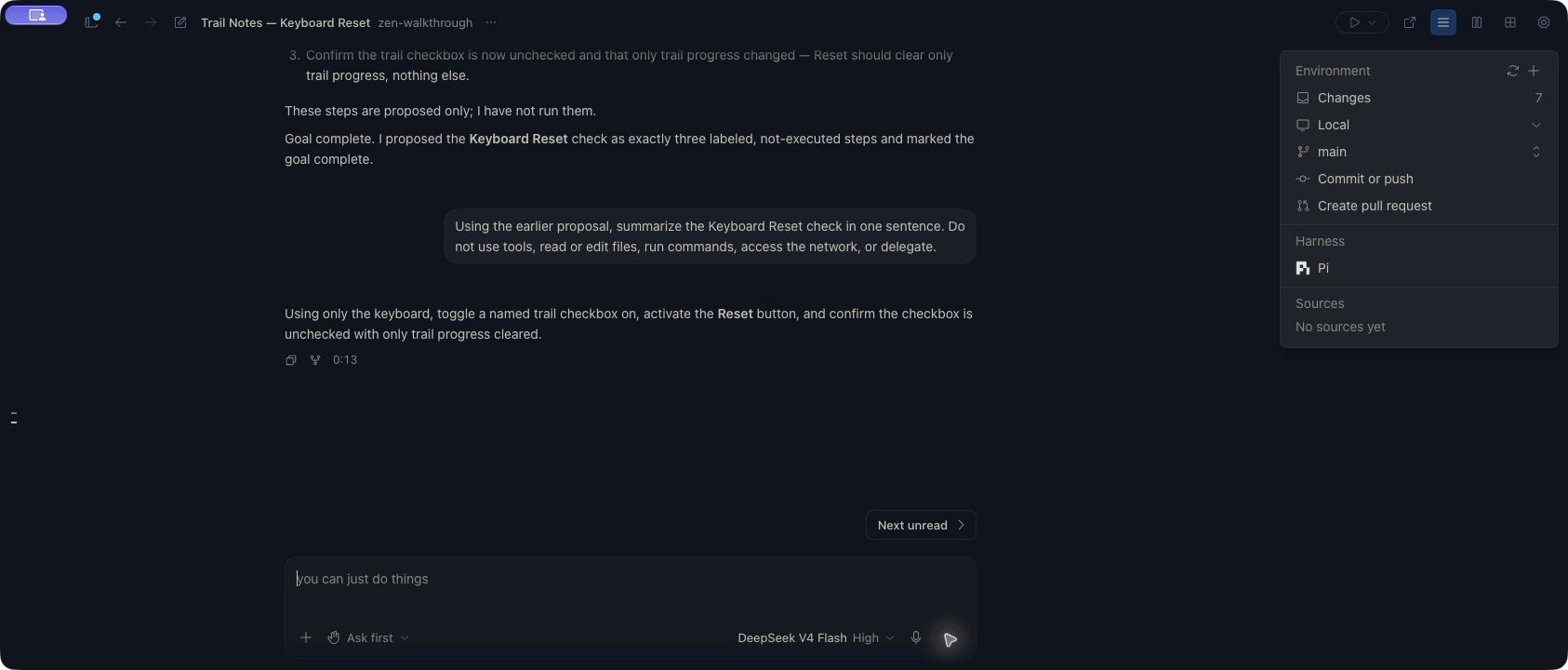 If the archive row disappears but you cannot reopen the chat, check its owning computer and working folder. Restored archive metadata and an available workspace are separate requirements.
## If an archive action fails
| Message or result | What to do |
| - | - |
| **Could not confirm the archive change. Reconnect and try again.** | Reconnect, then inspect the archive list before repeating the action. The outcome may be unknown; a missing acknowledgement does not prove the write failed. |
| **Archive state saved, but the next chat could not be opened. Select another chat or reconnect.** | The archive change was saved. Select another conversation or reconnect; do not reverse the archive just to repair navigation. |
| **No matching archived chats.** | Clear the search and submit it again, check project/device filters, and verify that the owning device is connected. |
| **Archived chats changed while loading. Please refresh.** | Choose Refresh or Try again in that device's section. |
| A restored chat is dimmed | Check its device connection and original working folder. Restoring archive metadata does not repair either resource. |
Use each device section's **Refresh** control to reload its results. Treat **Loading archived chats…**, an error, and **No archived chats.** as different states.
This documentation is built and hosted on [Mintlify](https://mintlify.com), a developer documentation platform.
If the archive row disappears but you cannot reopen the chat, check its owning computer and working folder. Restored archive metadata and an available workspace are separate requirements.
## If an archive action fails
| Message or result | What to do |
| - | - |
| **Could not confirm the archive change. Reconnect and try again.** | Reconnect, then inspect the archive list before repeating the action. The outcome may be unknown; a missing acknowledgement does not prove the write failed. |
| **Archive state saved, but the next chat could not be opened. Select another chat or reconnect.** | The archive change was saved. Select another conversation or reconnect; do not reverse the archive just to repair navigation. |
| **No matching archived chats.** | Clear the search and submit it again, check project/device filters, and verify that the owning device is connected. |
| **Archived chats changed while loading. Please refresh.** | Choose Refresh or Try again in that device's section. |
| A restored chat is dimmed | Check its device connection and original working folder. Restoring archive metadata does not repair either resource. |
Use each device section's **Refresh** control to reload its results. Treat **Loading archived chats…**, an error, and **No archived chats.** as different states.
This documentation is built and hosted on [Mintlify](https://mintlify.com), a developer documentation platform.